Monday, December 7, 2020

How COVID-19 Changed the Way We Think About Office Technology [New Research]

The recent COVID-19 pandemic has changed how we think about a lot of things.

From the size of our weddings and special events to the comfort level of our pajamas and stay-at-home clothes, we’ve reconsidered the size, shape, and necessity of many, many elements in our lives.

Work is one of these elements, if not the main one. We’ve asked ourselves (and our employers) questions like:

  • “Can I get as much done at home as I would in the office?”
  • “How do I stay connected to my team if we’re all remote?”, and
  • “Is it really necessary to have as many meetings as I did before?”

While we’ve all found different answers to these questions, one thing is consistent: COVID-19 has forced us to learn how to stay connected, motivated, and productive in new ways.

Canva + HubSpot Marketing Survey

In October, we teamed up with Canva to better understand how the COVID-19 pandemic has affected marketing leaders, their resources, and their teams. We surveyed 502 marketing leaders (mostly senior-level marketing managers, directors, VPs, and CMOs) from across the United States and asked them how COVID-19 has affected their teams, processes, and priorities.

The results are in, and our findings are pointing towards a new way of thinking about work — especially the tools and technologies we use to get stuff done.

Download the research here, and keep reading to unpack some of our most important findings.

How COVID-19 Changed the Way We Think and Use Office Technology

It’s no surprise that the COVID-19 pandemic has massively impacted where we now work. Out of 500+ marketing leaders, 73% reported that they’ve been working remotely for over three months.

This will likely be the “new normal” for some. A recent Gartner poll revealed that 48% of employees will likely work remotely at least part of the time after COVID-19, versus 30% doing so before the pandemic.
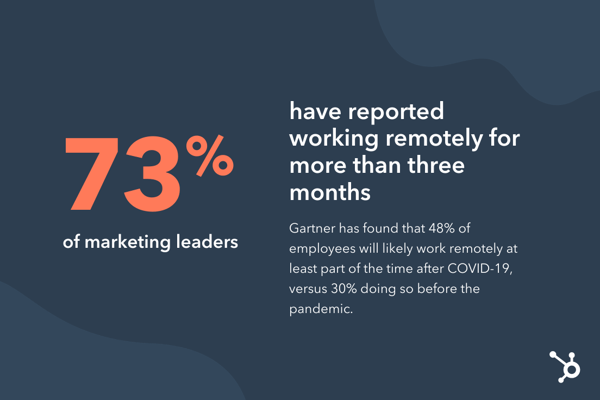
hubspot marketing study remote work statistic

But COVID-19 hasn’t just affected where we work — it has also changed how we work. Many of the respondents reported new challenges in their day-to-day projects and processes:

    • Decision-making: Over 50% agreed that their team’s ability to make decisions has been negatively impacted.
  • Planning: 72% agreed that their planning process has been more difficult, and over 70% have seen their planning framework dramatically change with the impact of COVID.
  • Feedback: Over 70% agreed that it’s become more difficult to give and receive effective feedback while working remotely.
  • Productivity: Over 66% agreed that their team’s productivity has dropped, and nearly 50% said they’ve struggled to motivate their teams.

If you resonate with these findings, you’re not alone. It’s clear the COVID-19 has been tough all around, regardless of your team size or industry. Let’s unpack some more detailed trends — and potentially permanent changes — we’re seeing as a result of the COVID-19 pandemic.

Some organizations are outsourcing more marketing projects.

Gartner found that the COVID-19 pandemic has led 32% of organizations to replace full-time employees with contingent workers and contractors.

We see some of this reflected in our survey respondents’ post-pandemic resource planning:

Resource Pre-Pandemic Post-Pandemic
Growth marketing Majority in-house (64%) Shift to more in-house (68%)
Design Majority outsourced (48%) Small shift to even more outsourced
Content marketing Majority in-house (48%) Evened out
Web development Majority outsourced (50%) Shift to more in-house
Social media marketing Majority in-house (50%) Shift to more outsourced
Media buying Majority in-house (51%) No change
Affiliate marketing Majority in-house (55%) Shift to more in-house (58%)
SEO Majority in-house (55%) Shift to more outsourced
PR Majority in-house (55%) No change

Why might this be? For one, outsourcing is a common cost-saving measure. It can also help meet demand.

50% of respondents reported that it’s been more difficult for their teams to come up with creative content — perhaps outsourcing projects like content marketing and design has helped teams maintain their production cadence during times of stress and burnout (which we’ll explain below).

However, hiring contractors and external agency services requires increased communication and collaboration.

Gone are the days when we could walk across the hall for a chat at a coworker’s desk or host in-person meetings with agencies. During the pandemic, we’ve learned to replace these conversations with quick messages or video calls — most likely using a tool like Slack or Zoom.

Our respondents would agree. 75% reported that instant messaging platforms like Slack were “good” and “exceptional” at supporting collaboration. 72% rated the same for the level of usability for these tools.

If companies and teams weren’t using an instant messaging platform before the pandemic, it’s highly likely that they are now. The need for a tool like this also arises when outsourcing projects. It’s more important than ever to stay aligned — especially when working with third-party contractors.

For those keeping marketing in-house, new tools are needed.

You’ll see in the table above that many of our survey respondents still reported keeping or shifting many resources in-house. This could also be in an effort to save money and meet demand — by using new tools and technologies to compensate for a lack of labor.

For example, 44% of respondents reported that their need for new visual assets and graphic design has increased since the start of the pandemic. 39% reported the demand has mostly stayed the same.

Regardless, this is a vast majority of marketers who need to maintain or boost their graphic design production — in the middle of a pandemic, no less. A similar number of respondents (38%) reported that their graphic design software did a “neutral,” “poor,” or "terrible" job of supporting collaboration within their team.

This presents a unique opportunity to use office technology and tools like Canva — to support increased customer demand while saving costs and supporting remote collaboration.

Another set of respondents (50%) reported seeing traffic to their website increase and the need for regular updates also increase. Our study also revealed that 16% of marketers find the usability and collaboration of their website content management system (CMS) either “neutral,” “poor,” or “terrible.”

For those keeping website management in-house, incorporating a tool like HubSpot CMS can vastly improve your team’s remote collaboration and productivity — all while meeting the increased demand from your customers (which is a good thing!).

Organizations are using technology to monitor and support employees.

We’ve confirmed so far that marketing teams have been pressed for productivity and collaboration while being asked to create more creative content to meet customer needs, employer demand — all in an ever-changing, pandemic-soaked market.

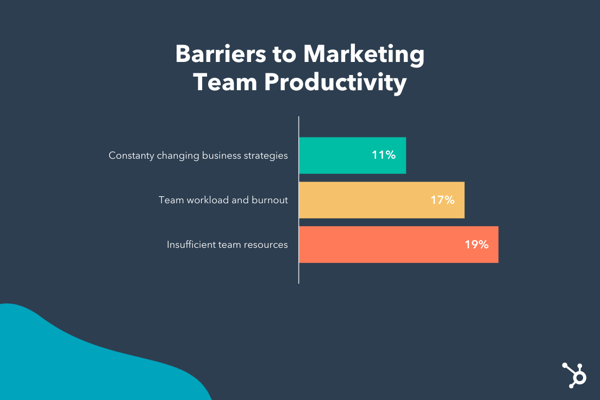
While office technology has never been more critical, neither has recognizing and acknowledging the barriers COVID-19 has created, such as an increased team workload and employee burnout (17%).
hubspot canva marketing study statistics

This rise in employee burnout has led to more discussion around the responsibility of employers to their staff. A Deloitte study found that, as the “pandemic has put more hours into the working day,” organizations should do more than just foster open dialogue and open practices around well-being. Gartner agrees — they theorize that COVID-19 has expanded employee expectations of their employer as a “social safety net.”

Technology has come in handy for non-work related needs, too. Zoom has equipped teams to host online happy hours, virtual holiday parties, and even team-building activities. Companies are also sponsoring free telehealth and virtual therapy sessions.

Gartner also found that, in a less digital sense, employers are also offering “support includ[ing] enhanced sick leave, financial assistance, adjusted hours of operation and child care provisions.”

The COVID-19 pandemic has changed how employers use office technology to understand not only the employee experience but also remote employee performance. A Gartner study found that 16% of employers are using tools to monitor employees through virtual clocking in and out, tracking work computer usage, and observing employee emails or internal communications.

This trend started well before the pandemic, but it will continue to grow in popularity as more folks opt to permanently work remotely.

Over to You

As large and difficult as these COVID-19 shifts have been, for the time being, they are here to stay.

Listen to these emerging trends and invest in new processes, tools, and technology in 2021. Doing so will help you combat these challenges and better motivate, monitor, and equip your remote teams. Remember, it’s your responsibility to help them be productive at home, stay connected to their teams, and make room for how the pandemic is affecting their personal lives, too.


How COVID-19 Changed the Way We Think About Office Technology [New Research] was originally posted by Local Sign Company Irvine, Ca. https://goo.gl/4NmUQV https://goo.gl/bQ1zHR http://www.pearltrees.com/anaheimsigns

How to Nail Interactive Presentations, According to HubSpot Experts

I can distinctly remember being extremely excited to attend a presentation from a speaker whose book I had read and loved in class. Unfortunately, the speaker was not as engaging as I’d hoped, and I found myself getting bored and distracted.

Marketers know better than anyone that capturing audience attention goes hand in hand with keeping people engaged. If people are bored, their thoughts will drift somewhere else, and you’ll miss out on the opportunity to impact their behavior. This is true regardless of the marketing medium, from advertisements to presentations.

That being said, marketers need to create effective ways to gain audience attention during their presentations — one of those is interactivity. According to the Oxford Dictionary, interactivity is defined as how two people work together and influence each other. Therefore, creating interactive presentations means using strategies that will capture and hold audience attention. It makes it easier to leave lasting, meaningful impressions about the content you’re sharing with them.

This post will outline the importance of interactive presentations and share tips from HubSpot experts for giving engaging, interactive presentations.

Why are interactive presentations important?

Interactive presentations are those where audience members and presenters feel like they’re in conversation with each other. It’s a pivot away from the lecture and listeners feel, as presenters entice audiences to participate and interact with them.

The reason for creating interactive presentations is simple: marketers who make a connection with their audience are more likely to have them leave feeling as though they’ve learned something from you.

All marketers want to leave good impressions, so understanding how to do this during presentations is important. Below we’ve listed nine interactive presentation ideas that you can use when planning your next virtual or in-person events.

Use a PowerPoint.

PowerPoints help you incorporate various media into your presentations, like text, images, and even videos. This ensures that there is an aspect of your presentation that appeals to every audience member, as everyone learns differently.

For example, someone may have an easier time digesting your content when they can see visual examples. In contrast, their neighbor may retain more information if they can follow along by reading a brief summary. When you tailor your presentation to meet the differing needs of your audience, it’s easier for everyone to interact with your content and learn from your talk.

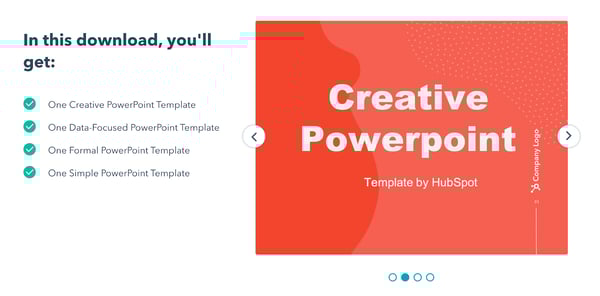
Should you choose to use a PowerPoint, this HubSpot download gives you four different slide templates to choose from that can be used to create high-quality presentations.

hubspot creative powerpoint template demo

Draw comparisons to your passions.

It’s probably safe to say that the presentation you’re giving is about a topic you’re an expert in. It’s also probably safe to say that your audience isn’t necessarily as informed as you are, so they’ll need more context to catch up to your level of understanding.

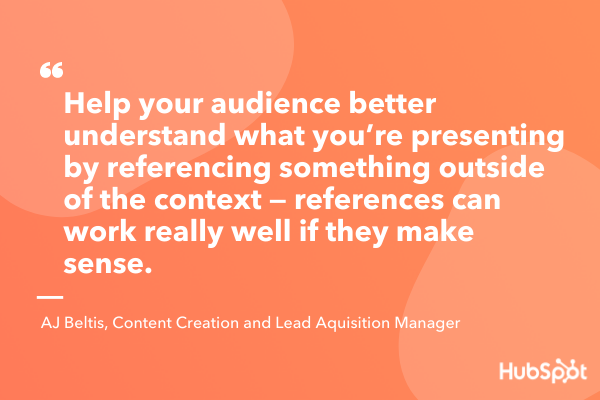
Content Creation and Lead Acquisition Marketing Manager AJ Beltis says that drawing comparisons to your passions during presentations can engage your audience and enhance their understanding of new concepts, especially if they aren’t contextually related. This could look like drawing in references to sports, movies, and pop culture.

Beltis says, “Help your audience better understand what you’re presenting by referencing something outside of the context — sports, movies, and pop culture references can work really well if they make sense.”

This keeps your audience engaged because you’re relating the information to real-life examples that may be more readily available to them. Bonus points if you use a humorous reference, which can cause your audience to create a positive association with the information and retain more of what you’re saying. If you begin with a cheerful anecdote, you’ll set the tone for the rest of the presentation.

compare content to your passions interactive presentation idea

Use an ice breaker.

One way to ensure that your presentation is interactive is to generate rapport with your audience with an ice breaker.

Ice breakers are short activities that audience members can participate in that are meant to inspire a sense of community and help audience members meet their neighbors. Ice breakers can also diffuse any sort of tension or anxiety from being around unfamiliar people.

If you’re at a loss for ideas, you can always try Two Truths and a Lie. Every audience member comes up with two factual statements about their life and one lie, and the rest of the audience works together to pick out the false statement.

Ice breakers are great because they are adaptable to both in-person and virtual meetings. For in-person events, per safety regulations, presenters can pre-select an ice breaker, and small audiences can go around the room responding to a question. For larger audiences, participants can simply introduce themselves to a neighbor.

For virtual events with small audiences, you can use the same structure as in-person presentations, but larger audiences can be broken down into smaller, more intimate break-out rooms. Either way, people are still breaking the ice, so to speak, and interacting with each other.

Tell a story.

Use your presentations to interact with your audience by telling a story. It could be a personal anecdote, a story from a customer, or a well known-story that you adapt to illustrate your presentation’s message.

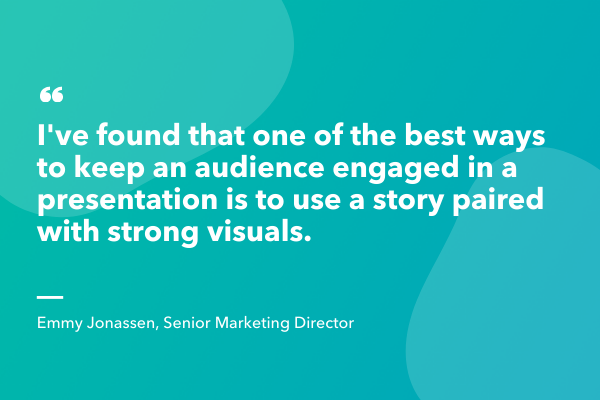
Senior Marketing Director Emmy Jonassen recalls one of the most memorable presentations from a HubSpot Marketing Team planning session: “There was a group that used Goldilocks and the Three Bears to illustrate how they went about solidifying the perfect strategy. The story paired with the imagery kept the audience engaged, and people were listening and laughing.” Jonassen says that, almost a year later, that was one of the most memorable presentations of the two-day session.

By telling a story, you’re using interactivity to influence your audience and help them remember what you’re sharing with them. A story gives your audience something to associate the information with, which may make the information you’re sharing easier to recall. You’ve used a story to influence their retention of the information you’re presenting.

tell a story interactive presentation idea

Use data representations.

Using data representations is a valuable way to showcase your content in a digestible format. For reference, data visualization is using things like charts and diagrams to help viewers understand the significance of the information you’re showing them. It’s easy to say the words out loud, but using pictures gives the audience a visual representation of your words.

Say you’re a marketer giving a presentation on the benefits your business has found from advertising on different social media sites. You can certainly verbalize how Twitter was the best, but using a chart that shows the difference in return on investment (ROI) between different platforms gives audience members a visual representation of your success.

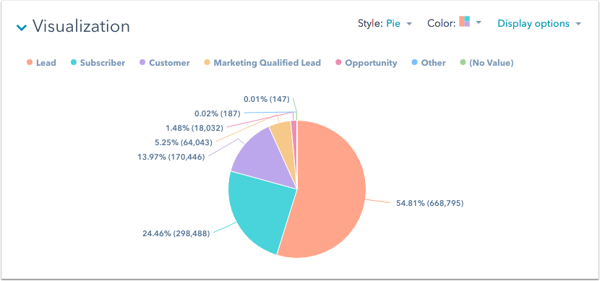
If you’re a HubSpot user, Marketing Hub allows you to create visualizations from the data in your HubSpot analytics reports. The image below is a pie chart that was created using HubSpot reports.

interactive presentation data visualization pie chart example

All-in-all, data visualization increases the impact of your words because audience members get a picture of the significance of the information you’re giving them.

Breakaway from the “expected” format.

The disappointing presentation I mentioned earlier followed the typical structure of an introduction, content presentation, brief Q&A, and then it was over. I expected more interactivity from the author, but it really felt like a regular college lecture. I wish the author had mixed it up and varied their structure, maybe by asking us questions about our interpretations of the book, but she didn’t.

Many presenters follow this structure, and there’s nothing wrong with it, but the framework can become boring to your audience. If you mix it up and vary your style in a way that your audience wouldn’t expect, you can capture their attention by throwing them off (in a good way), and they’re likely to stay attentive because they don’t know what’s coming next.

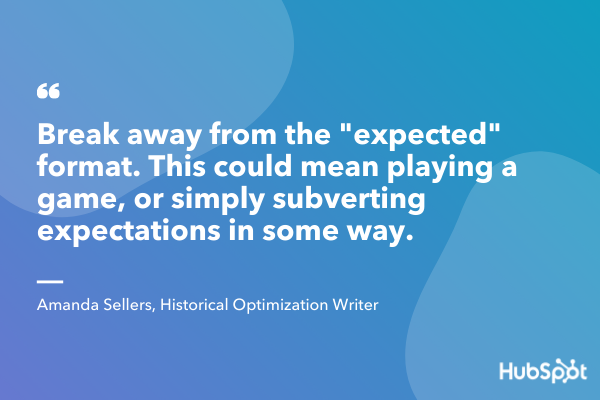
Amanda Sellers, Historical Optimization Writer, says that breaking away from expected format could mean playing a game, or subverting expectations. She recalls giving a presentation on a Monday afternoon where she knew that the audience would likely be a bit quiet. For part of her presentation, she had the audience stand up and repeat the words she was saying; “Standing up got their blood flowin’, and I encouraged them to participate at full volume. This shook up the presentation, and it helped with information retention because the attendees were listening and repeating back the information.”

Breaking away from the expected format doesn’t necessarily mean that you should do something at the beginning that you’d usually do at the end — get creative with what this means to you personally and how it would benefit your presentations' interactivity.

vary your format interactive presentation tip

Have Q&A or AMA sessions.

A great way to interact with your audience is to have question and answer (Q&A) or ask me anything (AMA) sessions during your presentation.

When you do this, audience members can ask clarifying questions about what you’ve already said to gain a full understanding before moving on to the next concept. For example, if you’re presenting your recent marketing campaign, consider stopping after each step of your plan (like plan goals, measurement, target audience, etc) to allow the audience to ask clarifying questions before you move on to the next section.

You can also switch it up and ask audience members questions, as they likely have valuable input into the topic at hand. Consider creating quizzes and polls where they can respond to your questions and submit feedback. You can make submissions anonymous so audience members feel comfortable to share anything (within reason) that they have on their mind.

Weaving Q&A and AMA opportunities throughout your presentation is also a great way to re-capture audience attention if they have become distracted, as it requires them to think critically about your content and their own information retention.

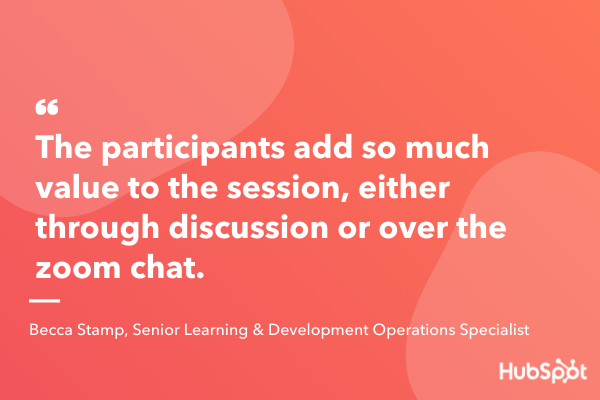
During virtual presentations, audience members may not feel as comfortable interrupting you to ask clarifying questions, so purposely taking the time to ask participants questions or have them ask you questions is worth considering. Becca Stamp, Senior Learning & Development Operations, says “It’s important to give everyone space to come off mute and contribute throughout the session. The participants add so much value to the session, either through discussion or over the zoom chat.”

encouraage participants to ask questions interactive presentation idea

Get off the stage.

During in-person presentations, getting off the stage and quite literally leveling yourself with your audience is worth considering.

Most people expect presenters to remain on stage and separated from them, so varying your delivery style and being closer to your audience may inspire a sense of interaction that is different from simply standing in front of a podium for 20 minutes.

If you employ this strategy, you can also have Q&As and where you walk over to audience members and respond to their questions as if you’re having a one on one conversation. Referring back to the definition of interactivity, you’re leaving an effect on your audience by being more approachable than they’d expect.

Share resources for later.

A useful way to inspire continuous interaction with your audience is to leave them with something to take away from your presentation. Depending on the content you’re sharing, maybe you’ll hand out brochures to advertise your service, provide them with a link to your website, or have them sign up for an email list.

Whatever your desired action is, giving them a way to remember you and your presentation is a great way to inspire continuous interaction with them.

Spend Time Making Your Presentations Interactive

All-in-all, the goal of creating interactive presentations is to influence your audience members. Whatever your presentation content is, using strategies that center audience engagement is a valuable way to connect with them and teach them something new.

Feeling like they’ve been in conversation with you rather than being talked at can help you fulfill the ultimate goal of marketing: to leave a lasting impression.


How to Nail Interactive Presentations, According to HubSpot Experts was originally posted by Local Sign Company Irvine, Ca. https://goo.gl/4NmUQV https://goo.gl/bQ1zHR http://www.pearltrees.com/anaheimsigns
Thursday, December 3, 2020

What Is Demographic Segmentation, & How Do You Do It?

One of the greatest music videos ever made (according to MTV) was released in 1990, winning Best Choreography and the hearts of fans and parody-creators alike: "U Can't Touch This" by MC Hammer. This rap video (and those harem pants) made reverberations that are felt throughout pop culture today. But why am I talking about it on HubSpot's Marketing blog?

In 2020, Cheetos bought a Super Bowl ad spot to promote their brand, and they knew it had to resonate with as much of their target market as possible, which was most likely Gen Xers and older Millennials.

Before you dive further into this post, take a gander at the video below:

If you laughed at the absurd idea that MC Hammer came up with the lyrics for "U Can't Touch This" while his Cheetos prevented him from touching the keyboard, this commercial is for you. But if you have no idea what I'm talking about, then you're not part of the audience Cheetos was targeting with the ad.

Now, if their target market consisted of young kids or older adults, they probably wouldn't have gone in this direction. Fortunately, they had a powerful tool at their disposal: demographic segmentation.

What is demographic segmentation?

Demographic segmentation separates your target market into specific, accessible groups of people based on personal attributes like geography, age, education, occupation, and income. By leveraging demographic segmentation, you can create personalized marketing campaigns for each slice of your target market.

Demographic segmentation can also optimize your resources and time because distributing personalized marketing messages to each slice of your target market will resonate with more people and lead to more conversions than spraying a generic message to your entire target market.

Why is demographic segmentation important?

Demographic segmentation allows you to provide a more personalized experience, complete with messaging that better resonates with your audience.

In effect, you're able to be more specific with pop culture references and slang to elicit a specific emotion. You'll also be better equipped to craft the topic of your messaging as well because the desires, needs, fears, and pains can vary from segment to segment.

It comes down to this idea: 

When you speak to everyone, you speak to no one.
- Meredith Hill

According to Accenture, "91% of consumers are more likely to shop with brands who recognize, remember, and provide relevant offers and recommendations." In other words, when a prospect sees themselves in your messaging (because it's personalized to them), they are more likely to react positively.

This doesn't just apply to ads. In fact, MailChimp found that open rates and click rates soar when using segmentation in email marketing.

However, it's important to be extremely intentional about the way you use demographic segmentation in your marketing. After all, you don't want to:

  • Make false assumptions about a particular segment
  • Alienate current or potential customers
  • Stray too far from your brand voice
  • Fail to monitor trends that are happening with other segments

To learn how most brands segment their target market, check out some examples of demographic segmentation factors that can be used:

Demographic Segmentation Examples

1. Geography

Geographic segmentation slices up your target market based on their geographic location. Since people have different needs and interests across geographies, like the need for cold weather outerwear in Minnesota or the demand for swimwear in South Florida during the winter, it’s important to understand exactly how your target market’s different climates, landscapes, and cityscapes impact their preferences.

2. Age

Age segmentation slices up your target market by specific age ranges or generations, like Generation Z, Millennials, and Baby Boomers. The people in each of these groups grew up during the same time, encounter comparable experiences today, and share similar traits, habits, and opinions, so it’s crucial to distribute personalized campaigns catered for each generation.

For instance, targeting Gen Xers with a nostalgic ad about The Princess Bride might receive an outpour of praise, but targeting the same ad to Gen Zers might not even get a mention on Twitter.

3. Education

Education segmentation slices up your target market by school, area of study, and degree. A lot of brands target by education because most people have deep feelings of loyalty for their alma mater.

In fact, BuzzFeed leverages education segmentation to write articles about a specific college’s tidbits that only their alumni would know. And by writing these types of articles about almost every college in the United States, they can relate to the majority of people who went to college in the country.

4. Occupation

Occupation segmentation slices up your target market by job function, job seniority, and job title. A lot of B2B brands target their audience by occupation because they need to attract specific types of professionals who have the authority to make buying decisions on their team or at their company.

5. Income

Income segmentation slices up your target market by income range. By knowing how much discretionary income your potential customers have, you can market to the people who can actually afford your product or service, set your prices according to their income, and design pricing tiers for each slice of your target market.

Getting Personal

Nowadays, generic, spray-and-pray marketing campaigns don’t fly with consumers anymore. If you can’t relate to each segment of your target market, then you might as well pause all your campaigns.

However, if you can harness the power of demographic segmentation, you can create personalized marketing campaigns for each slice of your target market and resonate with them as much as MC Hammer did with Cheetos’s target market.

Editor's note: This post was originally published in March 2019 and has been updated for comprehensiveness.


What Is Demographic Segmentation, & How Do You Do It? was originally posted by Local Sign Company Irvine, Ca. https://goo.gl/4NmUQV https://goo.gl/bQ1zHR http://www.pearltrees.com/anaheimsigns
How to Use Pinterest Advertising to Promote Products and Attract Customers

Pinterest is often undervalued by social media marketers and considered an unnecessary component of a marketing strategy -- unfortunately, if this isn't the case for your team, you could be missing out on a major source of traffic and income.

Pinterest offers plenty of unique opportunities for marketers to reach leads and influence consumer purchasing behavior. In fact, Pinners are more likely to grocery shop online. If you're interested in exploring how Pinterest advertising can help you attract customers, keep reading.

Pinterest Advertising

With over 442 million monthly active users, Pinterest is a great place for businesses to advertise products. Ads show up on users' feeds and searches in the same format as a regular Pin, making the experience unobtrusive for users while putting your content right in front of them.

There is a large potential reach when you create ads for Pinterest audiences -- and, best of all, users are also actively searching the site for products like yours to buy.

Why Advertise on Pinterest

  • The reach can be incredible. If your content is engaging and valuable, it can be re-pinned again and again to different users' boards and continue to drive consumers back to your website.
  • Pins have a much longer lifespan than Tweets or Instagram posts. This longevity makes them a particularly powerful asset. Pins can show up in a user's feed months after initially posted.
  • Pinterest users spend 27% more for click and collect shopping -- meaning your Pinterest ads, or Promoted Pins, are being shown to a remarkably responsive audience.

All of which is to say -- a paid advertising strategy for Pinterest isn't such a bad idea, and could help bolster your organic presence by gaining traction with potential buyers, and improving brand recognition.

Pinterest Ad Types

There are a few ways to promote your content on Pinterest. To determine which ad format is best for your business, it's important to know the goals of your campaign and the attributes of each Pinterest promotion format.

1. Pins

At first glance, Promoted Pins look and act just like a regular static Pin, but they have a small "Promoted" label to set them apart. Promoted Pins are boosted and targeted to reach more people. Users can even Pin your Promoted Pins to their boards, share them, and comment on them.

Once a user shares a Promoted Pin, the "Promoted" label disappears, and subsequent re-pins are considered earned media -- meaning, after the first pin, organic exposure to the content is free.

Here are some guidelines to follow when creating a Promoted Pin advertisement:

  1. The file has to be PNG or JPEG.
  2. Your content cannot go over 10 MB.
  3. There is a description copy limit of 500 characters.
  4. Your aspect ratio must be 2:3 and should be vertically oriented.
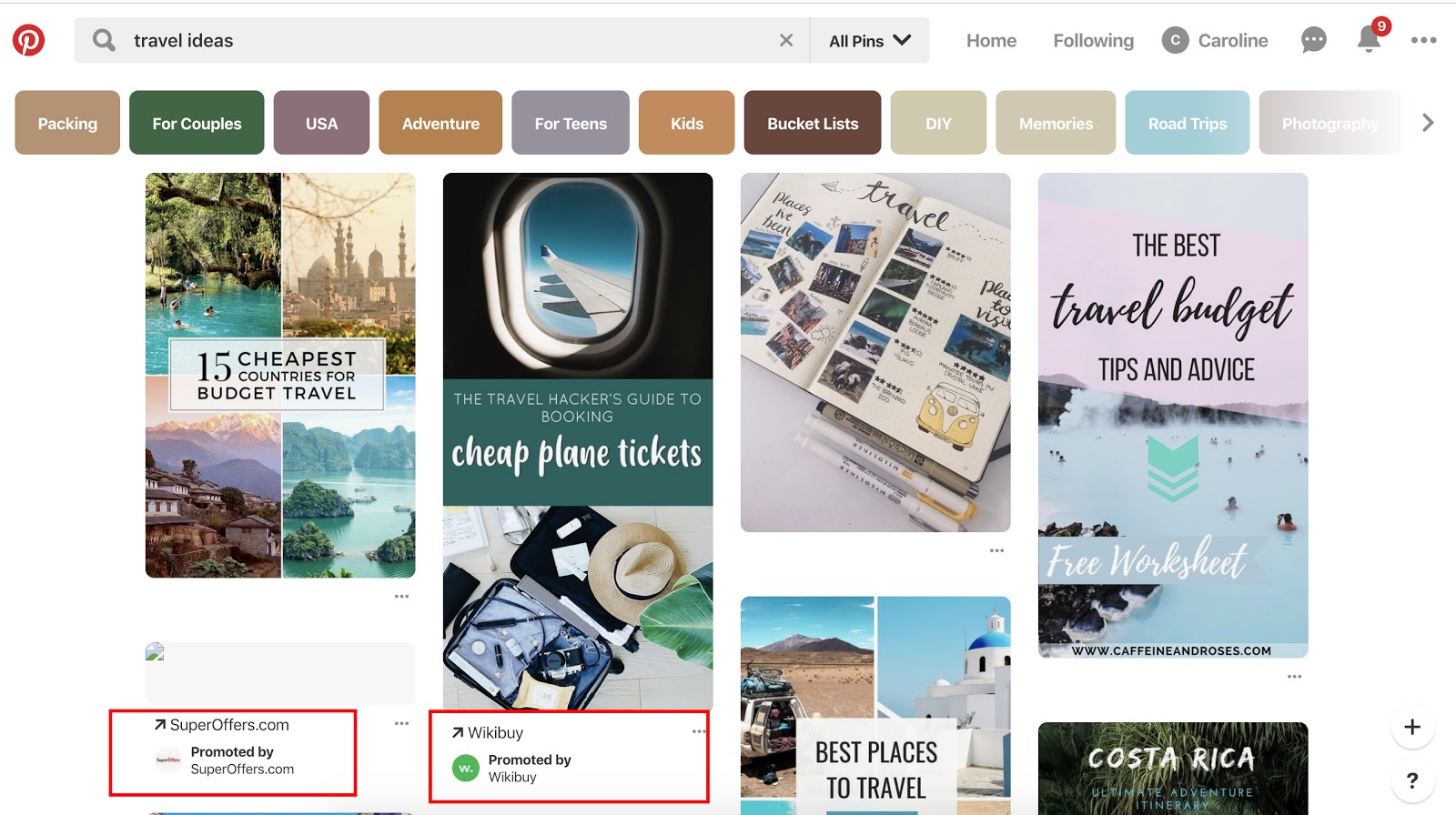
pinterest feed for "travel ideas"

2. Video Pins

Promoted Video Pins are exactly like Promoted Pins -- except the static image is replaced with a video.

90% of customers say video helps them make buying decisions, and that same percentage of weekly Pinterest users are on the platform to make purchasing decisions. Therefore, Pinterest and video advertising go hand-in-hand.

Pinterest offers two options for video sizing: max width, or standard. Standard videos are the same size as regular Pins and cost less than a max width Pin, which spreads across a user's entire feed.

No matter what size you choose, Pinterest videos auto-play once they're 50 percent in view. Plus, the Promoted Video Pins have a conversion optimization option to better serve advertisers with traffic or conversion goals. This new option brings the user to a landing page on the advertiser's website, as well as a close-up of the video.

Here are some guidelines to follow when creating a Promoted Video Pin advertisement:

  1. The file has to be either an MP4 or MOV.
  2. Your video cannot exceed 2 GB.
  3. The video must meet a minimum of four seconds, and cannot go over 30 minutes.
  4. Your aspect ratio must fall between 1:91:1 and 1:2.
  5. There is a description copy limit of 500 characters.
  6. Make sure to create video that's not dependent on audio for greater accessibility and those who scroll with sound off.

3. Carousels

Promoted Carousels contain up to five images that users can swipe through. Carousels are used to give a deeper brand story within one Pin.

This feature behaves the same as other Pins, except it will have dots beneath the images that signal additional content. Each carousel image can be different and have a different title, description, and link to another landing page.

Here are some guidelines to follow when creating a Promoted Carousel advertisement:

  • File type: PNG or JPEG
  • Ideal aspect ratio: 1:1 or 2:3
  • File size: Max 10 MB
  • Title copy: Max 100 characters
  • Description copy: Max 500 characters

4. App Pins

Promoted App Pins are mobile-only advertisements that allow users to download your app directly from Pinterest. 

Available on iOS and Android devices, these ads include an "Install" CTA that allows for a seamless transition from Pinterest to your app.

While most of the guidelines remain the same for these Pins, your copy, image, or video should convey important attributes about your app.

Below are some Pinterest ads in action.

Pinterest Ad Examples

Each of these ads are an example of Pinterest advertising done right with actionable tips that you can take away as you create your own:

1. Ruggable

ruggable pinterest ad

In this ad, the image speaks for itself, which lends well to the visual nature of the Pinterest platform. The rug is front and center in an attractive home space that draws the eye (and probably triggers the shopping tendencies of those who like decorating). It does come with a catchy tagline: "Back to Homeschool." Because who needs a back-to-school sale to buy cool stuff?

2. Love Sweat Fitness

love sweat fitness pinterest ad

A big audience on Pinterest is the foodies who love to find and share recipes. Love Sweat Fitness, a fitness brand, is appealing to that crowd with easy and healthy holiday sides. The best part of the ad is how it combines high-quality imagery with attractive typography.

3. Acuity Scheduling

acuity scheduling pinterest ad

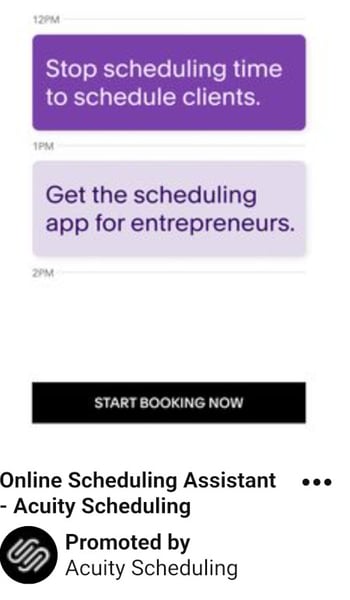
One thing to take away from this ad is that Pinterest advertising isn't just for home goods, recipes, and ecommerce. Those in the B2B space can definitely take advantage of the advertising opportunities... and who knows, your audience might be browsing for home goods, too.

This ad sets up the value proposition in a text format and gets right at the heart of the audience's pains: "Stop scheduling time to schedule clients." They then pair it with a call-to-action: "Start Booking Now."

4. MissNowMrs

missnowmrs pinterest ad

MissNowMrs quantifies the amount of time that brides spend changing their name so that they can use it as their value proposition in this ad. The benefit to the audience is clear and compelling for this reason.

5. Torrid

torrid pinterest ad

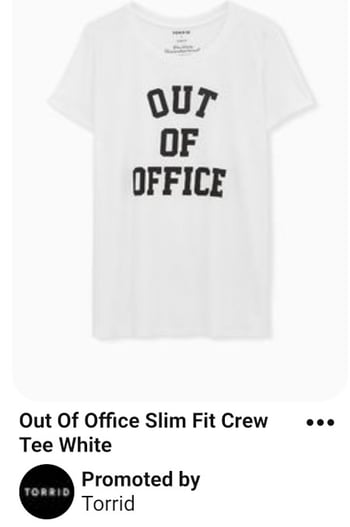
In this Pinterest ad, Torrid is using retargeting options to put their products in front of people who already visited the Torrid website. After visiting this product's page on torrid.com, the ad "followed" me to Pinterest to stay top of mind and earn the sale.

Now that you have seen what Pinterest ads can look like, take the inspiration from the examples above and put it to action on your own advertising efforts.

1. Choose your campaign objective.

Each of your Pinterest campaigns starts with an objective. Choosing your campaign goal is what determines what ad formats are available to you. There are three categories to choose from -- Build Awareness, Drive Consideration, and Conversions.

Conversion optimization is a new campaign objective that optimizes your advertisements for specific actions outside of clicks. Now, advertisers have a way to directly inspire people to take action -- like leading a user to an online checkout or newsletter sign-up with no extra steps.

If you want people to discover your business, choose Brand awareness for standard Pins or Video views for Promoted Video Pins as your campaign objective. For these two objectives, you can set a maximum cost for every 1,000 impressions your ad receives.

If your Pinterest goals are to drive qualified leads to your website or improve traffic, choose Traffic or App install for your campaign objective.

For these campaigns, you set a maximum cost-per-click -- which means you are only charged when people click through your Promoted Pin to visit your website.

2. Set your campaign budget.

If you want to spend your campaign money evenly over a specific time period, select lifetime. Select daily to choose the amount spent each day. You'll have to automatically adjust the budgets based on how long you want your ad to deliver.

Next, you'll set a maximum bid. A bid determines the highest amount of money you'd like to pay for an action, like an engagement or click, on Pinterest. Pinterest will recommend an amount for you depending on your target audience, and what competitors are spending.

Make sure your budget for Pinterest ads reflect your overall marketing goals and the importance of the platform for your business.

3. Maximize your SEO efforts.

By adding an interest and keywords to your descriptions, they become more relevant to people who are actively searching for that content. Keep in mind that hashtags don't add any ranking value.

On Pinterest, categories of interest are already sorted and categorized. You should explore the available topics that are relevant to your business and target those queries -- if you need inspiration, check out the seven categories that do exceptionally well on Pinterest.

Your boards also provide an opportunity for SEO. Boards inform Pinterest’s search engine on how to categorize your Pins, which improves visibility. Focusing on both will support your SEO efforts.

4. Choose your target audience.

Targeting allows you to reach people who are searching for your content and who are ready to actively engage. Targeting is an important part of promoted ads because, without it, you'll have less interest.

Pinterest has six targeting options that you can use singularly or combine together for a unique targeting approach.

  • Audiences combine your customer knowledge with behavioral insights from Pinterest. If someone has recently bought something from your site or engaged with your Pinterest content, this allows you to target that person for an ad.
  • Keywords show your ad to someone who is searching for that kind of content. If you set specific keywords like "tropical vacation" or "apple pie recipes", your ads will target people searching for those things.
  • Interests target people based on the types of content they regularly engage with. Your apple pie recipe ads would most likely be served to people who have an interest in baking or preparing for Thanksgiving.
  • Expanded will provide you with additional interest and keywords based on your ad's content and who you're trying to reach.
  • Demographics allows you to select a specific location, language, device, or gender.
  • Placements gives you the option to choose where your ad is delivered. If you don't want your promoted Pins to show up when someone is browsing, and only appear in search results, you can specify that here.

5. Add value.

Endless product promotions on a Pinterest feed aren't the best way to get an audience's attention -- and keep it. More than likely, you'll just become a disruption and get unfollowed. You have to add value to every touchpoint with your customer for them to engage with your content.

To add value on Pinterest, try adding Pins that your audience will want to engage with that don't include your product or business. You might offer added value by showcasing services or interests that compliment your own.

For example, if you sell cars, share content about upkeep or car accessories. Alternatively, if you're running a Pinterest page for a coffee shop, try Pinning playlist ideas for people to listen to while they work. There is plenty of content available to curate for your audience's benefit.

6. Mix up your content.

If you're busy targeting your content to a persona, you'll miss out on the organic connections and interests of your audience. While helpful for first steps, personas don't give you everything you need to know about the people who are interacting with your ads.

Keep your content seasonal and relevant. Yes, it is good to make evergreen content -- but don't miss out on pop culture or holiday opportunities to spark interest. In fact, research has shown Pins featuring holiday copy or images have a 22% increase in online sales.

7. Monitor campaign performance

Finally, you need to keep an eye on your campaign performance to determine the success of your ads, or why they didn't perform as you expected.

When you're in Pinterest Ads Manager, click on Analytics and you'll be shown an overview of all your campaigns and key metrics. These metrics include impressions, total clicks, earned cost-per-impression, effective cost-per-click, and more.

Every campaign has the opportunity to increase brand awareness or inspire purchases. After looking at your analytics, you can determine whether or not you need to widen your audience, increase your budget, or try a different ad format. Pinterest advertisements are not an exact science, so experiments are key to being successful on the platform.

Editor's note: This post was originally published in April 2019 and has been updated for comprehensiveness.


How to Use Pinterest Advertising to Promote Products and Attract Customers was originally posted by Local Sign Company Irvine, Ca. https://goo.gl/4NmUQV https://goo.gl/bQ1zHR http://www.pearltrees.com/anaheimsigns
The 11 Best Free Email Accounts and Service Providers of 2020

You need it for networking, job recruitment, downloading resources, transferring files, setting reminders, meeting with colleagues, and so much more.

Even with the rise of office chat platforms, you still depend on email for a surprising number of things. But unfortunately, not every email service is completely free. And even the free ones might not be the easiest to use or have all the features you need.

It can be a challenge to find an email service provider at no cost that balances the right features with usability. To help make your search easier, we put together a list of the different types of email accounts you can set up, followed by the eleven best email service providers you can host your account on right now for free.

Types of Email Accounts

There are two main types of email service providers to choose from: email clients and webmail. When you use your provider to access your email from a different device or location online, you can use one of three major email protocols to do so: POP3, IMAP, and Exchange.

Let's briefly go over these different types of providers and protocols.

Email Clients

Email clients are software applications that you install onto the computer itself to manage the email you send and receive. To access this email, the client interacts with a remote email server.

Email clients you've likely heard of include Microsoft Outlook, Mozilla Thunderbird, and Apple Mail.

If you want to access this type of email from the web, rather than the client's computer application, the email client uses one of the email protocols described below. For example, although you might have Outlook installed on your computer, you can also log in to your email account via outlook.com using a specific email protocol.

Webmail

Webmail is a form of email you access exclusively from the internet, and therefore exists primarily on the cloud rather than your computer. Instead of an installed application fetching your email, you manage your inbox right from your internet browser.

Webmail providers you've likely heard of include Gmail, Yahoo! Mail, and AOL (all of which have made our list of best free email accounts, below).

If you want to access your webmail from a mail app on your mobile device, rather than your desktop web browser, your webmail provider can use one of the email protocols described below.

Now, before we get into the best free email accounts, let's talk about those email protocols.

Email Protocols

Email protocols are the systems that actually retrieve your email for you. They can be used to fetch email client accounts on the internet, and fetch webmail accounts on a mobile app. Here are the three main types of email protocol your account can use.

POP3

POP stands for "post office protocol," and is best suited for people who have just one email account and email client. POP3 is the latest version of this email protocol, and allows you to access email while offline. It therefore requires less internet bandwidth.

IMAP

IMAP stands for "internet mail access protocol," and is one of the older email protocol available today. IMAP4 is considered the latest version, and unlike the POP protocol, you do not download your email to your offline email client. Instead, all your email stays online while you're accessing and managing it.

IMAP is particularly useful for people who have more than one email account and access them from multiple devices or locations.

Exchange

Exchange is a Microsoft email protocol, and is pretty similar to the IMAP protocol explained above. This protocol allows you to not only access your email over the internet from multiple devices, but also tasks, calendars, and contact information tethered to that email address. For this reason, it's particularly helpful to organizations whose employees share many types of information and collaborate remotely.

Now, take a look at seven of the best free email service providers you can get your hands on today -- both webmail and email clients included. For each email service provider, we highlighted a unique feature to help you find the best fit.

Best Free Email Accounts

  1. Gmail
  2. AOL
  3. Outlook
  4. Zoho
  5. Mail.com
  6. Yahoo! Mail
  7. ProtonMail
  8. iCloud Mail
  9. GMX Mail
  10. Mozilla Thunderbird
  11. Yandex Mail

1. Gmail

Unique Feature: Native File Collaboration

Sign up here.

Type of email: Webmail

Who should use it: anyone who already uses and loves the rest of Google's products.

It might seem like an obvious top pick, but Gmail is just too versatile to not award the first slot. Gmail has the second-highest email provider market share (behind Apple iPhone's native email app), according to Litmus Labs. And ironically, one of the reasons Gmail has become so popular is because of all the communication options in your inbox that don't involve email.

Gmail is an everyday email inbox you can sign up for by registering for a Google account. But it's built into Google Suite, a group of free apps that allow you to chat, video-conference, and share files with the people in your contact list.

Google Hangouts, available from your inbox's left sidebar (or the right -- you can customize how you inbox is displayed), lets you text and video chat with other Gmail users for the things that might not warrant an email message. Like most other email accounts today, Gmail also has an intuitive calendar where you can set meetings and reminders.

Pro tip: You can also use a free product like HubSpot Meetings to easily schedule meetings without back-and-forth emails.

Unlike other email accounts, you can use your Gmail address to log into and manage your YouTube account, as well as collaborate on shared documents and spreadsheets right from a cloud-based Google Drive.

Offering a generous 15 GB of free email storage, Gmail does everything it can to make your inbox less chaotic, including advanced filters that automatically push emails into separate folders as they arrive. And none of these functions costs a dime.

2. AOL

Unique Feature: Unlimited Storage

Sign up here.

Type of email: Webmail

Who should use it: people who use email for most of their communication.

America Online (I feel nostalgic just typing those words) has quietly kept up with today's standards for a good user experience. The classic AOL is now once again one of the best free email accounts available to you.

Purchased by Verizon in 2015, AOL delivers you email from its classic news-driven homepage, and comes with the contemporary spam filters and virus protection you'd expect from your email provider. You can also send text and instant messages from specific windows in your email inbox.

AOL does have something over Gmail, though: unlimited storage. Additionally, you can import email contacts from a CSV, TXT, or LDIF file so you're not creating your "buddy list" (get it?) from scratch.

3. Outlook

Unique Feature: Multiple App Integrations

Sign up here.

Type of email: Email client

Who should use it: people who use many different platforms to connect with others.

If you ever cringed at the sight of a "Hotmail.com" email address, you can thank Outlook for this outdated domain name. But there's good news: Microsoft has reinvented its longstanding email service, and your free Outlook.com email address has many progressive features waiting for you.

While it touts a calendar and message filter that is similar to Gmail, Outlook also integrates with a number of other popular communication apps. You can connect Skype, Facebook, PowerPoint, PayPal, and even task-management software such as Trello -- making it very easy to reach and work with non-Outlook users without leaving your inbox.

Outlook offers 15 GB of free storage for each user, along with a super-clean interface.

4. Zoho

Unique Feature: 25 Business Addresses

Sign up here.

Type of email: Webmail

Who should use it: startups and small businesses.

This is the first of the lesser-known free email accounts to make our list, but it holds a lot of potential for businesses.

The first thing you'll notice about Zoho is its user-friendliness. From integrating with Google Drive, Box, and other cloud-based file managers, to its built-in task manager, this email service offers a simple way to accomplish all of your daily tasks.

The real difference-maker, though, is the ability to customize the domain name for up to 25 connected email addresses. Want to replace "@zoho.com" with the name of your business's website? You can do so under Zoho Lite, which gives you 5 GB for free -- all under username@yourdomainname.com.

5. Mail.com

Unique Feature: 200 Custom Domain Names

Sign up here.

Type of email: Webmail

Who should use it: small businesses, freelancers, and the self-employed.

It doesn't get more self-explanatory than "Mail.com," does it? This email provider knows its audience -- or should I say, audiences.

Right off the bat, you'll probably notice Mail.com doesn't have stellar storage space compared to the options above: only 2 GB. But what this webmail service lacks in gigabytes it makes up for with … drumroll … 200 free custom domain names. You can replace "@mail.com" at the end of your username with just about anything that describes you. Here are some options Mail.com has precreated for you to choose from:

  • Bartender.net
  • Musician.org
  • Columnist.com
  • Engineer.com
  • Accountant.com
  • Toothfairy.com (who knew she was online?)

Mail.com doesn't rest on its 200 laurels, though, as the email provider also comes with a calendar for creating and tracking your events each week.

6. Yahoo! Mail

Unique Feature: Media and attachment history

Sign up here.

Type of email: Webmail

Who should use it: creatives and those who send and receive attachments frequently via email.

Yahoo! Mail, another well-known platform, sits just behind AOL in storage space with a whopping 1 TB (that's a terabyte) for free, along with a few key social media integrations.

In addition to custom background themes and being able to search key information from your inbox, Yahoo! Mail also makes it easy to find every photo, video, and document you've ever attached or received via email in their own tabs on your inbox's sidebar. This makes the platform especially appealing to those who share documents on a regular basis or simply want an album made of every photo they've ever had shared.

7. ProtonMail

Unique Feature: Encrypted email

Sign up here.

Type of email: Webmail

Who should use it: people who send and receive sensitive information.

ProtonMail offers just 500 MB of free space, but for the worthy trade of encrypted email, allowing you to send messages that nobody else can see, and disappear after a month.

What's the catch? Is the service hard to use? As with most webmail platforms, ProtonMail is easy to use on any device without any software needed to encrypt your emails. Its inbox interface is as easy to understand at a glance as the other email services on this list, and offers quick color-coded labels to help you further organize which emails deserve the most care and protection.

8. iCloud Mail

Unique Feature: Label senders as VIPs

Sign up here.

Type of email: Webmail

Who should use it: people who use Mac and want everything on one system.

If you’re a Mac user, you may want to consider using iCloud Mail as your email provider. Their free email account comes with 5GB of storage that you can use to sync your photos, files, or email. It’s important to note that storage is shared between all of your apps and devices — so if you take a lot of photos on your iPhone, you may eat into your email storage allowance for the month. Upgraded plans start at $0.99/month and go up to $9.99/month.

One of the biggest advantages of using iCloud over other email providers on this list is the ease of integration. Apple builds its desktop and iPhone mail apps with all email clients in mind, but it pays special attention to making the experience delightful for iCloud users. 

Some of the pros of iCloud Mail include an easy to use search functionality, easy-to-use rules, and an ability to label senders as VIP. When a contact is marked as VIP, new messages will automatically filter to a separate tab on the left, saving you both time and energy. 

9. GMX Mail

Unique Feature: Alias email addresses

Sign up here.

Type of email: Webmail

Who should use it: people who need multiple emails with one central inbox.

While you may not have heard of GMX Mail, it’s been around for quite a while (since 1997) — and it has a bunch of features that make it worth considering. First off, GMX offers 65GB of storage. That’s a lot of storage for a free email service. In fact, they claim that allows you to keep nearly half a million messages in your Inbox!

Another feature worth noting is the ability to send large attachments. While many services have caps for your email attachments, GMX Mail allows you to send files up to 50GB. That’s great if you share a ton of photos, presentations, or other large files from your account.

But the feature of GMX Mail that really sets it apart is the ability to set up to 10 alias email addresses all from within one account. This can be useful in many situations — both personally and professionally. On a personal note, you could use one alias for all of your online purchases and logins — to keep marketing emails separate from your personal messages. From a business perspective, multiple email addresses can be useful for managing role based emails such as support@yourdomain.com or sales@yourdomain.com.

10. Mozilla Thunderbird

Unique Feature: Customization features, and the ability to open multiple emails in tabs

Sign up here.

Type of email: Email clients

Who should use it: anyone looking for a simple, but customizable email inbox.

Thunderbird, a free email application from Mozilla, known for Firefox, offers a quick email inbox setup and a simple, easy-to-use user interface.

The app offers customizable features, such as theme settings and app extensions that can improve your email experience. The email app also allows you to open multiple emails in tabs, similarly to how you would open multiple web pages in Firefox browsers.

11. Yandex Mail

Unique Feature: 10 GB of free cloud storage

Sign up here.

Type of email: Webmail

Who should use it: anyone seeking a free email with additional storage capabilities.

Yandex is a Russian web company that offers a global email tool. With the tool, you can sign up for a free account, link it to your Facebook, Twitter, or Gmail accounts, and personalize your email inbox.

Yandex free email account Mail inbox

Source: LifeWire

Like many of the other providers on this list, Yandex's email inbox can be set to filter or prioritize emails so you see messages from real people. It can also recognize keywords in messages and subject lines and organize emails into categorized inboxes. Additionally, users who sign up for Yandex mail get 10 GB of free cloud storage.

Making the Most of Your Email

And with that, you have some of the best options for free email accounts this year. But who knows? Your next email address could be entirely different while giving you just what you need to succeed.

Once you've chosen an email provider and launched a new email address specifically for your marketing needs, you should also leverage apps, outside software, and APIs to add to your email strategy.

One powerful tool worth noting is HubSpot's Free Email tool. The tool allows you to link your email address to the HubSpot CRM, while also allowing you to build email templates and send messages straight from the HubSpot software. Even more beneficial? The software even lets you track basic analytics and collect email subscriber contacts in your CRM -- which can then be added to your email marketing lists.

To learn more about our free email tool, click here


The 11 Best Free Email Accounts and Service Providers of 2020 was originally posted by Local Sign Company Irvine, Ca. https://goo.gl/4NmUQV https://goo.gl/bQ1zHR http://www.pearltrees.com/anaheimsigns
9 Custom Reporting Tools For Your Marketing Team

When it comes to creating reports for your data, sometimes a pre-built dashboard, table, or template will do the trick. But what happens when your current tool doesn’t have a pre-built report that meets your needs or includes the metrics and dimensions you want to use?

Well, that’s when a custom reporting tool comes in handy.

What are custom reporting tools?

Custom reporting tools provide the ability to create personalized and unique (or customized) reports for your data. In addition to selecting the data you’ll display in your report, you can also customize a report’s metrics, dimensions, appearance, and more.

There are a number of custom reporting tools available today including options that come with other perks like no necessary coding, easy installation, different pricing plans, support, and integrations (e.g. for data analysis and one-click sharing).

Many custom reporting tools, like HubSpot, often come with pre-built templates and dashboards as well for instances in which you don’t need or want to customize your report.

Here are 9 custom reporting tools to help get you started.

1. HubSpot Marketing Analytics Software

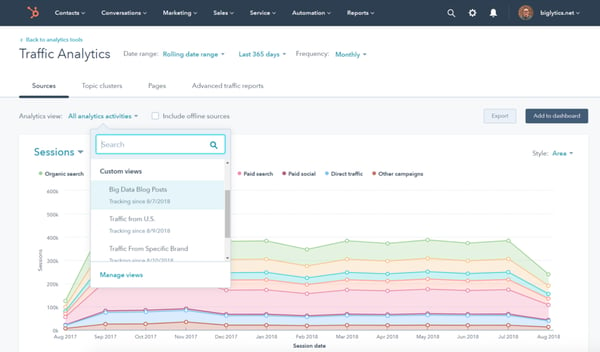
HubSpot Marketing Analytics Software custom reporting tool

Source

HubSpot helps marketers surface a combination of customer insights and data to better understand what’s working and what’s not among target audience members. All of these insights and reports are available at your fingertips — alongside your CRM — without SQL.

The custom report builder offers access to all of your data in a single location without the need for spreadsheets. Use the custom builder to organize all of your business data including contact, company, deal, marketing email, landing page, and blog engagement data.

Other Unique Features:

  • Use custom objects to capture your unique business data, create new segments, build custom reports, campaigns, and workflows.
  • Build custom, shareable dashboards to see all of your metrics on one screen with a no-code, drag-and-drop editor.
  • Report on data that’s unique to your business such as product usage or inventory data.
  • Use behavioral events to track custom interactions that are unique to your business and indicate when a customer is ready to take the next step in the buyer’s journey (then trigger or schedule the next touchpoint for after that event is completed).
  • Connect every customer interaction to a contact in your database and the associated revenue generated by using the revenue attribution reporting feature.
  • Monitor the effectiveness of your marketing and sales efforts within the account based marketing (ABM) dashboard and then adjust your playbook accordingly to reach your highest-value accounts.

2. Demand Sage

demand sage Custom Reporting Tool

Source

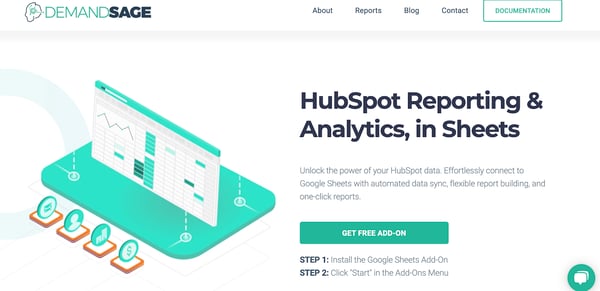
With Demand Sage, easily move your HubSpot reporting and analytics data into Google Sheets. The tool offers custom and automated — with automatic data sync and pre-built dashboards and templates — reports.

Other Unique Features:

  • Get very specific with your data by creating reports that are record-level.
  • View your data any way you’d like using Demand Sage’s no-code analytics and table builder.
  • Install the free Demand Sage add-on, click “Start” in the add-ons menu, and immediately begin creating custom reports.
  • Integrate Demand Sage with your HubSpot CRM and Marketing Software.

3. Cyfe

cyfe Custom Reporting Tool

Source

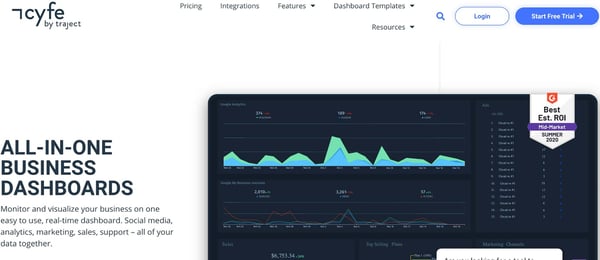
Cyfe is a tool for making fully-customized business dashboards to monitor, display, and analyze your data. The tool is described as an all-in-one dashboard because you can monitor all of your company’s data including (but not limited to) sales, web analytics, social media, and support.

Other Unique Features:

  • Create benchmarks to measure your progress against your business objectives. Then, receive alerts from Cyfe when specific benchmarks are met (via email or SMS).
  • Customize all aspects of your report including the domain name, background, logo, and colors.
  • View data from multiple sources (e.g. Google, Facebook, Mailchimp) by tapping into Cyfe’s app ecosystem of 1,500+ apps.
  • Customize dashboards with data from your SQL database.
  • Integrate Cyfe with your HubSpot CRM, Marketing Software, and Sales Software.

4. Supermetrics

supermetrics Custom Reporting Tool

Source

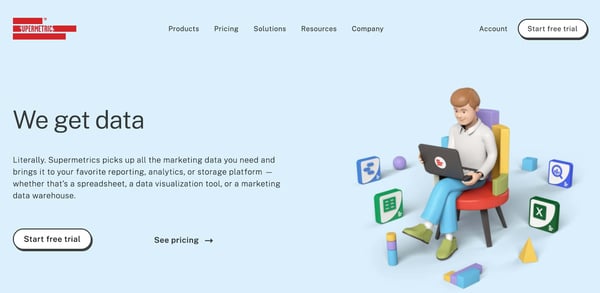
With SuperMetrics, you can easily move your marketing and sales data into Google Sheets, Microsoft Excel, Google Data Studio, BigQuery, API, Snowflake, and Uploader. Once you bring your data into any of these products, fully customize your reports with the Supermetrics templates.

Other Unique Features:

5. Domo

domo Custom Reporting Tool

Source

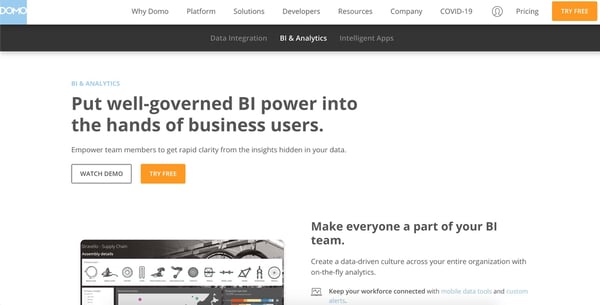
Domo is a business cloud that allows you to easily integrate and visualize your data as well as use (or create) intelligent apps to tailor reports in a way that makes them valuable to your team.

Your interactive and customizable reports are updated in real-time. Based on the type of data you bring into Domo, the tool will recommend certain visualizations it thinks are best-suited to display your information.

Other Unique Features:

  • Customize your reports by annotating charts, adding governance tools for your team, and refining the data points that are most important to you.
  • Bring all of your marketing and sales data together to create insights and action plans based on the real-time information in your dashboards.
  • Determine how the various aspects of your dashboard interact with custom links/ filters.
  • Integrate Domo with your HubSpot CRM.

6. Dear Lucy

dear lucy Custom Reporting Tool

Source

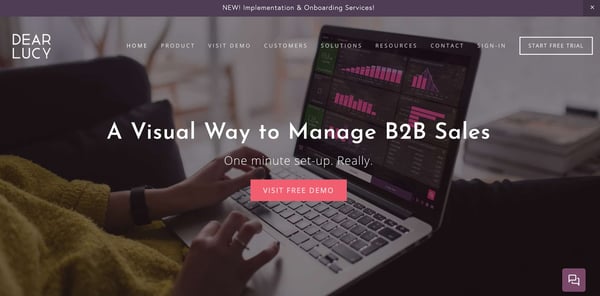
Dear Lucy is a dashboard for B2B sales. Choose the metrics that matter most to your team and bring them into a single dashboard to display your data. On your dashboard, show pipeline-based or activity-based forecasts so you know what to expect in relation to the goals you set.

Other Unique Features:

  • Customize your entire dashboard with the drag-and-drop editor to show the metrics and data you care about most.
  • Use the red and green light feature to be notified when your team is on target or is falling behind so you can make necessary adjustments.
  • Define unique goals for things like activities, revenue, offer base, and hit rate to compare your performance versus targets.
  • Customize the way you filter your data for your reports (e.g. by customer type) so it’s tailored to your team and goals.
  • Integrate Dear Lucy with your HubSpot CRM, Marketing Software, and Sales Software.

7. Analytics Amplifier

analytics amplifier Custom Reporting Tool

Source

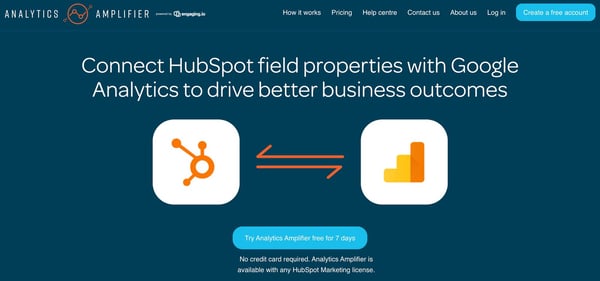
Bring your HubSpot contact data into Google Analytics with ease using Analytics Amplifier. Add HubSpot field properties or custom behaviors (e.g. lifecycle stage, deals won, email unsubscribes) to Google Analytics for viewing. This tool is meant to help you optimize your business paths and drive business intelligence by offering access to data about your contacts in Google Analytics.

Other Unique Features:

  • View your HubSpot object-level data metrics including lifecycle set, deals won, persona set, lead score, number of associated deals, lead status, email unsubscribes, and NPS rating.
  • Create and generate rich, custom reports in Google Analytics using contact data from HubSpot to understand how your contacts and customers interact and engage with your business.
  • Use insights derived from your reports to help you reach people who look like members of your target audience.
  • Integrate Analytics Amplifier with your HubSpot CRM, Marketing Software, and CMS.

8. Ultimate Data Export

ultimate data export Custom Reporting Tool

Source

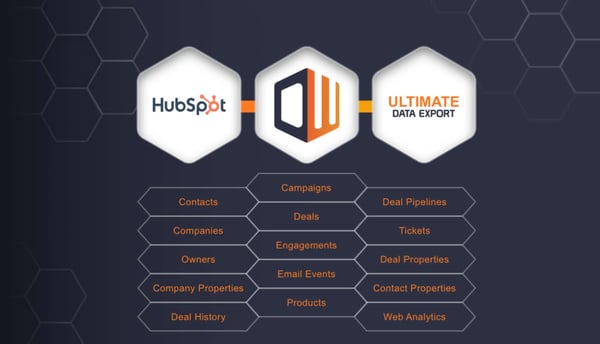
Ultimate Data Export, by Datawarehouse.io, allows you to export all of your data — such as contacts, deals, web analytics, tickets, and emails — to Excel. You can also back up your data as well as restore, query, sync, integrate, analyze, and share it. This tool is ideal for users who want to move data out of HubSpot and into a platform of choice, all at a low cost.

Other Unique Features:

9. Google Analytics

google analytics Custom Reporting Tool

Source

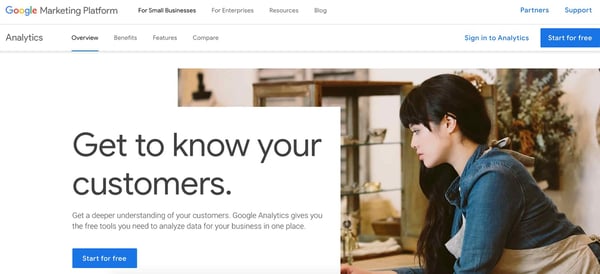
Google Analytics has a custom report feature that allows you to choose the dimensions (e.g. city) and metrics (e.g. page views) for your report as well as decide how that data will be displayed. If you’re a Google/ Google Analytics user, or use a reporting tool with a Google Analytics integration, custom reports are easily accessible to you.

Other Unique Features:

  • Export and share custom reports in seconds.
  • Choose from a list of unique dimensions and metrics for your custom reports.
  • Create categories to organize your custom reports into groups for easy access.
  • Use the Custom Tables feature to back up your custom reports if you’re an Analytics 360 user.

There are many custom reporting tools available today that have the power to help you uncover valuable insights and analyze all of your business’s data. So, while trying to determine the best option for your team, think about which types of data you want to dive deeper into, where you want to conduct reporting and analysis, and how you want to share and distribute that information.


9 Custom Reporting Tools For Your Marketing Team was originally posted by Local Sign Company Irvine, Ca. https://goo.gl/4NmUQV https://goo.gl/bQ1zHR http://www.pearltrees.com/anaheimsigns
Rethinking Your Premium Content: How to Build a Guided Learning Course

Are you seeing a lower return of effort for traditional premium content like whitepapers, webinars, ebooks and more?

Alternatively, do you find the biggest results just aren't there for the amount of work you put into the creation? If so, you're not alone. While these offers can provide in-depth insights for prospects, not every prospect sees the value in them.

Still, we continue offering premium content to build trust throughout the buyer's journey and learn information about prospects along the way.

And yet, the problem remains: Where do you draw the line between offering free, useful content and charging for your expert knowledge and insight?

Some brands are beginning to define this blurry line by developing their own learning management systems (LMS), as a private hub for paid access to their best educational resources.

And yes, you can even build an LMS in HubSpot. Here, we'll explore what a learning management system is, the benefits of using one, and how you can repurpose content into your own guided learning course. 

Let's dive in. 

What's a learning management system (LMS)?

First, let's first make sure we're on the same page with a definition.

A learning management system (LMS) is a software application to administer, document, track, report on and deliver educational courses, training programs, or learning and development programs.

It's a portal that users can log into to exclusively access the premium content you develop specifically for your paid audience. (Paid can mean literal financial payment or the currency of data/membership).

While online courses aren't new, using a learning management system (LMS) to deliver premium content is still uncharted territory for most brands.

As marketers, we're always trying to create valuable content. But in a crowded marketplace, it can be difficult to demonstrate value in your content even if you have a strong content marketing strategy.

That's where a guided learning course can prove beneficial. A guided learning course can offer in-depth solutions to your prospects' challenges, and ultimately, can provide your company with higher-quality leads.

Which makes LMS' invaluable to anyone wanting to create a guided learning course, since courses need to be built on a LMS. 

To explore the importance of guided learning courses, let's consider an example. Let's say you have two competitors, and both offer a webinar on "Email Marketing Strategy".

To differentiate your own brand, imagine instead you take an hour-long webinar and split it up into a dozen topics for five-to-seven minutes each. That could easily be offered as a 12-module course.

Your prospect can now go through the content on their own time and only explore the sections that feel relevant to them, versus having to sit and listen to an hour-long webinar. The perception and value is magnified and fits the nature of how your prospect actually wants to consume the content.

Why use an LMS?

Once we know what an LMS is, it's time to explore why. As you learn what an LMS is and how it works for users, let's dig into why it could change your business.

1. User Accessibility

Right now most marketers create an ebook, promote that PDF through blog posts and social posts, then use workflows and emails to "guide" prospects and contacts throughout the journey.

We can tell when someone downloads the PDF, but we have no idea how much they consume. Then, with emails, information can get lost on the user side of the equation. So many of us delete emails or forget what the exact phrase in an email is we're searching for … it can easily become a mess.

An LMS allows the user flexibility to go back into the journey and see what they need to see inside a comprehensive portal.

Users no longer have to rely on emails. Instead, they can reference each step in the learning path, see what's next, and enjoy a more realistic and user-friendly experience.

2. Buyer's Journey Trackability

On the marketer's side, an LMS provides us with more data points to better understand a prospect's position in the buyer's journey — especially when using an LMS for lead management and education.

Imagine a world where you can watch your buyer discover your content during their awareness stage, and move through consideration and into the decision stage, all within your ecosystem.

It's possible to track a prospect's journey throughout the buying stages with guided learning courses that tailor to users in different stages of the buyer's journey — this is what truly creating content for the buyer's journey looks like.

With a webinar or PDF, you're left wondering how much someone consumed. You don't have access to the data with PDFs. You know prospects downloaded it, but did they actually consume the information? For the most part, it's the same with webinars on the user level.

When you use guided learning or an LMS, you can see every module or every single page they viewed, and how far through the course users got. You can measure to make sure it's effective in general, and you can also measure the intent and automate your systems based on topic performance and even individual chapter performance. 

3. Cross-Device Consumption

Want to know a bonus to creating a guided learning course that users sign into for consumption? Think about a frictionless cross-device experience.

How often do we start a video or article on our laptop while working or researching, only to want to continue it on our phone later? This is especially true when the content is longer than a 2-minute video.

When a user has a membership to your LMS, they can go to their laptop, their phone, their iPad … wherever they want to consume content at that moment, and it's there waiting for them. That's winning at UX!

Guided Learning Course Examples

What does a learning management system look like in practice? Let's take a look at two examples right under our noses.

1. HubSpot Academy

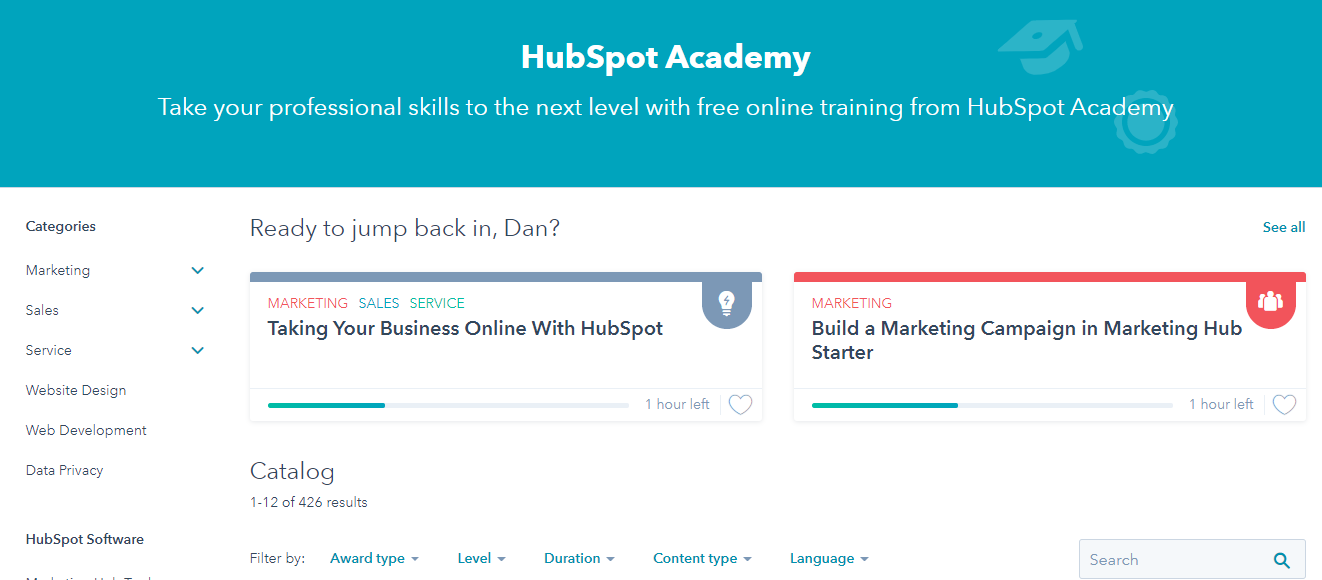
HubSpot Academy is a great example of using an LMS for lead generation and trust building.

Academy courses teach users all about HubSpot's philosophy and mindset. Users can learn about HubSpot before purchasing HubSpot's products or services — but users can also learn about a variety of other marketing, sales, service, and web design topics without ever becoming a HubSpot customer. 

Consider the Marketing Software Certification course. Instead of a PDF with screenshots, users can walk through videos with screen-sharing options, download study guides, and take quizzes and exams along the way to assess progress.

2. SEMrush Academy

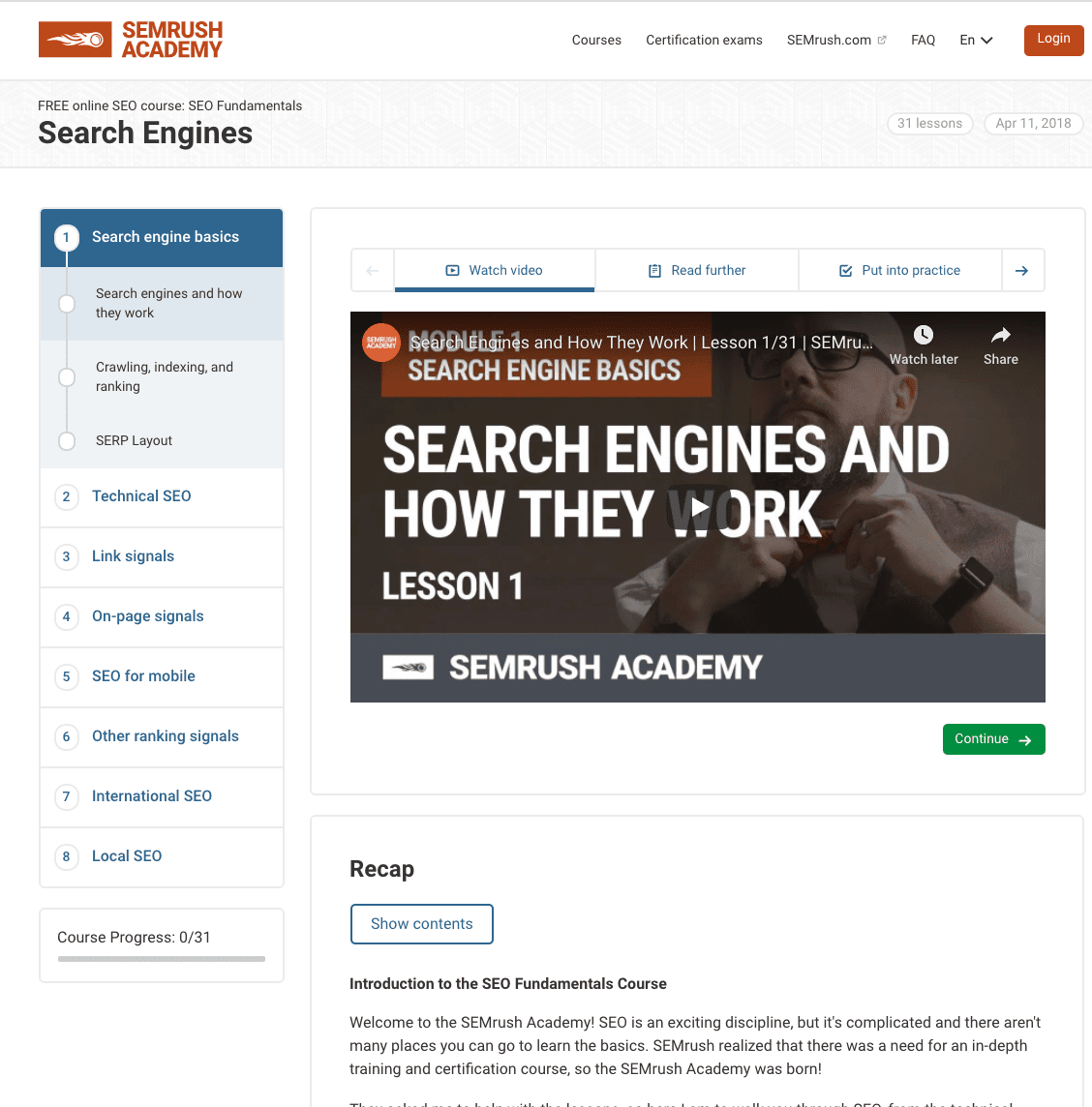
SEMrush offers solutions for SEO, PPC, content, social media, and competitive research. To appeal to both prospects and users, the company created SEMrush Academy, a Digital Marketing guided learning course with courses on SEO, content marketing, PPC, and more. SEMrush Academy is free and offers a certification when users complete courses.

Best of all, the guided learning courses have both video and text with some of the industry's most well-known digital marketing professionals, and while all courses are offered in English, many of them are also offered in Spanish.

Whether you're a content marketer looking to up your game or you're already a customer of SEMrush, you'll undeniably find value in their courses, ranging from beginner to advanced.

Image Source

For more inspiration, take a look at 60 Best Free Online Courses For Whatever You Want to Learn.

How to Repurpose Your Content into a Guided Learning Course

If you're thinking, "Wait a minute ... Now I have to create all this new content?" take a breath. Yes, new content is needed. However, you can also repurpose content you already have as you're creating new content for your LMS strategy.

Most of your existing content can be reimagined into a guided learning course.

You can revisit popular ebooks, webinars, pillar pages, blog posts, slide decks and more to create a multimedia course to serve your customers. You can even turn toolkits and related offers into guided learning opportunities.

For instance, you might consider taking your ebook and using each chapter as a chapter or module in your course. Additionally, you might take some information on the subject from various blog posts and turn it into a checklist or template format for users to try for themselves.

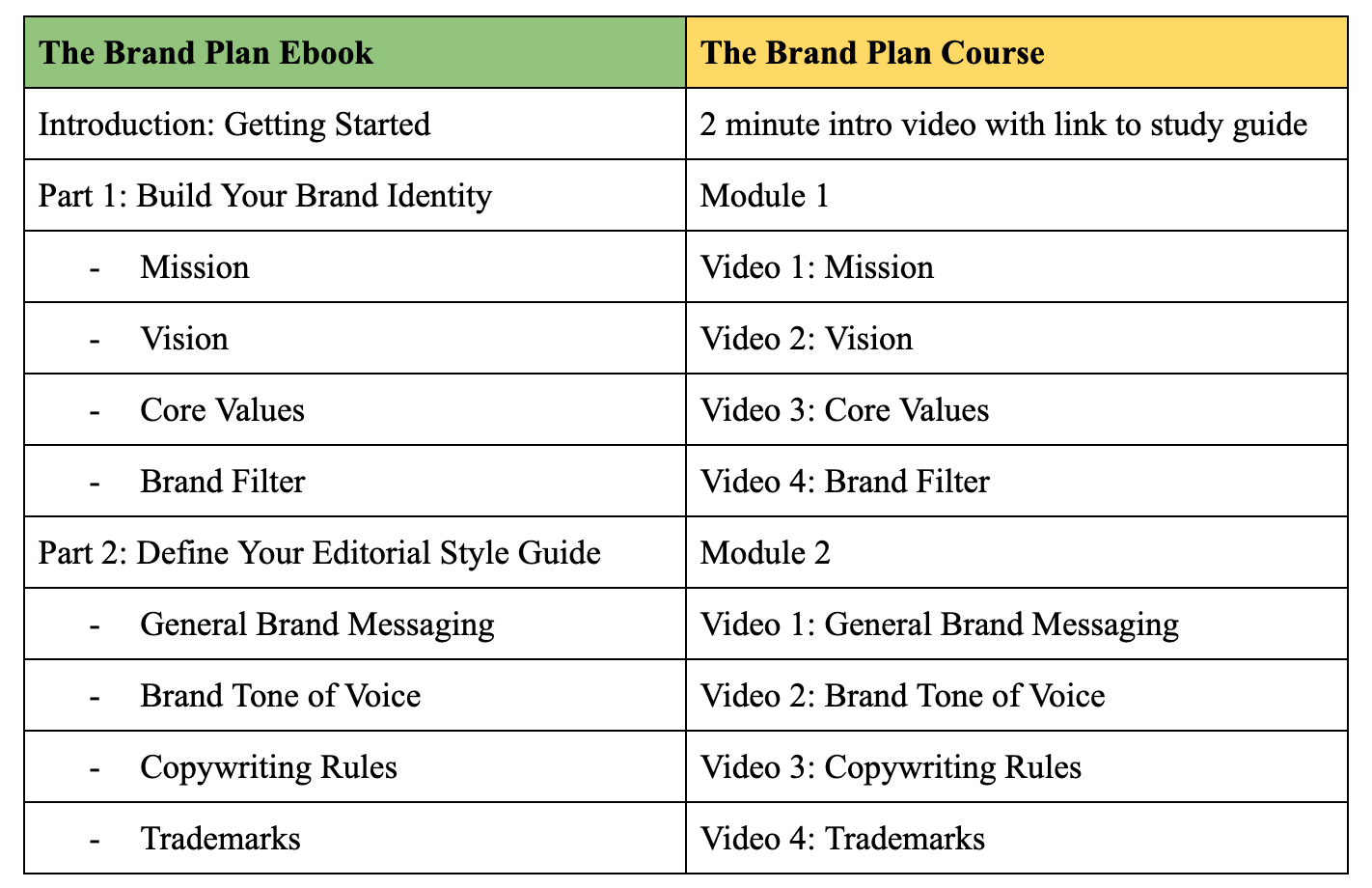
At Impulse Creative, we can turn our Brand Plan ebook into the Brand Plan Course and create a whole new offering. Here's how that would look:

LMS

You get the idea. Each chapter becomes a module, and the subjects in those chapters become the videos that make up the course. This way, you can keep videos shorter for more bite-sized consumption.

Additionally, you'll want to perform a content audit to uncover what pieces you have and what problems each one solves before placing them into buckets. Then, you can take each of these buckets and create a course.

The content you have will act as a storyboard so you can script your videos. Then you can use the existing content with a slight refresh as the bonus materials in your courses.

Brands find themselves at a critical turning point today ... Traditional content can feel stale — and users are demanding more.

There is a major opportunity for the LMS to serve multiple facets of your business, from lead generation to sales or customer success. Ultimately, you'll want to figure out how a LMS could serve your own business needs, as well as the needs of your prospects and customers.


Rethinking Your Premium Content: How to Build a Guided Learning Course was originally posted by Local Sign Company Irvine, Ca. https://goo.gl/4NmUQV https://goo.gl/bQ1zHR http://www.pearltrees.com/anaheimsigns