Monday, February 28, 2022

31 Instagram Features, Hacks, & Tips Everyone Should Know About

Did you know you could schedule your Instagram posts in advance? Or optimize your bio to appear in the Explore tab?

There are countless lesser-known Instagram features, settings, hacks, and search options to help take your Instagram game to the next level. And we've compiled them all, here.

Whether you're a recruiter looking to showcase your company's culture, a marketer in the e-commerce industry, or an individual who's just looking to use Instagram in the best ways possible, there are Instagram tips and features here for you.

*Bonus Content* Click here to unlock 20 powerful strategies & hacks for increasing Instagram engagement.

Note: Before getting started, make sure you're operating on the latest version of Instagram. At the time of publishing this guide, the latest version is 15.1.1 on iOS and on Android. Please also note that although this article might demonstrate each tip below using an iPhone or Android device, all items on this list are available for both operating systems and can be enjoyed using the same step-by-step instructions.

Table of Contents: 

31 Hidden Instagram Hacks, Tips, and Features

Instagram Account Features

1. Add and manage multiple accounts from the same device.

Have a separate account for your dog? Don't be embarrassed; stand by your puppy profile. In fact, whether it's a pet account or a business account, you can add and manage this one right alongside your personal account.

Here's how:

  1. From your profile, tap the gear icon. To find this icon on an Android device, you'll first need to tap the three horizontal lines to the top right of your screen.
  2. Scroll to the very bottom and tap "Add Account."
  3. Add your other account by username and password, and you're all set.

To toggle between both profiles, hold down your profile picture in the navigation bar to view all connected accounts. You can also switch to a different account through the Settings page mentioned earlier. See what this screen looks like in the next Instagram feature, below.

2. See all the posts you've liked.

Ever wanted to see the posts you've Liked, all in one place? All you have to do is go to your own profile and click the "Settings" button in the top right — a gear icon on iPhone/iPad, and three dots on Android — then, click "Account", and finally "Posts You've Liked."
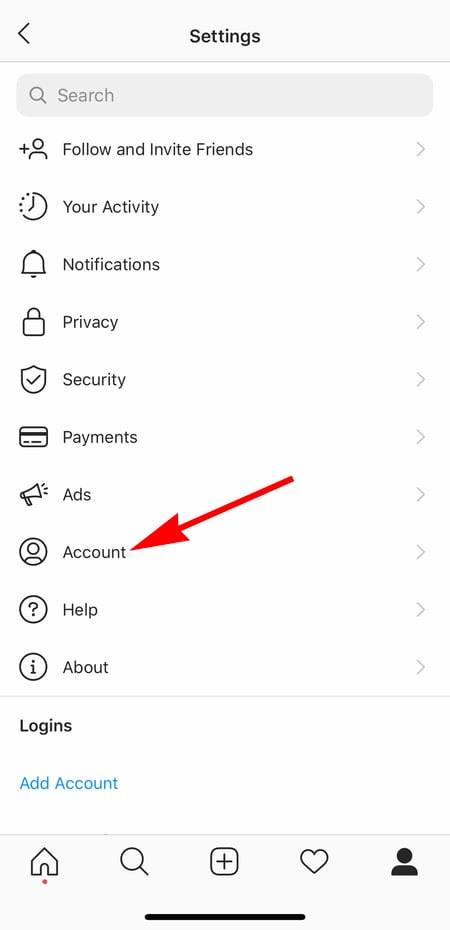
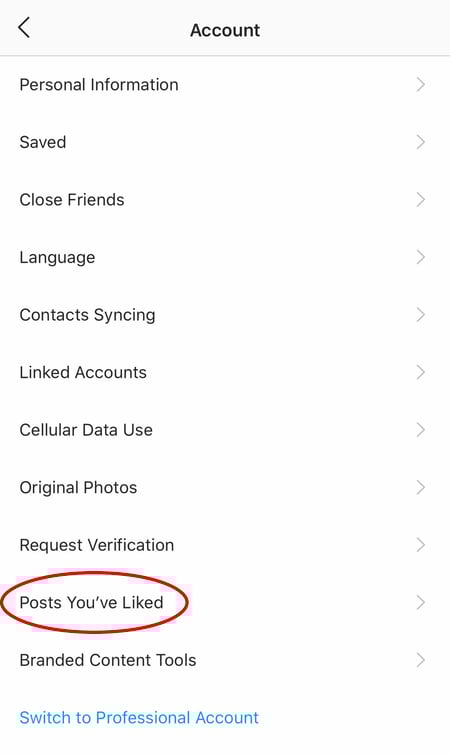
someone's instagram settings to click account to find out posts you've likedsomeone's instagram settings to click account to find out posts you've liked

To un-Like any of the posts you've Liked, simply go to the post and deselect the "heart" icon below it. Don't worry — the user won't be notified that you've un-Liked the post.

3. Hide, delete, or disable comments on your posts.

Twitter may carry a more "anything goes" culture of commentary, but your Instagram is your domain — and it's much easier to control who says what on your content. This is especially important if you manage a business account.

To Filter Comments by Keyword:

In the Instagram mobile app, navigate to "Options" and select "Comments." From here, you can toggle on "Hide Inappropriate Comments" and even enter specific keywords you'd like the app to police within each comment.

To Delete Comments:

Tap the speech bubble icon below the comment you'd like to delete, and swipe lightly to the left over this text. Select the garbage can icon that appears to delete this post. You can also do this to your own comments.

To Disable Comments Entirely:

To clarify, you can't turn off comments across your entire profile; you can only disable them for individual posts.

To do so, start posting an image on which you'd like nobody to comment. When you reach the page to add a caption, tags, and location, tap "Advanced Settings" at the very bottom. This will open a screen where you can easily switch on an option labeled "Turn Off Commenting."

4. Clear your Instagram search history.

We swear — this blog post isn't all about how to convince people you're not an Instagram creeper. But many of us can relate to the desire to clear our online search history everywhere, including on this particular social channel. Luckily, you can.

To clear your Instagram search history, go to your own profile and click the "Settings" button (a gear icon on iPhone/iPad and three dots on Android). Scroll down and click "Security":
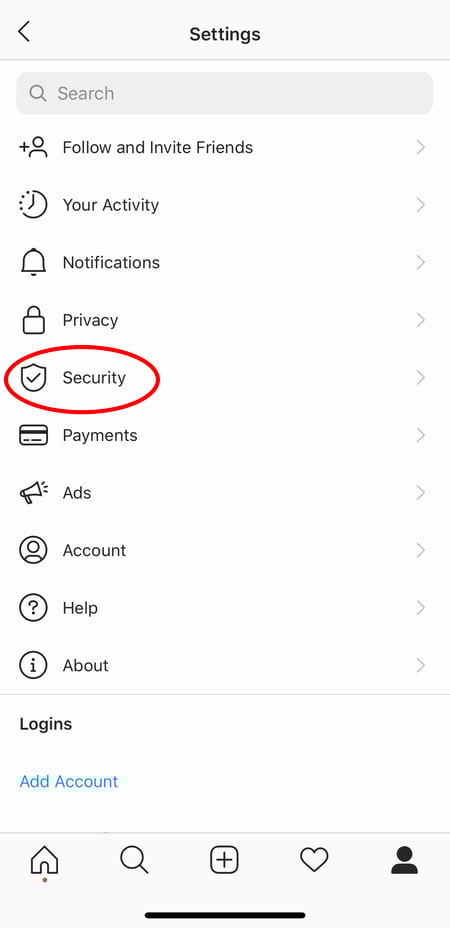
showing in settings how to clear instagram search history

Then, select "Clear Search History" at bottom of the screen, and then confirm by clicking the blue link, "Clear Search History".
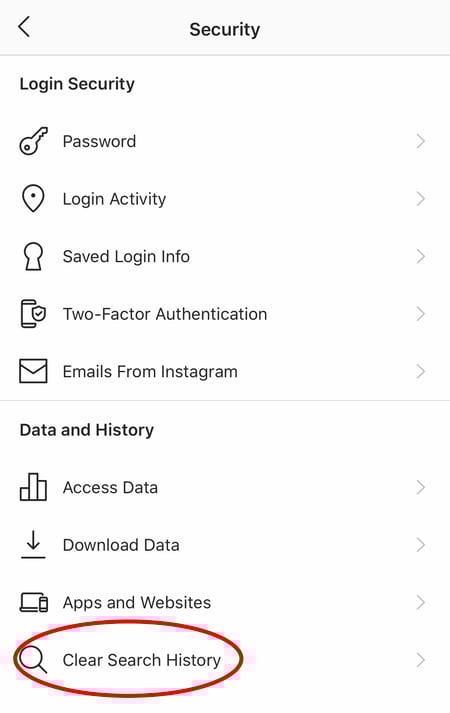
showing in settings how to clear instagram search history

5. Add another Instagram account to your bio.

Perhaps your company has more than one Instagram account for different aspects of your brand. For instance, HubSpot has a verified HubSpot account, a HubSpot Life account, a HubSpot Academy account, and a HubSpot Partners account.

To draw awareness back to its main company page, then, HubSpot links to the @HubSpot account in its other account bios, like in @HubSpotLife's account:
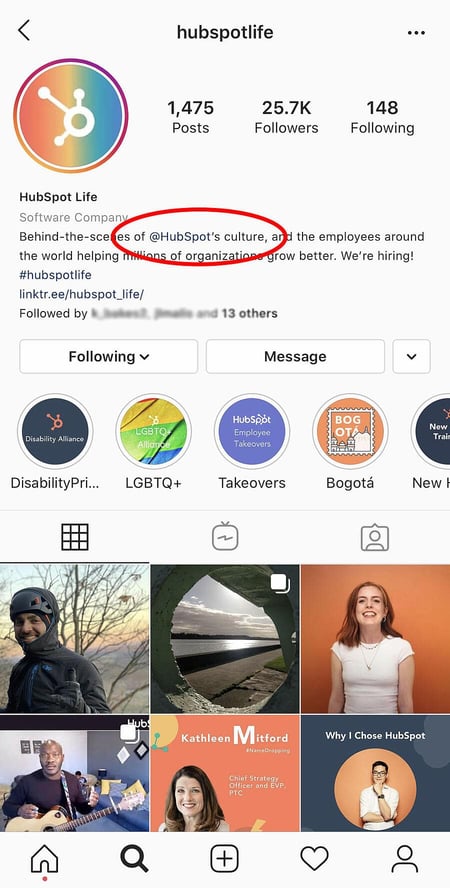
add another account to instagram bio

Fortunately, you have the option to include another Instagram account in your Instagram bio. To do so, simply type the "@" sign into your Bio, and then select the account you'd like to tag. Then, click "Done".
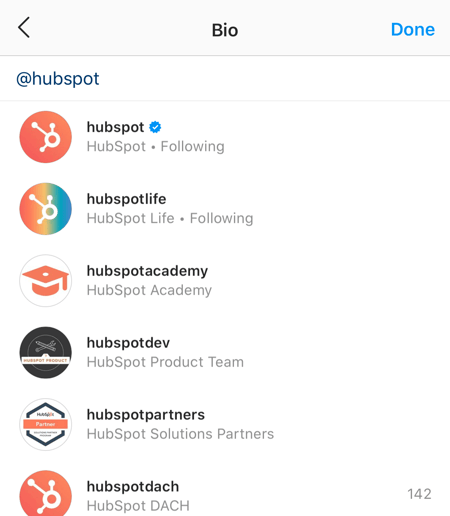
add-insta-account-to-bio

Instagram Design Features 

6. Add special fonts to your bio.

Here's an Instagram bio hack that can truly make your profile stand out. You can already add emojis to the bio beneath your profile photo, but your keyboard limits your creativity right there.

Using a couple of basic third-party websites, you can copy over some more special fonts not often found in the Instagram community. Here's how.

To Add a Special Font to Your Bio via Mobile:

Add a new font to your Instagram bio via your mobile device using a website like LingoJam. Open the site on your phone, type your desired bio text in the lefthand text box, and you'll see the same bio text in different typefaces appear on the right.
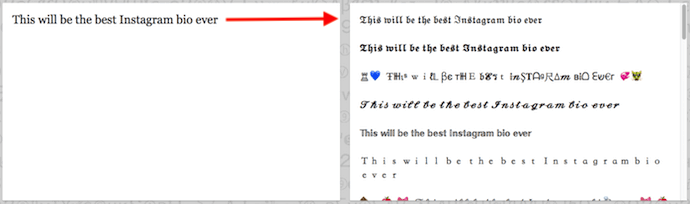
how to add special font to bio with a tool like lingojam

Carry your chosen font over to your Instagram bio by tapping it and selecting "Copy." Then, open your Instagram app, navigate to your profile, select "Edit Profile," tap the "Bio" section and paste your chosen font into the empty field.

To Add a Special Font to Your Bio on Desktop:

If you're editing your Instagram profile on your laptop or desktop, Font Space has a library of fonts you can download and copy into your bio in seconds. To do so, Find a font you like and select "Download" beneath the font's sample image, as shown below.
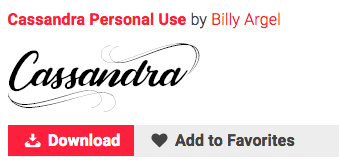
cursive font of someone's name

Downloading this font will open a folder on your desktop where you can pull a ".ttf" file that carries the various versions of this font. The file will look something like the screenshot below.
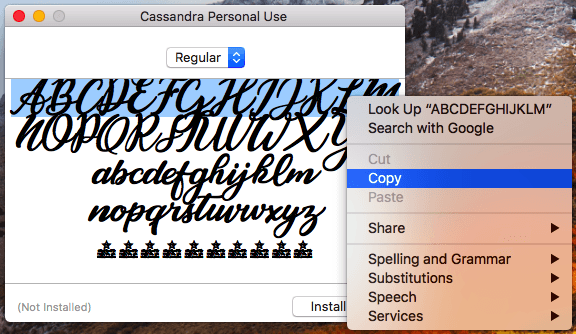
copying special font to paste it into instagram

Once you have this font copied to your computer's clipboard, open your internet browser and log onto Instagram.com. Select "Edit Profile" and paste your downloaded font into your bio field. You can then edit the sample text that came with your font to write your new bio as you see fit.

7. Add special characters to your bio.

Not only can you customize your bio with a special font, but you can also add atypical characters that distinguish you or your brand — but that you wouldn't find on your smartphone's normal keyboard. These include §, †, or even ™ if your Instagram name features a trademarked product name.

To Add Special Characters From Mobile

Using your mobile device, install a free mobile app like Character Pad, which catalogs nearly every character and symbol you might need but won't find in the 26-letter English alphabet.

Open the app and find the character you want to add to your Instagram bio. In Character Pad, you'll simply double-tap the picture of your chosen symbol to paste it into a text box, as shown below. Then, copy this character to your phone's clipboard. (For our purposes, I double-tapped the half moon icon.)
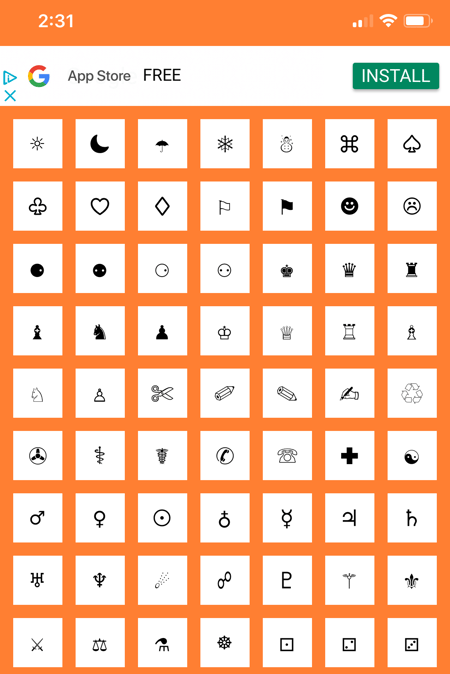
special charactersOnce you have your symbol copied to your clipboard, open Instagram, navigate to your bio, and tap "Edit Profile."
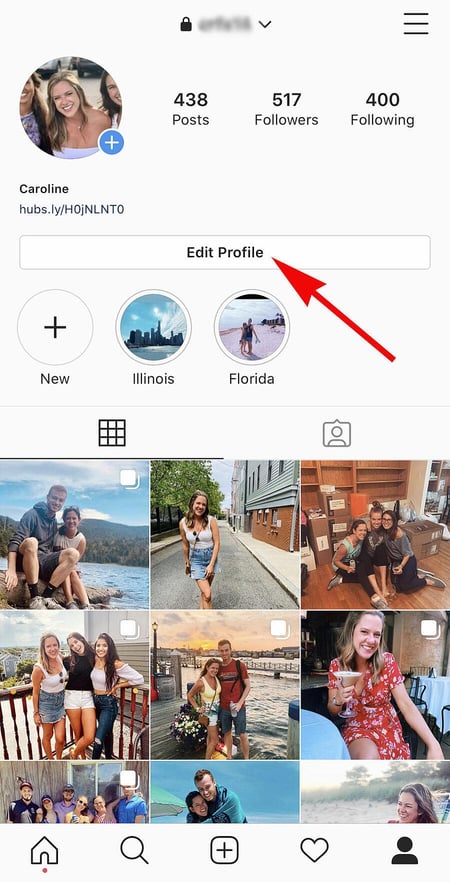
edit profile-1Hold down your finger on the field of your bio you want to insert your special character until "Paste" appears as an option, as shown below. Tap "Paste" and then "Done" you'll be all set.
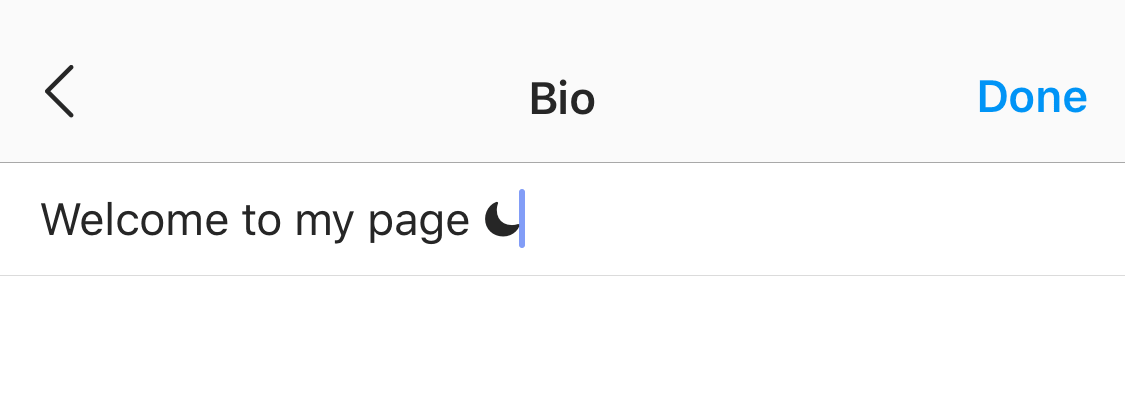
welcome to my page

To Add Special Characters From a PC

You can also insert special characters and symbols through Instagram's web client on a desktop or laptop computer. The easiest way is to use Microsoft Word's "Symbol" insertion icon, as shown below.
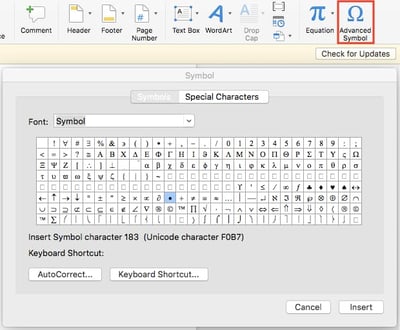
ms-word-insert-symbol

Select your desired symbol or character and copy it to your computer's clipboard. Then, navigate to Instagram.com and follow the steps above to paste your character into a particular part of your bio.

You might be tempted to simply Google search the special character you want, and at times it might work just as well as the steps above. But keep in mind not all special characters you copy from the internet are "clean" when you paste them into Instagram — some of them might become corrupted or not show up correctly.

8. Reorder filters to set your favorite filters at the front.

If you use Instagram a lot, chances are, you have a few favorite go-to filters, and others you never touch. To make editing photos easier, you can reorder the filters in your editing window.

To reorder filters, add a new post and begin editing it. When you get to the filters page, hold down on a filter you'd like to move, and then drag it to your preferred location. 

reorder instagram filters

9. Use Instagram as a photo editor (without having to post anything).

Perhaps you love Instagram's filters and editing capabilities, but aren't quite ready to post the photo to your account — right now, or ever. To use Instagram as a photo editor without posting anything, all you need to do is publish a picture while your phone is on airplane mode.

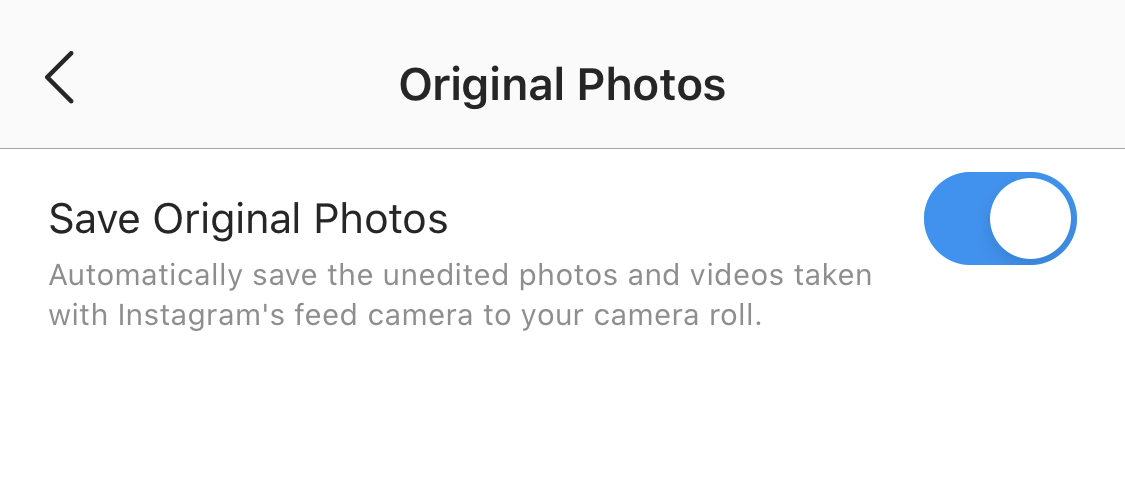
First, be sure you have "Save Original Photo" turned on in your Instagram settings.
IMG_8604

Then, turn on airplane mode — see instructions in #5.

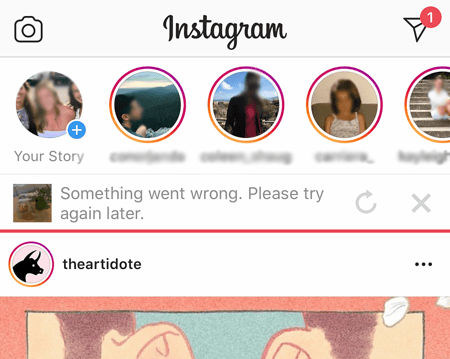
Next, follow the normal steps to post a photo to Instagram: Upload the photo, edit it, and press "Share." An error message will appear saying the upload failed, but you'll be able to find the edited image in your phone's photo gallery.
use ig as photo editor

10. Insert line breaks into your bio and captions.

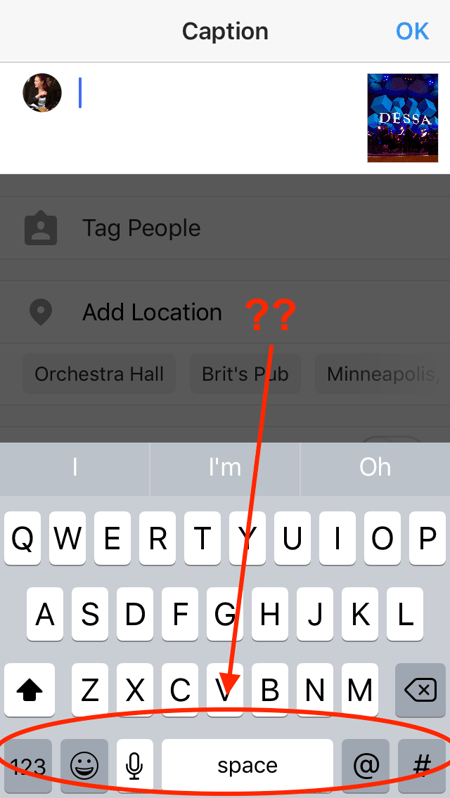
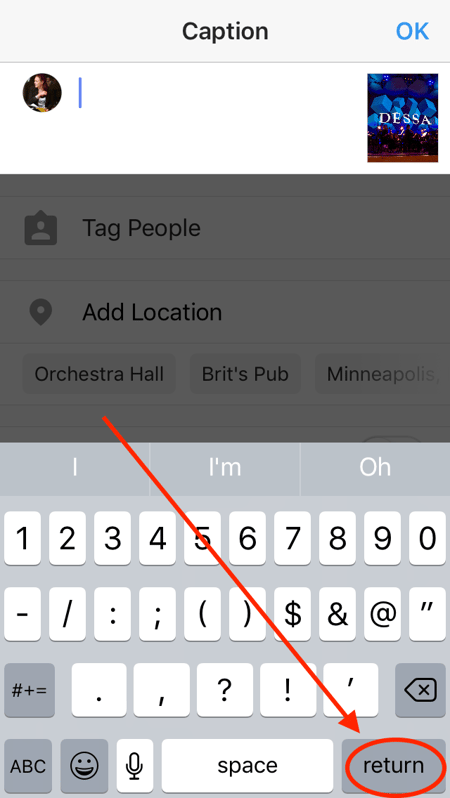
When you write a caption in Instagram, you'll see the keyboard doesn't give you an option to press "Enter" or "Return." The same is true for your bio. So how do all those people put line breaks in there?
No return key.png

It turns out that all you have to do is press the "123" key in the bottom lefthand corner of the keyboard, and the "Return" key will appear on the bottom right.
Return key.png

I know this tip sounds simple, but a lot of people miss it — myself included, until a colleague clued me in. We've seen some elaborate solutions out there for hacking through this problem, like writing the caption copy in another app, then copying and pasting it into Instagram. Thankfully, it's much simpler than that.

Instagram Optimization Features

11. Optimize your Instagram bio to appear in the Explore tab.

Your friends, family, and coworkers might be your first group of Instagram followers, but growing your audience takes more than the people who already know you. One key way to do this is to get your profile to appear in Instagram's Explore page.
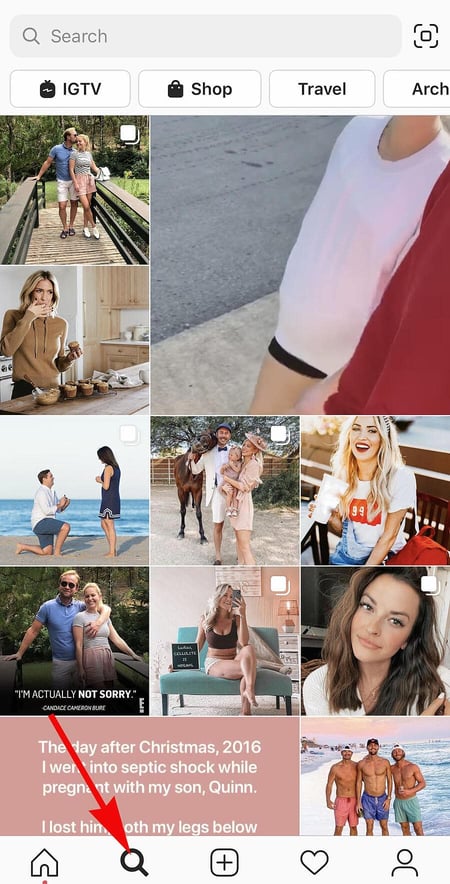
explore tabThe Explore page, accessible using the magnifying glass icon shown above, is a browsing page that sorts the entire Instagram community by topic and keyword. These include "Fitness," "Style," "Science," and more.

Hashtagging your posts with these words can expose your content to the people browsing these topics, but you can also use them in your Instagram name and bio to promote your profile.

If Jane Doe is a marketing consultant, for example, she might want to make her Instagram name "Jane Doe Marketing," rather than simply "Jane Doe." Then, in her bio, she can include all of her specialties, such as "SEO," "blogging," "email marketing," etc.

12. Drive traffic to an external website.

One of the biggest frustrations people have with marketing on Instagram is that clickable URLs aren't allowed anywhere except the single "website" box in your bio. If you put a URL in a photo caption it'll appear as plain text, meaning users would have to painstakingly copy the URL, open a web browser, and paste or type it in there.

One sneaky way to get people to visit your Instagram profile, which is where that one clickable URL is allowed, is to use your photo captions to encourage people to visit your profile for a link. Then, update that URL frequently to point to your latest blog content, YouTube video, product, or offer.

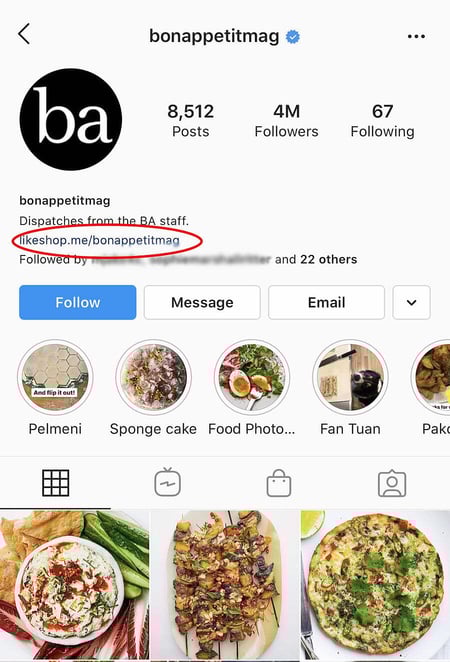
Check out the example from food magazine Bon Appétit below. This photo's caption provides a text call-to-action to visit the user's profile so you can click the link related to the post.

Then, in Bon Appétit's profile, you'll see the link itself. Update this link frequently to point to your latest content or offer.
add link to bioPlus, if you have a verified Instagram account, you can also add links to your Story. Read more about this feature here.

13. Sell products from Instagram using Shoppable Posts.

You might already know you can tag people in your Instagram posts as (or after) you post new content. Now, you can tag products — and direct your viewers to a product page to buy what they saw.

To Add an Instagram Business Account

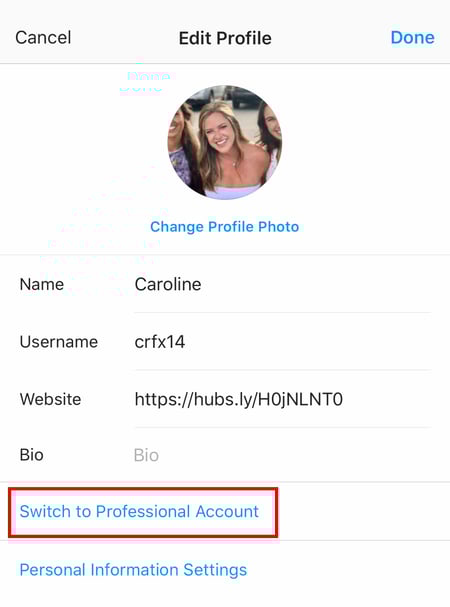
You'll need an Instagram Business account to publish shoppable posts. You can get one by selecting "Edit Profile" on your Instagram profile and tapping "Try Instagram Business Tools," as shown below.
switch to professional account button on instagram

To Tag a Post With Products

Once you've launched an Instagram Business account, you'll need to enable product tags to use them on a post that depicts a product. Navigate to your settings using the gear icon from your profile page, and select "Products." Tap "Continue" and follow the prompts to connect a "product catalog" to your business profile.

With product tags enabled on your Instagram Business account, you can now upload new posts and tag your photo with products you find from your product catalog. Here's what a shoppable post can look like:
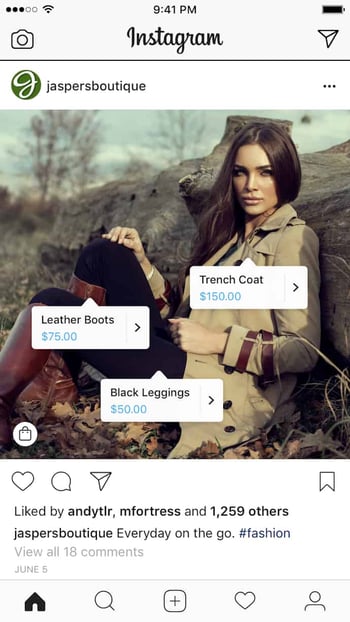
instagram-shoppable-postImage via Instagram

14. Create an auto-complete quick reply for standard responses.

Responding to user comments and questions is incredibly timely, but fortunately, there's a hack to streamline the process and make it more efficient. (Note: This only works on Instagram Business accounts.)

You can simply create a one-to-two word phrase that can act as your shortcut to a longer standard response you might send often. To do this, click "Business" in your Settings, and then "Quick Replies" — or, click the three-dot chat bubble icon on bottom of screen, and then click "New Quick Reply".

Add a shortcut you can enter for the response. For instance, you might type "returnpolicy" as the shortcut for a longer response, i.e.: "Hey there. We're sorry you don't love your purchase. Fortunately, we permit 30-day returns, no questions asked. Please send us your order confirmation number to get the process started."

Once you've added a shortcut, you can either type the shortcut "returnpolicy" into the comment box when you want it to auto-generate, or you can tap the three-dot chat Quick Replies bubble icon at the bottom of your screen to choose from a response you've created. (Read more about Quick Replies here.)
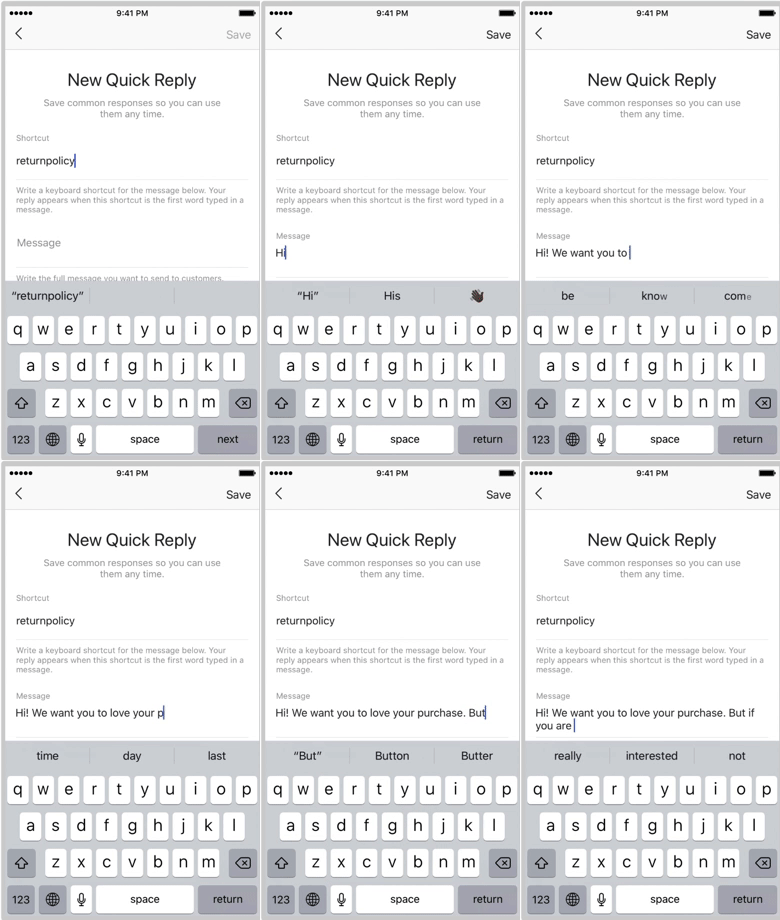
0bbb2a75b44c18506923b75ffceb2a1a

Image Source

15. Pin your Instagram post to Pinterest.

Instagram doesn't have a natural integration with many social networks (except Facebook, its parent company) for publishing Instagram posts to other social accounts.

But with respect to Pinterest, image-loving platforms stick together. Here's a backdoor way to Pin your latest Instagram Story to Pinterest:

On the Instagram mobile app, tap a post to view it in full, then tap the three dots to the top-right of the image. Select "Copy Share URL" to attach the picture's link to your clipboard.
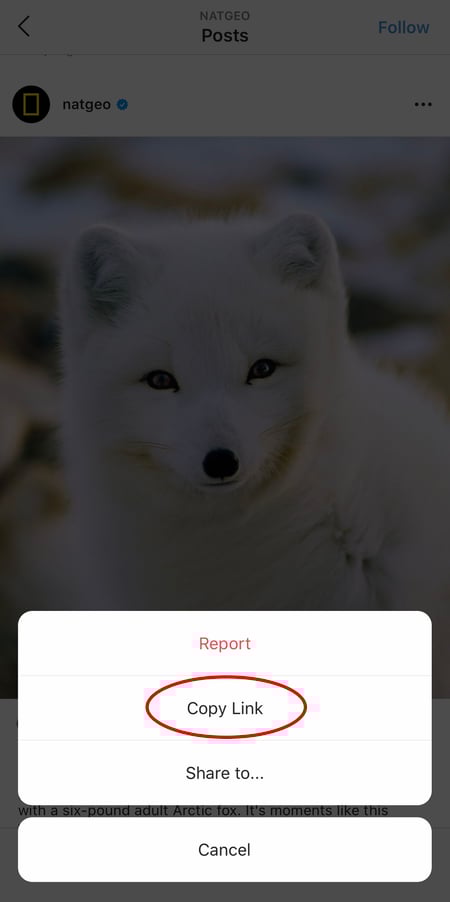
copy an instagram post's link

Open the Pinterest mobile app — or download it; you'll need it for this step — and navigate to your profile page. If you have the latest version of Pinterest downloaded, it might ask you as soon as you open the app if you'd like to produce the image from your clipboard.

If not, select the "+" icon to the top right to add a new pin, and you'll see a menu of options where you can add your "Copied Link" to a new Pin or board on your profile.

Instagram Stories Features

16. Create a collection of saved posts.

In addition to being able to view all of the posts you've liked, Instagram also has an option to save or bookmark certain posts in collections that you create.

Start by going to your profile, and tapping the "Settings" icon at the top-right of your screen, and then select "Saved":
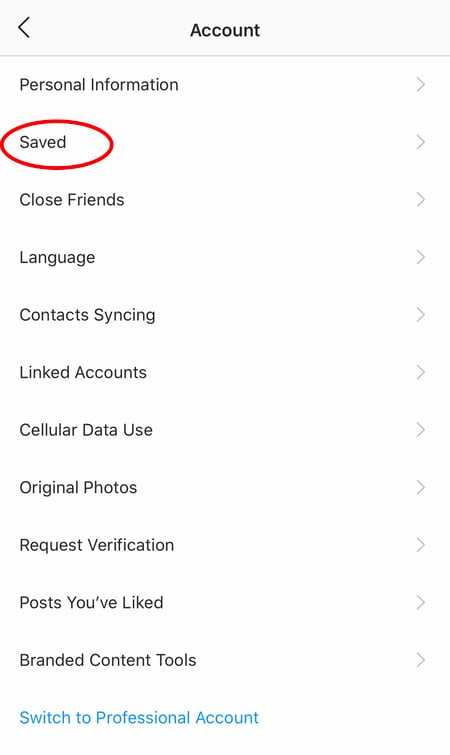
someone's instagram settings to find saved posts

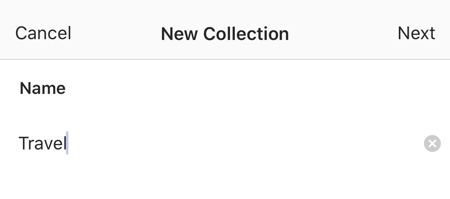
Next, press the "+" button and name your new Collection. someone's instagram settings to find saved posts
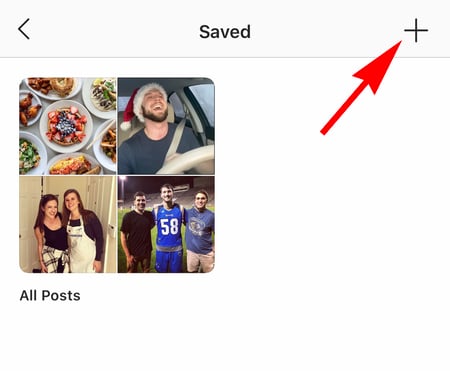
Click "Next", and select images from your "Saved" section.
someone's instagram settings to find saved posts

To save photos for future collections, tap the bookmark icon below the post you want to add, as shown below:
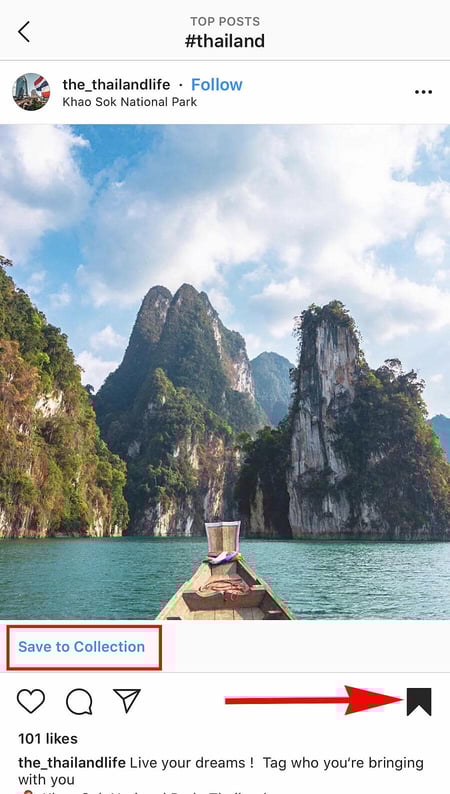
save for future collectionsThen, go back to your saved photos by following the previous steps.

You'll see the photos you've saved — to add them to your Collection, select the Collection you want to add to, and tap "Add to Collection." From there, you can add any of your saved photos.
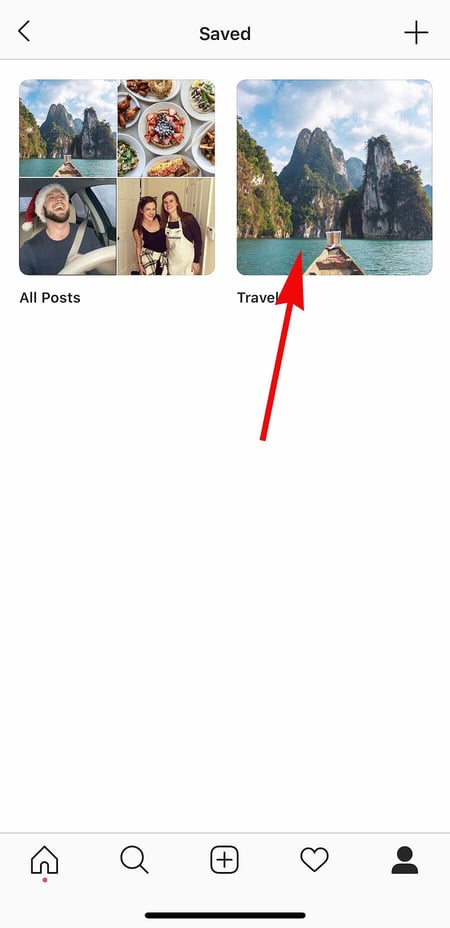
add to new instagram collection

17. Create Stories Highlights to show Stories for longer than a day.

Like in Snapchat, posts to your story only stick around for your followers to see for 24 hours. But sometimes, you have a story that deserves more daylight to be told.

That's where Stories Highlights comes in, a feature by Instagram that allows you to save stories together in the same space on your profile page. If you ever wondered what that "New" button with the "+" icon was below your profile image, this explains it.

To make a Stories Highlight, tap this New option and select any number of past stories in your album:
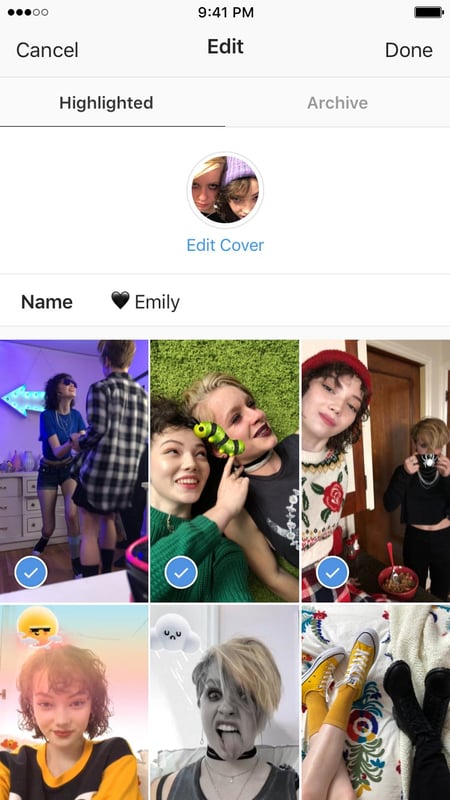
create stories highlights

Image via Instagram

Then, give it a cover photo and a name to display as its own Instagram Story on your profile page. You can remove Stories Highlights at any time by tapping and holding down this story.

18. Reorder Instagram Stories highlights.

The Highlights on your Instagram feed act as your brand's portfolio — you can use Highlights to demonstrate your company's values, showcase new products or services, or categorize various topics you post about frequently.

For instance, The North Face uses its Highlights section to highlight various initiatives that are important to the brand, including a section labelled "VOTE", "Global Climbing Day 2020" and "Summer Basecamp":
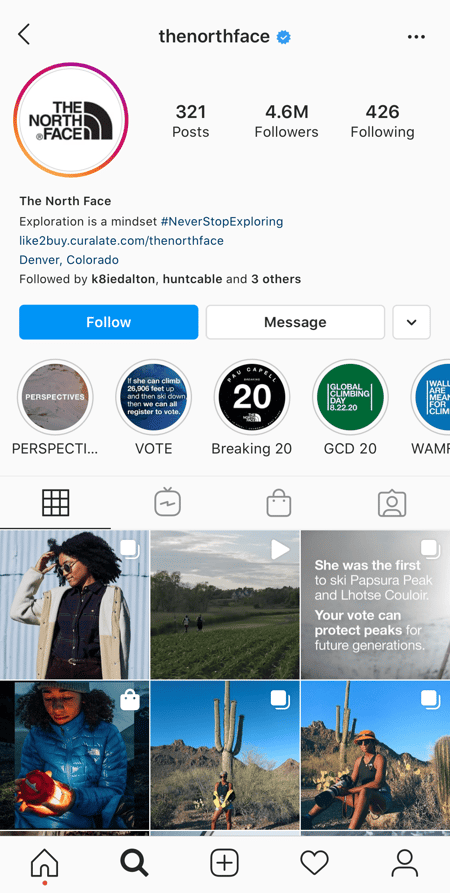
change order instagram highlightsSince a user can only see the first four highlights when they first come across your feed, you'll want to ensure your first highlights are the ones you're most proud of. To do this, simply follow this trick:

1. Hold down the highlight you'd like moved to the front of this list and click "Edit Highlight" when the slide-up appears.
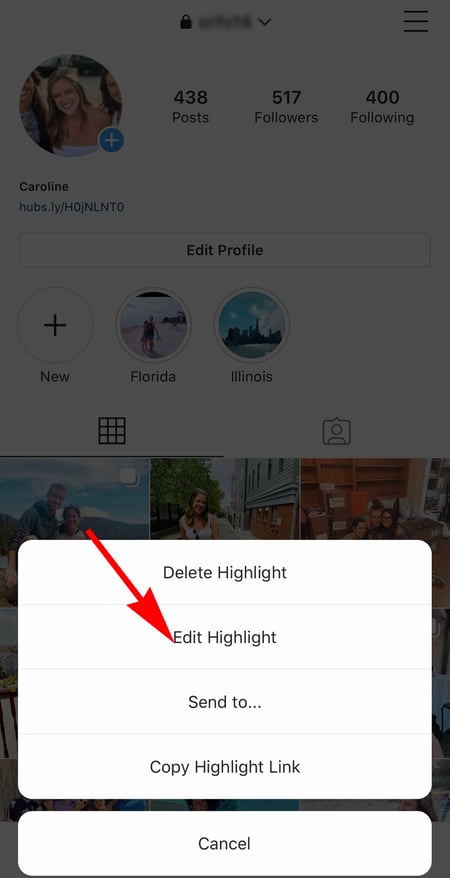
editing a highlight on instagram

2. Next, find an image or video you'd like to add to the highlight. (Don't worry — you'll be able to delete this within 30 seconds, so you don't need to choose one that will stay on the highlight.)
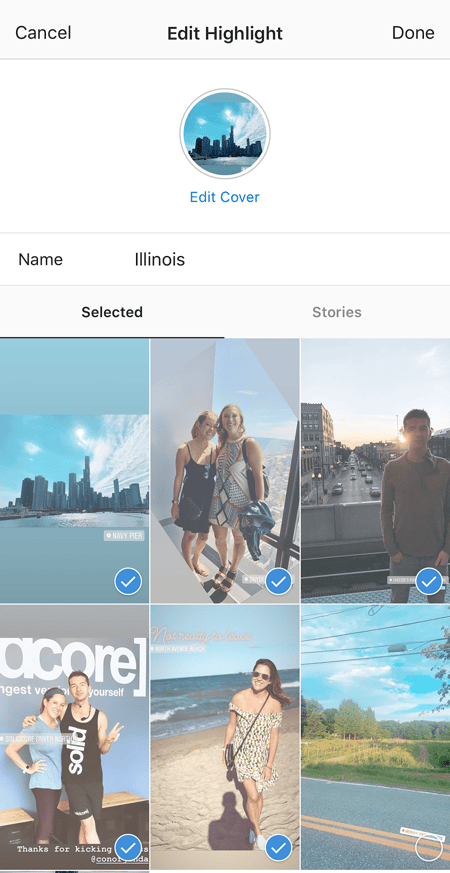
edit highlight3. Click "Done" in the top right corner.

4. Now, your Highlight will be first in the list. To remove the image or video you just added, follow the above instructions and simply un-check the image you added. Your highlight will remain at the beginning of the Highlight reel.

19. Change your Instagram Highlights Icon without publishing it to your feed.

The image you choose for each Highlight should accurately depict what type of content users can expect to see if they tap the Highlight, so you'll want to choose a compelling, engaging image.

However, if you have a design, logo, or image you'd like to use that isn't in your Instagram feed, it's still possible to make it the Highlight Icon.

To do this, click "Edit Highlight" (same as the step above):
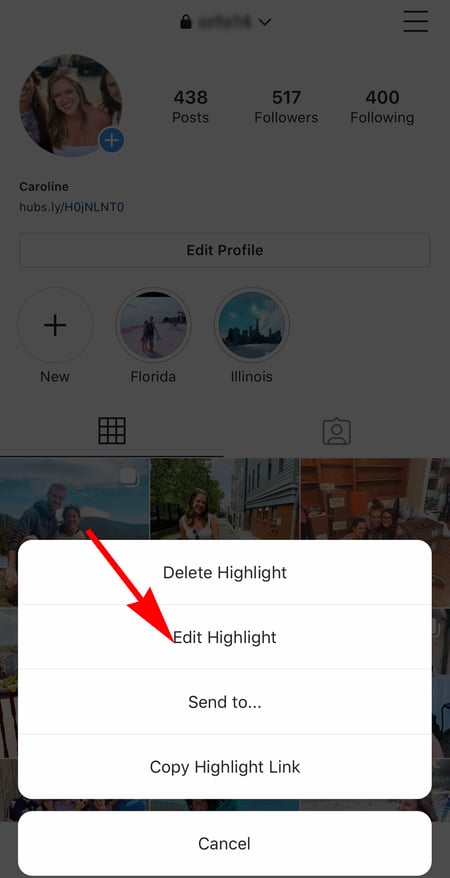
clicking on edit highlight button on instagramNext, click "Edit Cover". Scroll through your camera roll to find an image you like.
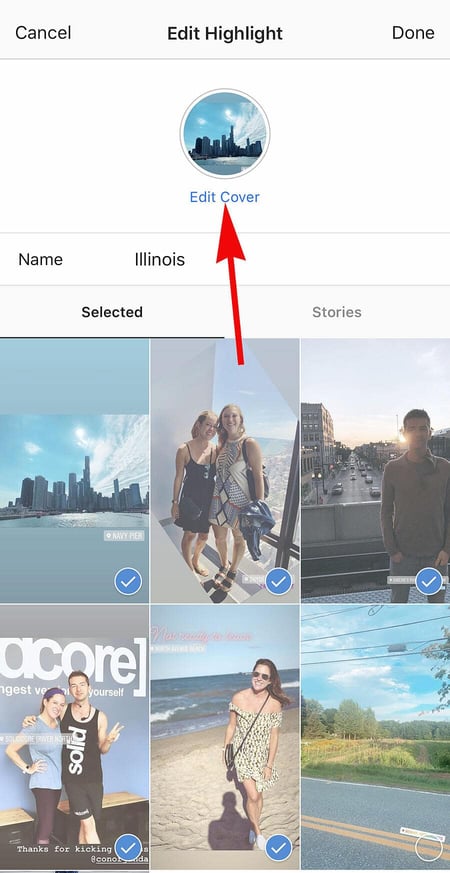
edit highlight cover photo

new photo for highlightOnce you choose an image from your camera roll, click "Done". Your Highlight cover image is now an image you've never posted on your Instagram account:
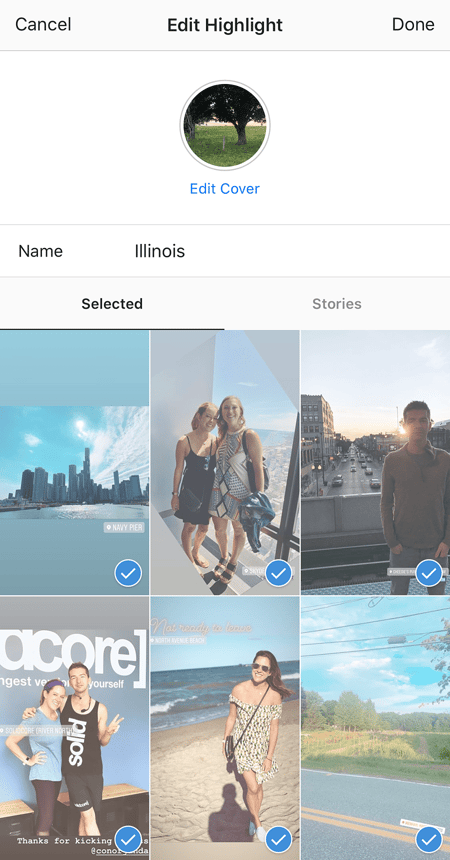
new image for highlights

20. Schedule posts in advance.

Instagram being a mobile app, you're probably in a routine of taking photos and posting them to your Instagram Story on the fly. But, you can also pre-post them from your computer for a set day and time in the future.

This feature is available with a social media scheduling tool, as well as HubSpot if you have an Instagram business account. If you have this business profile, switch to it via the Instagram mobile app and follow the prompts to connect it to Facebook.
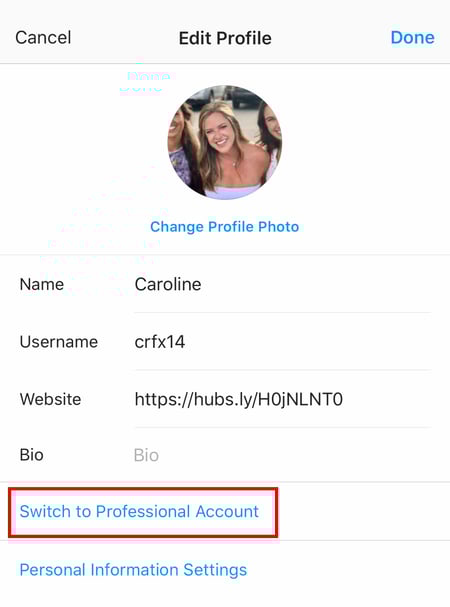
how to switch to instagram professional account

Depending on the social scheduling tool you use, you might not include this step. Once you've toggled to the right account, however, you'll launch your scheduling tool, navigate to your current connected profiles, and see Instagram as an available integration.

21. Use 'Type Mode' to enhance your Instagram Stories.

Instagram Stories is a feature of Instagram that allows you to post ephemeral photos that show up separately from your profile and only last 24 hours. It's a great function for helping like-minded users discover your profile on Instagram's homepage.

But since its beginning, Stories have become quite creative, and it takes more than a pretty filter to stand out to your audience. Enter "Type Mode," an option similar to Snapchat that gives you the power to caption Stories that need extra context to resonate with someone. Here's how to use it:

1. Open Instagram Stories by swiping right from your Instagram feed. This will launch your smartphone camera. Then, take a photo or video and press the "Aa" icon to the top-right of your screen, as shown below:
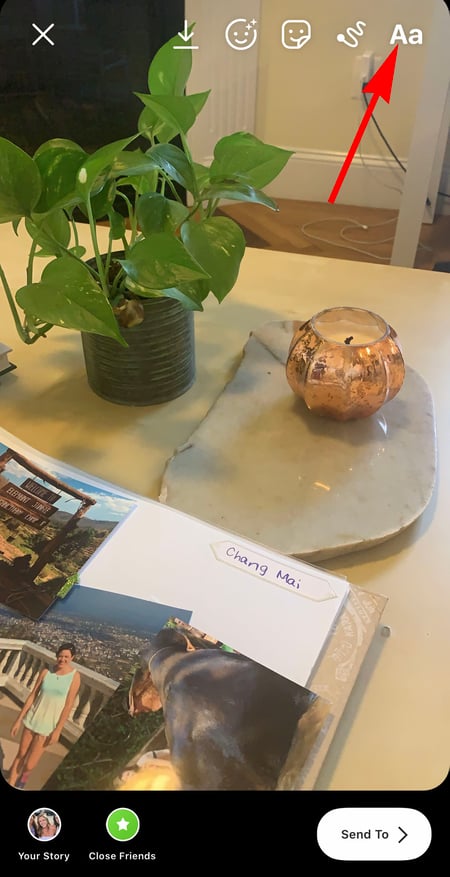
the text button on an instagram story to add text

This "Aa" icon will open Type Mode, where you have five fonts to choose from: Modern, Neon, Typewriter, Strong, and Classic. Here's what a sample Story looks like with Modern font:
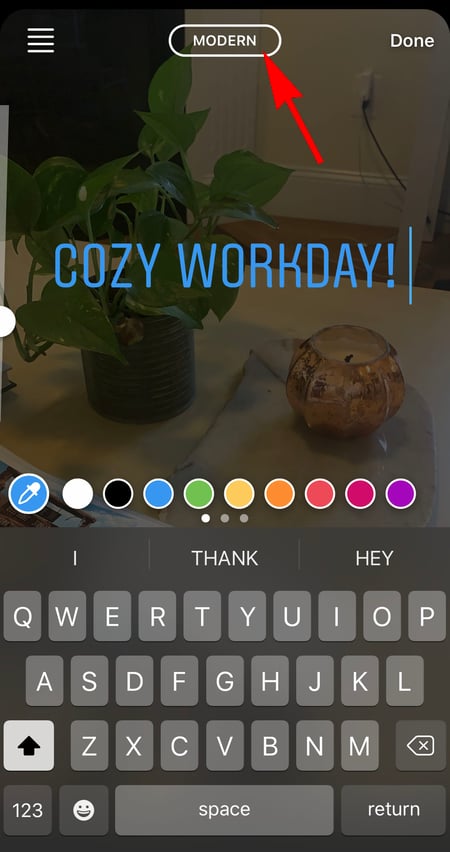
adding text to instagram story

22. Post content from other users to your Instagram Story.

Although Instagram Stories are a great way to give your content exposure on your followers' homepages, you might not always have something Story-worthy. In those times, you can share an inspiring post from someone else through your Instagram Stories. Here's how:

1. Find a post you want to share in your Instagram Stories and tap the paper airplane icon, as shown below.
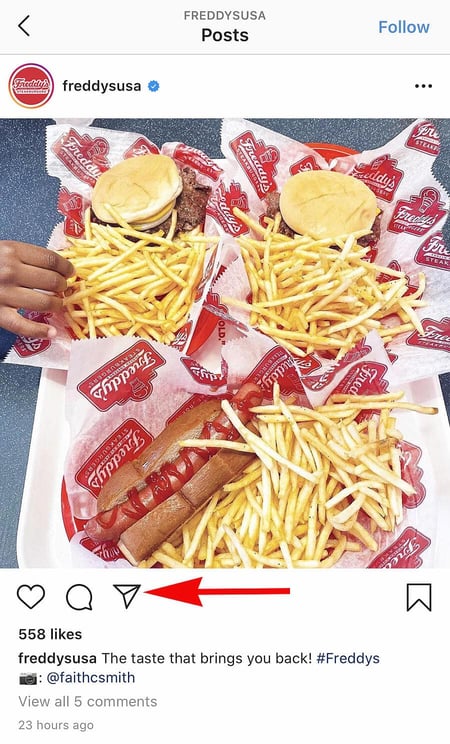
post content from other users

Instagram Account: @Freddysusa

This icon will open a screen allowing you to send this post to specific followers, or add to your Story. Tap the latter option, as shown below.
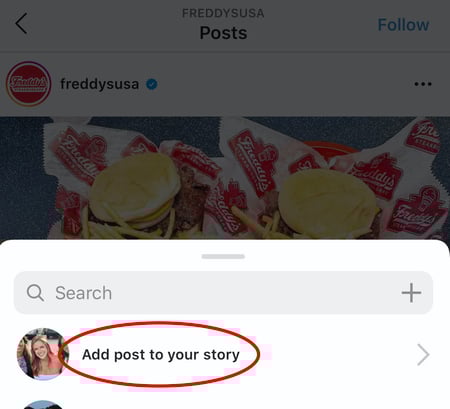
adding someone's post to my instagram story

Tapping this option will automatically turn the post into an Instagram Story, which you can edit and design to your liking the same way you would any other Instagram Story.

Instagram User Preferences Features

23. Get notifications when your favorite people post.

Never want to miss an Instagram post from your favorite influencers again? You can choose to get a notification every time a specific user posts a new photo. All you have to do is turn on notifications for each user individually.

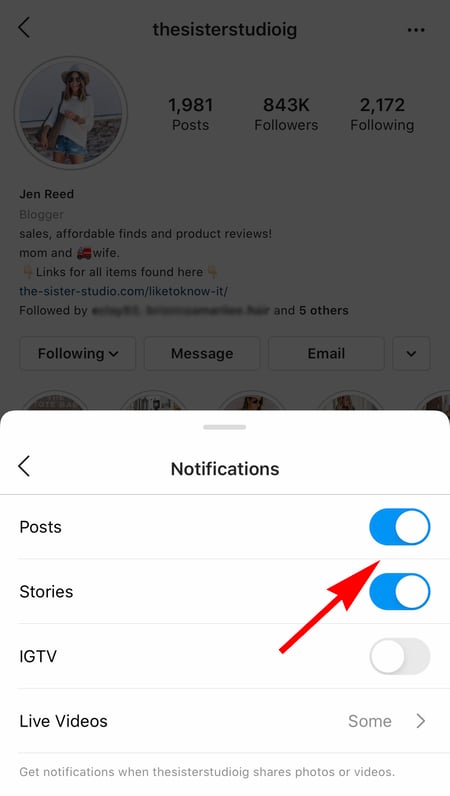
To turn on these notifications, visit a user's profile, click the three dots in the upper right-hand corner of the post, click "Notifications" from the menu, and finally toggle on notifications for either posts or stories from the menu that appears.
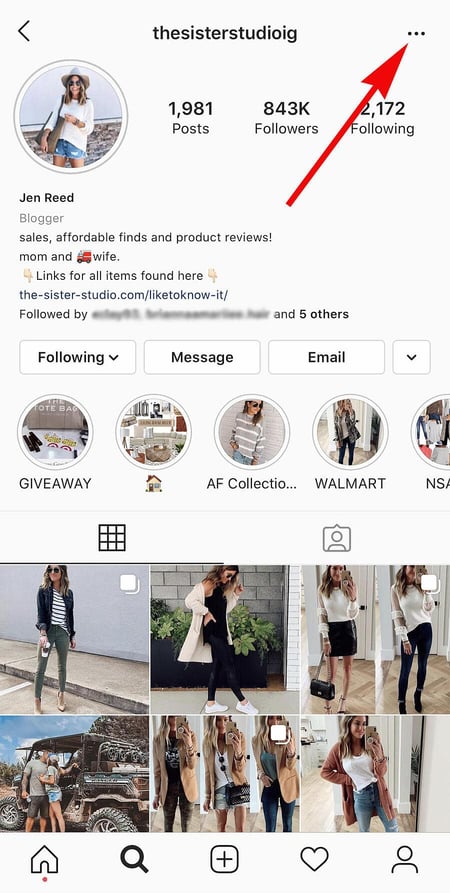
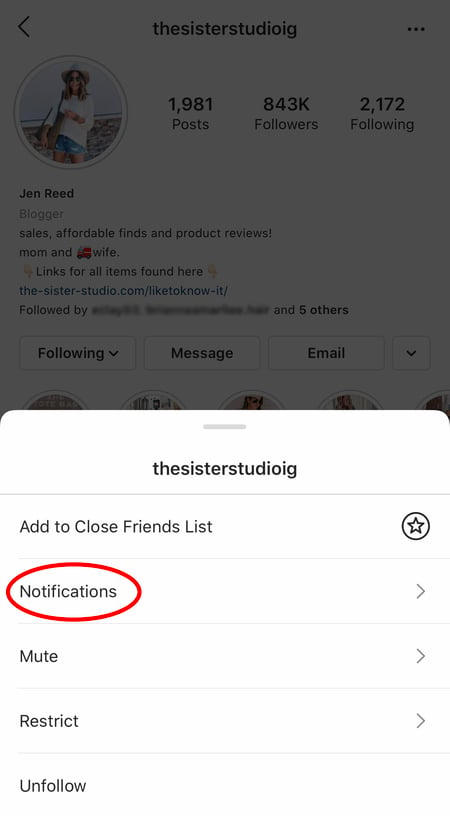
Get notifications when your favorite people postsomeone's instagram account to get notifications when influencers postsomeone's instagram account to get notifications when influencers postInstagram Account: Jen Reed @thesisterstudioig

Want to turn post notifications off? Just follow the same steps. It's important to note that you must enable notifications from the Instagram app in your phone's settings — here's how.

  • To allow notifications on iPhone/iPad: Go to "Settings," then "Notifications." Choose "Instagram" and then turn on the setting to "Allow Notifications."
  • To allow notifications on Android: Go to "Settings," then choose "Apps," then "Instagram." Select the option to show notifications.

24. Hide Photos You've Been Tagged In

When someone tags you in a photo or video on Instagram, it's automatically added to your profile under "Photos of You," unless you opt to add tagged photos manually (see the next tip).

To see the posts you've been tagged in, go to your own profile and click the person icon below your bio.
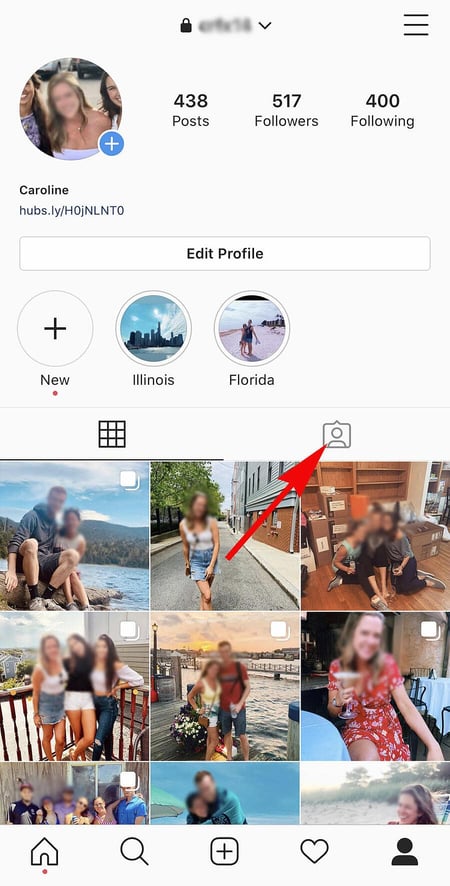
see photos youve been tagged inNext, click on an individual post (any in the group of tagged photos) and click "Edit" in the top right. Then, click "Manually Approve Tags":
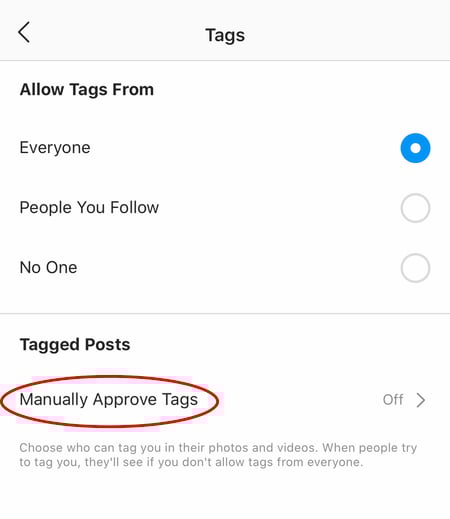
click manually approve tags to hide photos you're tagged in

Then, to hide the posts you've been tagged in from other users, select the posts you'd like to remove from your profile, and when you're done, tap "Hide Photos" at the bottom of your screen. When prompted, tap "Hide From Profile."
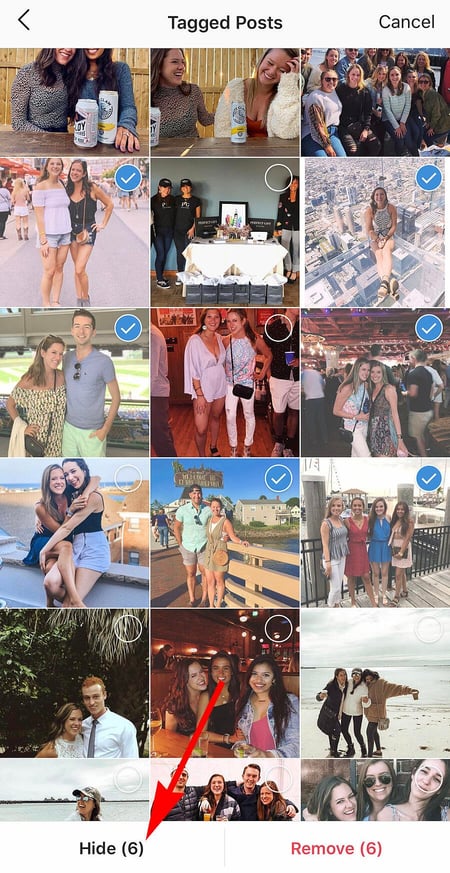
hide from profile

This won't remove the posts themselves from Instagram, but it will remove them from your profile, so you and others can't access them.

25. Adjust your settings to approve tagged photos before they show up in your profile.

As we mentioned in the previous step, when someone tags a photo or video of you on Instagram, it's usually added to your profile automatically. But, you can change your Instagram settings to enable manually selecting which photos you're tagged in that show up on your profile.

To add tags manually, follow the same steps above to get to the photos in which you've been tagged, and click "Edit" at the top right of your screen. Tap "Tagging Options," and select "Add Manually."
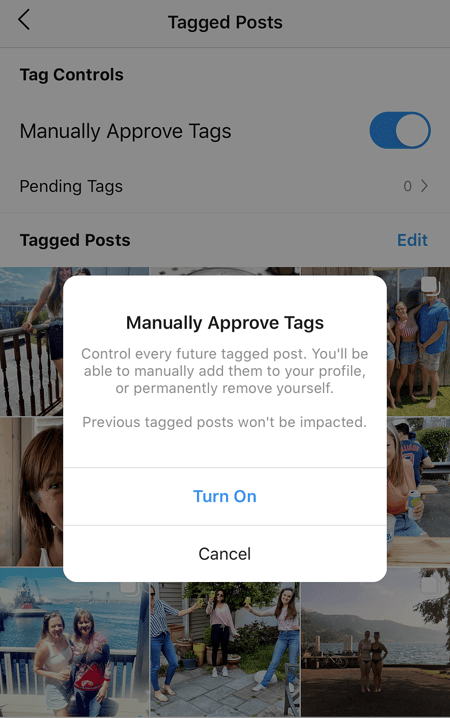
approve tagged photos ahead of time

You'll still be notified when someone tags you in a photo. Once that happens, to manually add a tagged photo to your profile, tap the photo you were tagged in, then tap your username and select "Show on My Profile." And if you'd rather it not be visible, choose "Hide from My Profile" instead.

26. Hide ads you don't find relevant.

Instagram tries to show you ads that are interesting and relevant to you. You might see ads based on people you follow and things you Like on Instagram, or the third-party websites and apps you visit.

If you see sponsored posts you don't find relevant, though, you can let Instagram know and slowly teach its algorithm what you like and don't like to see.

To hide ads on Instagram, tap on the three dots to the right of a post labeled "Sponsored," and choose "Hide This."
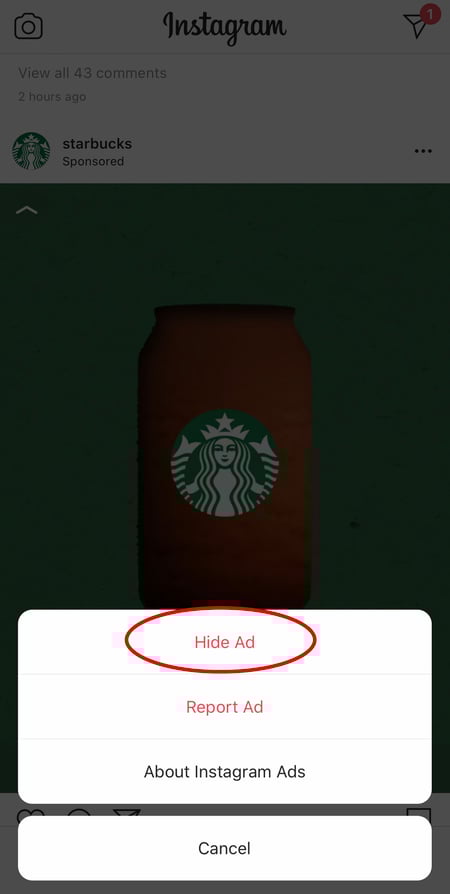
hiding a starbucks ad on instagram

From there, it'll ask you to share why you don't want to see the ad anymore.
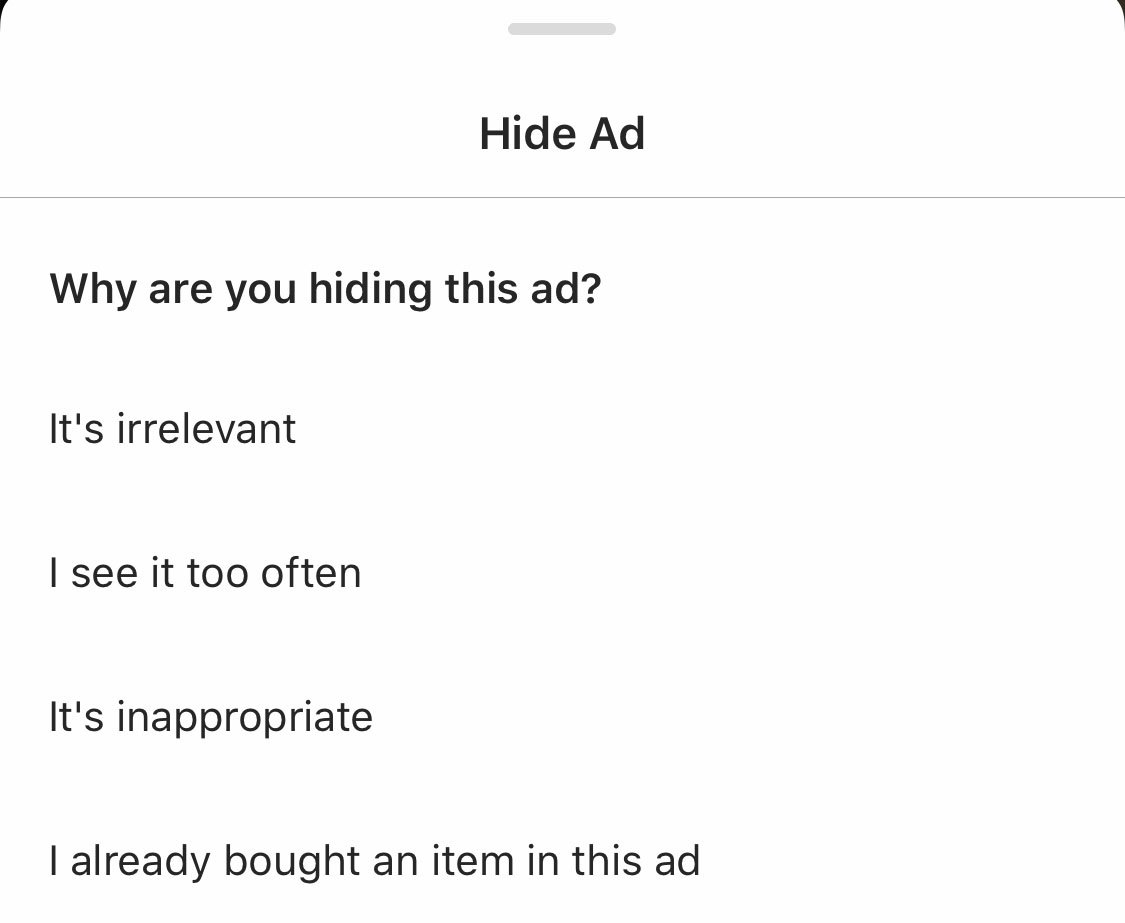
IMG_8620

You can also opt out of seeing ads based on sites and apps off of Instagram and Facebook from your device's settings. Note that even if you choose to opt out of seeing these types of ads, you'll still see ads based on your Instagram and Facebook activity.

  • To limit ad tracking on an iPhone/iPad: Go to "Settings" and choose "Privacy," then "Advertising." From there, choose the option to "Limit Ad Tracking"
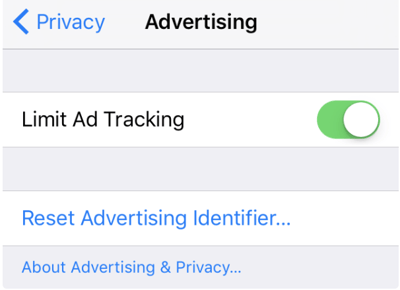
Screen Shot 2020-09-14 at 2.30.43 PM

  • To turn off interest-based ads on Android: Go to "Google Settings," then "Ads." From there, choose the option to "Turn off interest-based ads."
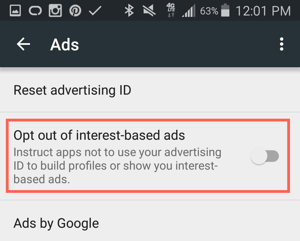
opt-out-interest-based-ads-android.png

27. Send photos privately to your friends.

Posting photos with all of your followers or with the public isn't the only way to share content on Instagram. You can also share them with individual or multiple users, kind of like a Facebook message or group text message.

You can either send a new photo to friends, or send a photo that you or someone else has already posted.

To send a new photo privately, upload a photo and begin editing it, as you would when editing a new post. When you get to the "Share" page, tap the top where it automatically says "New Post," but when prompted, select "Direct Message." From there, you can pick and choose whom you'd like to send the photo to.

You can access your direct messages at any time by clicking the mailbox icon at the top right of your homepage.

To send an existing photo privately, start by opening the post you want to share — it can be your own or someone else's, as long as the latter has a public account. Next, click the paper-airplane-like icon below the post, then select who you want to receive it when the "Send to" box appears.

User Search Features

28. Search Instagram users without an account.

As much as Instagram would like to see you ultimately create an account for yourself or your business, you can peruse the beautiful brands, people, and dogs that are waiting for you without an account to see if it's worth signing up.

There are two ways to search for people on Instagram without logging in:

Entering a Username at the End of the Instagram URL

The first way to search users without an account is by using an Instagram username you already know, and adding it to the end of "www.instagram.com/."

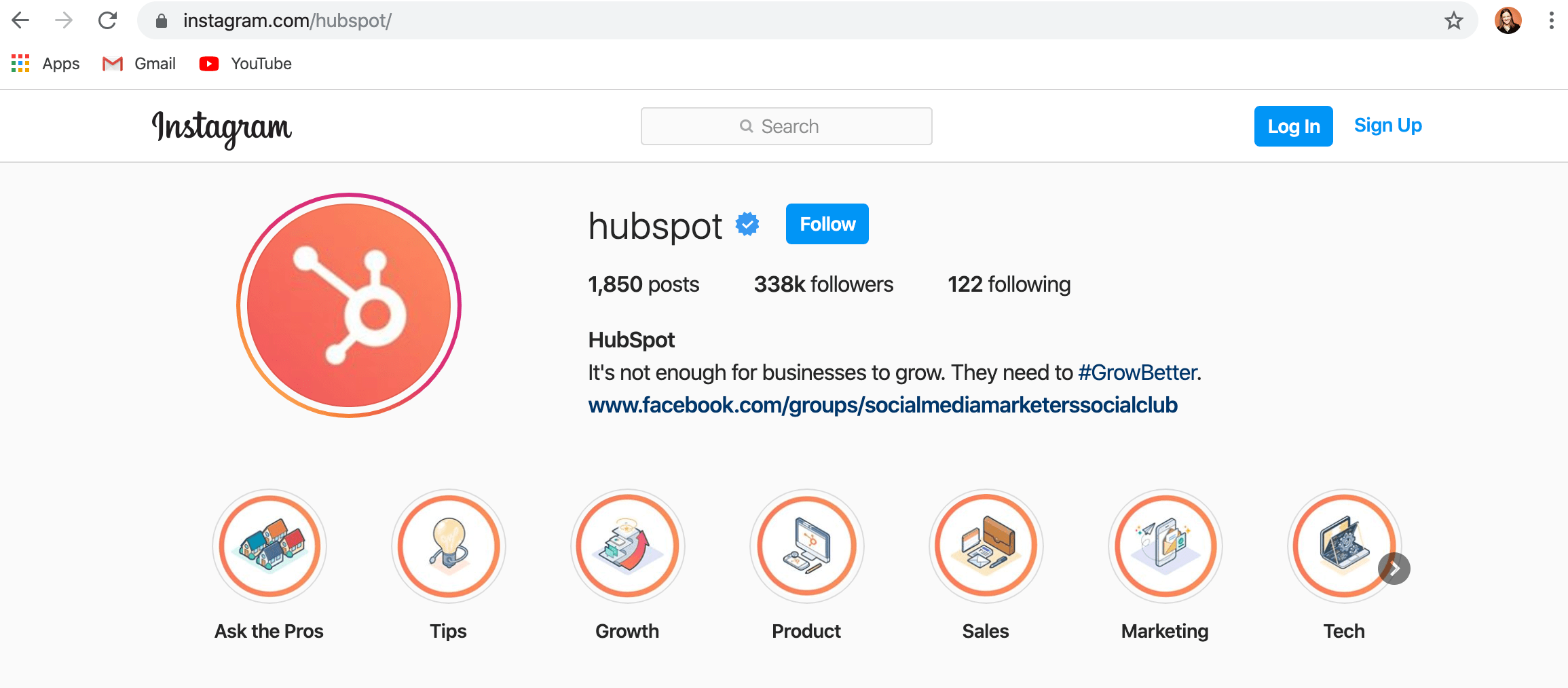
For example, if you were to start with our Instagram username — which is simply "HubSpot" — you can enter the following into your browser's address bar: www.instagram.com/hubspot. This will bring you to our Instagram profile as well as the elusive search bar at the top of the page:
search users without an account

Once you've reached this page, you can use the search bar to the left of the "Sign Up" button to browse users who are already active on the platform.

Googling Them in an Instagram Site Search

A slightly "hackier" way of looking up users without an Instagram account of your own is to simply search their name in a Google site search. This means telling Google to only look up search terms on a website of your choice (in this case, Instagram).

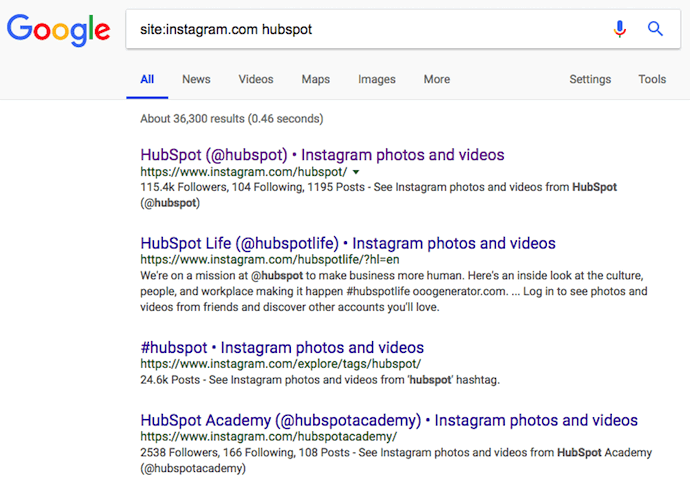
To site search a user, open a Google search and type the following: "site:instagram.com [name of user]."

By keeping all the text prior to the brackets in your search bar, you can shuffle through names of people and businesses and Google will produce results that live only on Instagram. Here's what a site search looks like for HubSpot, below. As you can see, Google produces our main profile, our culture-focused HubSpot Life profile, Instagram posts that include the #hubspot hashtag, and our HubSpot Academy Page.
Google site search for HubSpot, allowing you to search Instagram users without an account

29. Upload and browse video content on IGTV.

IGTV is one of the biggest new features by Instagram to date. This acronym, as you might assume, stands for "Instagram TV," and it's basically an Explore page just for users' video content. The main benefits of IGTV? You can upload videos more than 60 seconds long, and you can create your own channel with, perhaps, a video series that can be broadcast across other video platforms like YouTube.
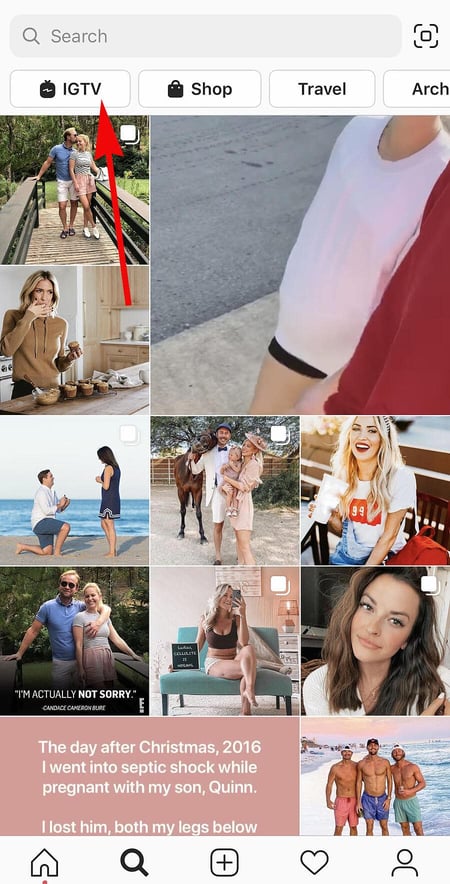
browse igtv

Navigate to IGTV by going to your Explore page and selecting "IGTV" at the top, as shown above. A page will appear featuring topics and videos by some of the most prolific IGTV video creators on the platform today.

As you view more videos, the topics you see on the IGTV homepage will begin to adapt to your interests and serve you more content around those interests. And, naturally, the same goes for your target audience.

Create an IGTV channel by tapping the "+" icon to the top right of your screen, as shown below:
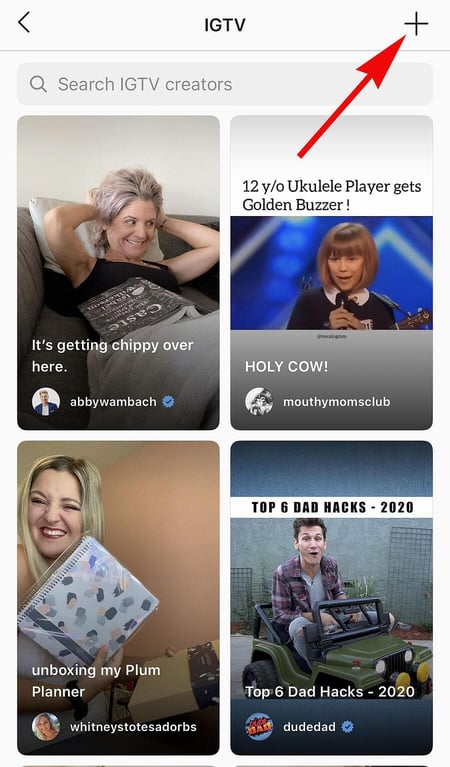
create an igtv channel

With an IGTV channel created, you can then upload videos directly from your smartphone's camera roll to your channel.

30. Look through pictures without accidentally liking them.

It's pretty easy to learn how to like something on Instagram — so easy, in fact, that people do it accidentally: It's just a quick double tap of the photo once you've entered its full view.

The thing is, it's so easy to do quickly by mistake.

So, here's a quick Instagram cheat for you: To look through someone's photos without "double-tap paranoia," scroll through Instagram feeds with your phone set to airplane mode. Without internet access, you won't be able to Like a photo, even if you accidentally double-tap it.

The pictures won't load in the first place if you start on airplane mode, though. You'll have to go to the feed first to load the posts, then turn on airplane mode, then start scrolling.

When you reach the end of the first rows of posts and want to load more, simply turn airplane mode off, let more load, and then turn it on again. Cumbersome? Maybe a little, but it could be worth the paranoia mitigation.

  • To turn on airplane mode on an iPhone/iPad: Swipe up from the bottom of the screen and click the airplane icon. Or, go to "Settings" and then "Wi-Fi," and switch "Airplane Mode" on.
  • To turn on airplane mode on an Android device: Swipe down from the top of the screen. Then, swipe from right to left until you see "Settings," and then touch it. Touch "Airplane Mode" to turn it on.

31. Browse posts from certain locations.

One fun thing you can do on Instagram is browse photos and videos from a specific location, or taken near your current location. I like to do that when I'm planning a trip somewhere, or want to check out a new restaurant and scroll through the pictures taken there.

Here's how to do both of these things.

To Browse Posts From at a Specific Location:

You can either search for a specific place, or you can click into a geotag on an existing photo.

To search for a specific place: Tap the magnifying glass icon at the bottom of your home screen, which will bring you to the general search page. When you click into the search bar at the top, four tabs will appear. Choose "Places," and type in the name of a place. When you press "Search," it'll show you all the top and recent posts that were geotagged with that location.
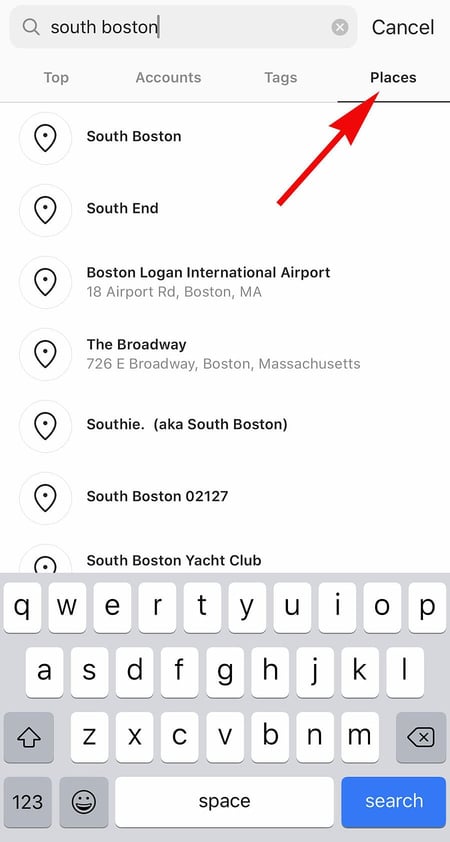
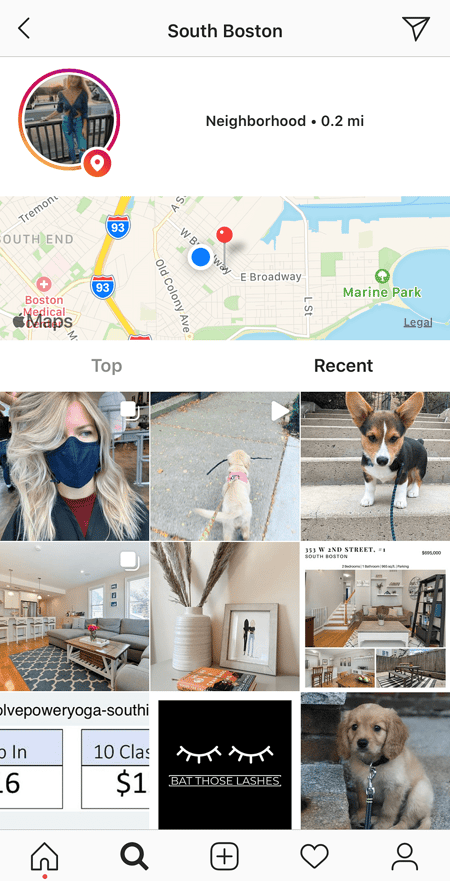
search for location on ig

specific location on igTo look at posts with a certain geotag: Go to the photo that's geotagged with that location, and click the geotag. It'll show you all the top and recent posts that were geotagged with that location.

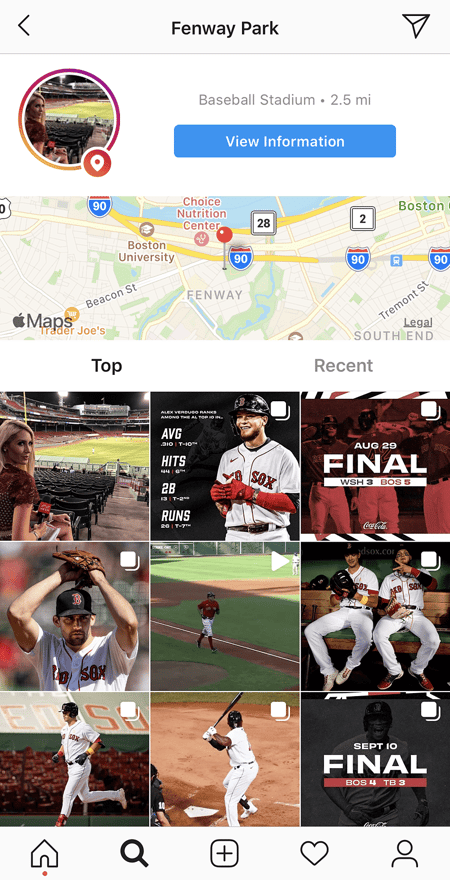
geotag fenway park

geotag on ig

Browse Posts Near Your Current Location:

Follow the same instructions above to get to "Places." Tap the search bar, and select "Near Current Location."
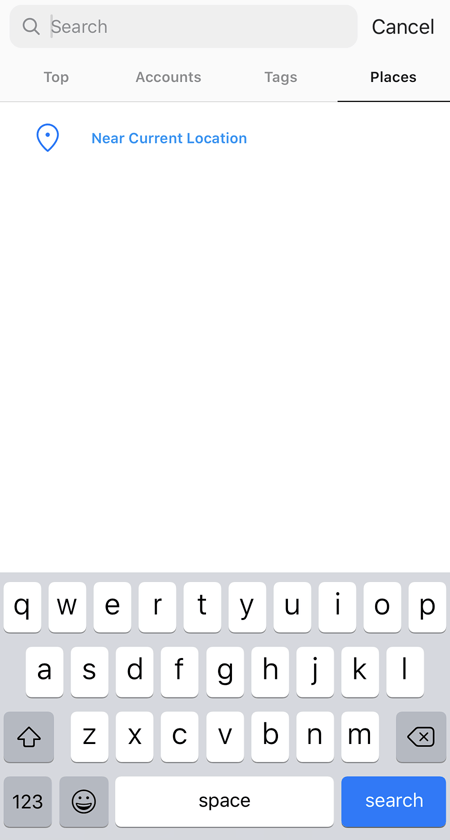
browse instagram near current location

Choose which geotag you'd like to browse from the options that appear. Let's say I chose to browse posts with the Museum of Science geotag. When I click "Museum of Science, Boston" on the menu, I'll see the top and recent posts that were geotagged at that location.

How to Get Verified on Instagram

A verified badge (the blue check beside a celebrity or brand account name) tells users that you're, in Instagram's words, "the authentic presence of a notable public figure, celebrity, global brand or entity it represents".

For instance, there are plenty of "Reese Witherspoon" fan pages on Instagram, but there's only one real Reese Witherspoon account, as verified by the blue badge:
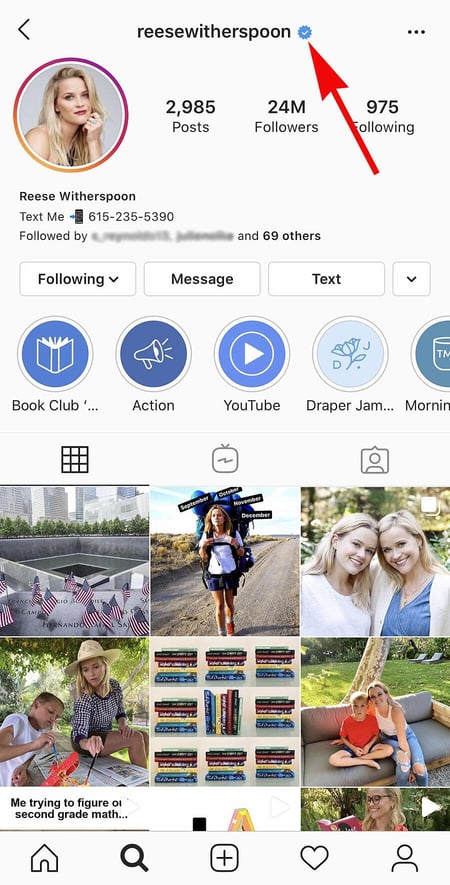
verify account reese witherspoon

To request a verified badge, you must be a public figure, celebrity, or brand and meet certain requirements. If you've determined you fit Instagram's criteria for verification, follow these steps to request a badge:

  1. Go to your profile (the person icon in bottom left corner).
  2. Tap the three lines in the top right corner.
  3. Click "Settings" > "Account" > "Request Verification"
  4. Fill out the form, including username, Full Name, Known As, Category, and government-issued phoot ID.
  5. When you've filled out all form fields, click "Send".

It's important to note, you won't necessarily receive a verified badge if you request one. Learn more about what happens after you request a verified badge.

Instagram Features & Hacks

I might be biased, but Instagram is one of the most fun (and visually appealing) social apps around. And now, with these tricks, you can use it to an even fuller extent.

Plus, many of these features can help to enhance your brand's presence on Instagram. Now, you know how to use the app more efficiently, to make sure you're only tagged in photos you want to appear on your profile, and have even more ways to engage with the people by whom you'd like to be discovered.
Instagram Hacks


31 Instagram Features, Hacks, & Tips Everyone Should Know About was originally posted by Local Sign Company Irvine, Ca. https://goo.gl/4NmUQV https://goo.gl/bQ1zHR http://www.pearltrees.com/anaheimsigns


Friday, February 25, 2022

How to Write a Press Release [Free Press Release Template + Examples]

In today's world, brands have to generate their own buzz. Consumers aren't waiting for the daily newspaper anymore to get their news. Instead, they're scanning headlines on Twitter, Facebook, and other social media platforms.

One way to control the narrative surrounding your brand is through press releases. Whether it's sharing a new product release or changes in your organizational structure, a regular cadence of meaningful news can help a company stand out and build mindshare with journalists over time.

Download Now: Free Press Release Template

In this post, we'll discuss:

What is a press release/news release?

A press release is an official statement (written or recorded) that an organization issues to the news media and beyond. Whether we call it a "press release," a "press statement," a "news release," or a "media release," we're always talking about the same basic thing.

While the heading should contain action verbs, the first paragraph should answer the "who," "what," "why," and "where." The press release should also contain understandable language and a quote.

Most press releases are succinct at just a page long – two pages tops. Ultimately, companies want to provide enough information so that news outlets have sufficient material for publishing their own stories about whatever the company is announcing in the release.

One thing to remember is that press releases live in the public domain, which means your stakeholders and customers can see them.

So, instead of thinking of a press release solely as a ticket to earning news coverage, consider it as a valuable piece of marketing content.

While there's no cut-and-dried formula for what a press release should include, here are a few types of occasions to help you carve out a focus for your press release and determine what content would help you broadcast your news in the best way:

Product Launches

The product launch type of press release is valuable to get the word out about the new solutions your organization is offering to consumers.

It should emphasize the product's specs, pricing, availability, and any other details that may be valuable to consumers.

Mergers and Acquisitions

Organizational change is noteworthy enough to warrant a press release, especially for informing current and future stakeholders about the growth and trajectory of a company.

To announce an acquisition or merger, include details about all organizations involved, information about the merger or acquisition, and quotes from the leadership teams.

Product Updates

Similar to a new product launch, product updates and expansions are also ripe for promotion. Explain what the change is, why it was made, and how it benefits the user.

Events

Press releases are an important component of event marketing to attract promotion from news outlets and other media sources.

You'll want to include:

  • What the event is about
  • Who should consider attending
  • When and where it will be held
  • Pricing

Grand Openings

Whether you opened up a new office, relocated, or are opening for the first time, announce the details with a grand opening press release.

Announce the date and location the grand opening will be held, who is involved, how the grand opening is being celebrated, and the reason for the move (if applicable).

New Partnerships

Similar to mergers and acquisitions, a press release announcing new partnerships is a mutually beneficial marketing tactic.

To effectively execute this type of release, be sure to write a summary about each company, why the partnership was created, who benefits, and any additional important details for current and future stakeholders.

Rebranding

Rebranding is a difficult thing for any business to do, and it can occasionally result in confusion and awkwardness.

One way to make the transition smoother is by announcing the rebrand with a press release, including details on what is changing, the reason for making the change, dates the changes go into effect, and quotes from the leadership team.

Executive Team Changes

Executives often serve as faces of the company, and a press release functions to kick off this role.

It may include biographical information to establish their credibility along with a photo and other pertinent details.

Awards

When it comes to business excellence, it's OK to brag. Press releases about awards and accomplishments serve to cement your organization as an authority in your space.

Such a press release includes information about the company and why they were given the award, information about the award itself, and details about the ceremony (if applicable).

When formatting a press release, you want to write it in a newsy, straightforward way so a journalist who might write about it can imagine it as an article on their news site.

To start, here are the basics every press release should include:

  • Your contact information located on the top left corner
  • The phrase "For immediate release" located on the top right
  • A headline that quickly explains the announcement
  • Your business location in the first sentence of the press release
  • A quick bio about your company at the end of your press release.

You also might want to include "###" or another signifier to show the journalist that the release has ended. In the past, this prevented busy journalists from waiting or flipping the page for more information when there was no more news. However, this tradition is still adopted and highly-respected today.

Now, onto the body of your press release:

  • Your first paragraph should state what the announcement while providing some context around your business and what it does.
  • The next two to three paragraphs should include quotes from a company spokesperson or business executive to explain the "why" behind this announcement.
  • Your last paragraph should be an "About Us" section that explains what your company is and what it offers.

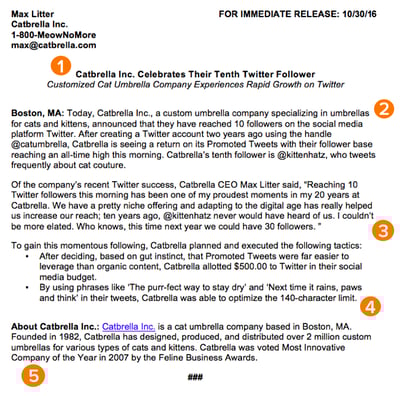
In this example, Catbrella Inc., a fictitious ad agency that just gained its 10th Twitter follower after two years of paid social media efforts, announces its achievement in a press release.

Sample press release format by HubSpot, with orange markers highlighting five key areas on the press release: headline, 3 paragraphs, about us section

*Disclaimer: HubSpot is entirely responsible for the silliness of this faux announcement.

Writing a press release to break important company news can help businesses grow better, but doing it right is just as important. Here's how to write a press release, like the one above, step-by-step.

1. Write a compelling headline.

You've got your announcement in mind, and now it's time to get it down in words to share with your community, industry, and followers.

Just like writing the perfect blog post title, setting up your press release for success starts with your headline. You only have one line to work with, which can seem scary, but consider your words carefully to make your headline captivating.

Here are some tips to make your headline stand out:

  • Use action verbs.
  • Be specific.
  • Keep it short.

Most importantly, make it interesting: Keep in mind that reporters get dozens, if not hundreds, of releases each day, so invest the time to write a compelling headline.

Consumers, on the other hand, see news stories all over their timelines. As such, your headline needs to be interesting enough to reel them in.

2. Convey the news value to the press.

If you want your press release to be newsworthy, you have to give readers a reason to care.

A good way to ensure this is by using the reverse pyramid formula when writing your press release: Going from the most important information to the least important.

While the first paragraph of your release should explain the who, what, where, the second paragraph should cover the why.

Reporters don't have a ton of time to sift through details and fluffy background information — they just need the facts that'll help them tell your story to someone else from a position of authority.

There shouldn't be any new, crucial information covered after these sections because the readers could potentially miss them.

3. Offer a tempting quote.

Once you've set the scene, it's time to bring your details to life with a quote that reporters can use for context around your announcement and help paint a picture of how your news affects the given industry, customer base, and landscape.

Ideally, quotes will be from key stakeholders in your company including your executive team, project leads, or those directly impacted by your announcement.

Quoting key figures and authorities underlines the importance of your development. The chosen quote should shape your narrative and emphasize the core of the announcement.

Don't ask everyone in your office for a comment or feel compelled to quote all 25 people included in the acquisition. Pick one or two critical spokespeople and focus the quotes around their unique perspective.

4. Provide valuable background information on the subject.

In this last paragraph, keep in mind that the reader should already have key details they need regarding your announcement.

Offer details here that strengthen your narrative, like creative or noteworthy ways your company developed the project or announcement at hand. Or, when applicable, comment on the future implications of your announcement.

Another good way to add value to your press release is by using newsjacking. A process of relating your press release to something currently going on to make it more valuable to the journalist and reader.

5. Summarize the "who" and the "what" in a boilerplate.

Twitter is chock-full of reporters lamenting press releases or pitches that don't clearly explain what the company does or what the announcement is actually about.

Describe what your company does in clear, plain language and include a link to your company's website early on.

If you cite data, include a reference link for the data source, and make sure every name in the release has an associated title and company as well.

To keep yourself honest on this front, ask a colleague to read the release without context and ask them to relay the information back to you. If they can't recall the who, what, or why get back to the drawing board.

Press Release Template

This template includes press release templates based on the type of announcement your company wants to make, whether it's a new product, a partnership, or a change within your organization.

press release template offer from hubspot

Download This Press Release Template for Free

This template also offers creative replacements for the traditional press release and a guide on how to create a comprehensive promotional plan. You'll have exactly what you need to drive brand awareness and stand out among your competitors.

Press Release Examples

Many people think press releases have to be chock full of buzzwords and branded terms.

"Big data," anyone? Five-syllable words you have to look up on Thesaurus.com? Quotes from every executive on the planet that go on for pages? We've seen it all. Unfortunately, so have reporters – and they are not fans.

Instead of stuffing your next release with industry jargon, take a page out of our book (OK fine, ebook), The Newsworthy Guide to Inbound Public Relations, and brainstorm some creative approaches for your next announcement.

Can you include new data? A remarkable graphic or video? A shareable SlideShare? If so, a creative angle can help carry your content and increase the likelihood of social sharing.

Now, to get you thinking on the right track, take a look at some creative press release examples below, the type of news each one is reporting on, and what makes the release unique:

1. Microsoft

Type of press release: Acquisition

snapshot of press release example from microsoft

Image Source

The first thing that stands out in this press release is the headline. It tells a full story without being too long: It covers who's involved (Microsoft and Activision), what's happening (an acquisition), and why it matters (to bring the joy and community of gaming to everyone).

Throughout the press release, you get quotes from leaders in both organizations, helping explain the benefit of this acquisition and how it will move the industry forward.

Toward the bottom of the press release, you get additional context surrounding each company's market share and how this acquisition will impact the industry.

2. Flourish

Type of press release: Team and office expansion

snapshot of press release example from flourish

Image Source

Organizational changes can seem relatively boring. One way to generate some interest is to include visual elements to add more dimension to the story.

In this press release announcing a team and office expansion, venture capital firm Flourish shares photos of some new hires right at the top, immediately drawing readers in.

The release dives into the reason behind the expansion and the key areas of focus moving forward. Then, we get a quick bio for each hire featured in the image, which can help build excitement surrounding the brand's future.

The key takeaway here is: Don't be afraid to use visual elements in your press release, as they can help draw readers in.

3. SuperCom

Type of press release: Event

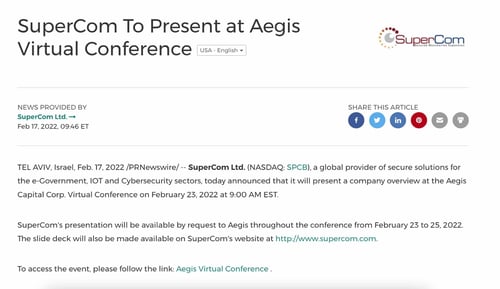
snapshot of press release example from supercom

Image Source

As the shortest press release in the bunch, SuperCom shows that less is often more.

In this release, security solutions company SuperCom announced its participation in an upcoming conference.

When it comes to events, the most important details are date and location. As long as you have those key pieces, everything else is a bonus.

One thing that would've elevated this release is a quote on who can benefit from attending this event and why, as a way to reel in potential attendees.

4. HubSpot

Type of press release: Program launch

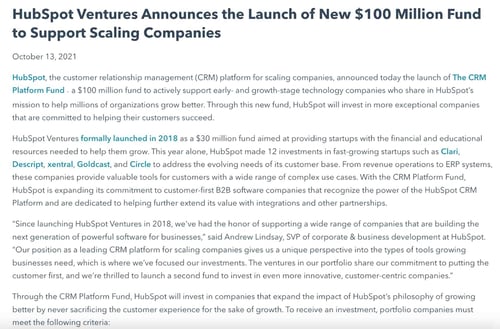
snapshot of press release example from hubspot

Image Source

We've also crafted this comprehensive, easy-to-follow press release template complete with a promotional plan and considerations for your next announcement. We use these same guidelines when writing and formatting our releases here at HubSpot, and created a faux, sample release to illustrate what content goes where and why.

Tips for Publishing Press Releases

Writing a press release is really only half the battle. Once you're finished with production, it'll be time to focus on distribution.

Of course, we're all familiar with the traditional distribution levers we can pull, which include publishing the press release on our website/blog as well as sharing the press release with our followers/subscribers via social media and email.

To get the maximum amount of distribution possible, here are some tips you can follow.

1. Reach out to specific journalists.

Instead of blasting a press release out to every journalist you can find an email address for, focus on a few journalists who have experience covering your industry (and company, hopefully) and send them personalized messages.

Connect the dots. Show why what you wrote connects to what they write.

2. Send the release to top journalists the day before.

Give journalists some time to craft a story around your press release by sending it to them — under embargo — the day before it officially goes live.

"Under embargo" just means they aren't allowed to share the information in the press release until the time you specify.

3. To avoid competition, don't publish your release on the hour.

If you're publishing your press release on a distribution service like PR Newswire or Business Wire, avoid publishing it on the hour (e.g., 1 p.m., or 3 p.m., or 5 p.m.).

The reason? Most companies schedule their releases to go out on the hour, which means if your release goes out on the hour too, it's more likely to get lost in the shuffle.

Instead, try going with a more distinct time (e.g., 1:12 p.m., or 3:18 p.m., or 5:22 p.m.).

4. Share your media coverage.

If all goes according to plan, and your press release gets picked up by the media, your job still isn't finished.

To keep the buzz going, you can release a "second wave" of distribution by sharing the specific stories that news outlets write based on your press release.

You can also share the news on your digital channels, like social media and email, to bring awareness to your announcement.

How To Stand Out In The News

The key to keeping your PR strategy new school is forgetting preconceived notions of what public relations is and instead focusing on creating highly remarkable content. Traditional press releases can still be really valuable when executed well.

Instead of ditching releases as a tactic, give them a modern makeover to make them more useful for your marketing.

Think about how you've used inbound methods to transform your marketing strategies to be more personalized, approachable, and build relationships. Those same principles apply to your PR strategy: Create content to craft your own story and use tactful outreach to get the media familiar with (and excited about) your brand.

Editor's note: This post was originally published in November 2019 and has been updated for comprehensiveness.

New Call-to-action


How to Write a Press Release [Free Press Release Template + Examples] was originally posted by Local Sign Company Irvine, Ca. https://goo.gl/4NmUQV https://goo.gl/bQ1zHR http://www.pearltrees.com/anaheimsigns
7 Steps to Create a Complete Marketing Strategy in 2022

The truth is, keeping up with marketing trends could be a full-time job.

→ Download Now: Free Marketing Plan Template

In 2022 alone, we've seen a major shift to short-form video content; the rise and fall of new platforms (looking at you, Meta); and the continuing impact of the global pandemic. In short, what worked for your marketing strategy in the past might not fly today.

To succeed in the fast-paced marketing world — and maintain a sense of relevance with your audience — it's vital to stay ahead of the curve. 

To help ease some of that uncertainty, we've created this guide to show you step-by-step how to create a marketing strategy that leaves no stone unturned.

Let's dive into the critical components of a complete marketing strategy in 2022, followed by some examples for inspiration.

The Importance of Customer-Driven Marketing Strategy Steps

A robust marketing strategy will reach your target audience – this includes those who have never heard of your brand all the way to repeat customers.

Without a defined strategy, you’ll essentially be throwing things to the wall to see what sticks. And it’s costing you cost, time, and resources.

A marketing strategy will:

  • Align your team to specific goals.
  • Help you tie your efforts to business objectives.
  • Allow you to identify and test what resonates with your target audience.

There are seven key steps to crafting a successful marketing strategy: Build your marketing plan, create your buyer personas, identify your goals, select the tools, review your existing resources, audit and plan media campaigns, and lastly, execute your strategy.

Let’s get into the details of each step in the next section. Or you can jump to the section you're most interested in.

1. Build a marketing plan.

Wait, I have to make a plan for my strategy? What's the difference?

Your marketing strategy provides an overview of the reasons why your marketing team will need certain resources, take certain actions, and set certain goals over the year. Your marketing plan is the specific actions you'll take to achieve that strategy.

Not sure where to start? This free marketing plan template can help.

marketing-strategy-template-free

Download for Free

The right template can help you build a marketing plan that identifies your budget for the year, the initiatives your marketing organization needs to tackle, and the marketing channels you'll use to implement those initiatives.

Plus, it’ll tie everything back to a business summary, to keep you aligned with overarching company goals.

2. Create buyer personas.

If you can't define who your audience is in one sentence, now's your chance to do it. A buyer persona is a snapshot of your ideal customer.

For example, a store like Macy's could define a buyer persona as Budgeting Belinda, a stylish working-class woman in her 30s living in a suburb, looking to fill her closet with designer deals at low prices.

With this description, Macy's Marketing department can picture Budgeting Belinda and work with a clear definition in mind.

Buyer personas have critical demographic and psychographic information, including age, job title, income, location, interests, and challenges. Notice how Belinda has all of those attributes in her description.

You don't have to create your buyer persona with a pen and paper. In fact, HubSpot offers a free template you can use to make your own (and it's really fun).

You can also use a platform like Versium, which helps you identify, understand and reach your target audience through data and artificial intelligence.

Buyer personas should be at the core of building your strategy.

3. Identify your goals.

Your marketing strategy goals should reflect your business goals.

For example, if one of your business goals is to have 300 people attend your annual conference in three months, your goal as a marketer should be along the lines of boosting online registration by 10% at the end of the month to stay on track.

Other marketing goals might be to increase brand awareness or generate high-quality leads. You might also want to grow or maintain thought leadership in your industry or increase customer value.

Whatever your goals, identify what they are and how your marketing organization can work to achieve them over the next year.

4. Select the appropriate tools.

Once you have your goals identified, make sure you have the right tools to measure the success of those goals.

Online software like social media schedulers gives you analytics to help you keep track of what your audience likes and doesn't. Alternatively, you might consider Google Analytics to measure blog and web page performance.

Additionally, make your goals SMART – to do so, take a look at How to Write a SMART Goal [+ Free SMART Goal Template].

Here are a few tools that can help you track and measure the success of your marketing goals:

HubSpot Marketing Hub

The Marketing Hub allows you to consolidate all of your marketing tools into one centralized platform.

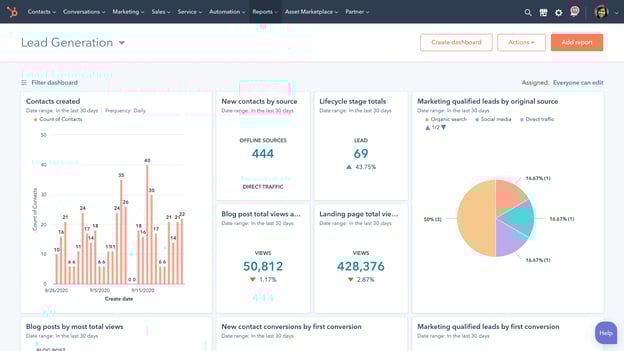
hubspot marketing hub dashboard

Too often, you’ll find a tool that’s powerful but not very easy to use. With this tool, you can attract users with blogs, SEO, and live chat tools. You can then convert and nurture those leads through marketing automation, the landing page builder, and lead tracking features.

With custom reporting and built-in analytics, you can analyze your data and plan out your next move. Plus, HubSpot Marketing Hub integrates with over 500 tools.

Pricing: Free; Starter, $45/month; Professional, $800/month; Enterprise, $3,200/month.

Trello

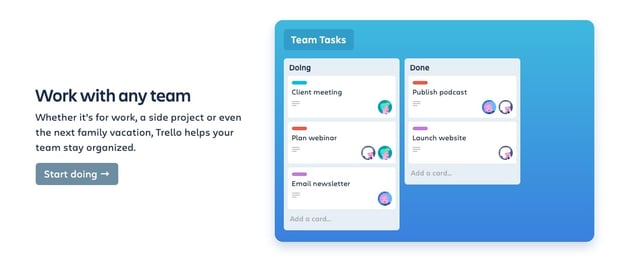
trello-for-marketing-planning

Trello keeps your marketing team on track and openly communicating about the projects they're working on. Create boards for individual campaigns, editorial calendars, or quarterly goals.

Built-in workflows and automation capabilities keep communication streamlined, and simplicity keeps your marketing team focused on the work that matters.

Pricing: Free; Standard Class, $5/month; Premium Class, $10/month for 100 users; Enterprise, $17.50/month for 250 users.

TrueNorth

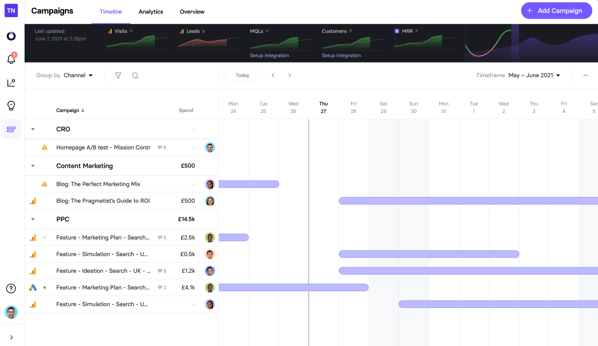
truenorth-softwareTrueNorth is a marketing management platform built to help you hit your marketing goals. Built specifically for marketing teams, TrueNorth turns your marketing strategy into a visual projection of your growth, which is used to create monthly milestones that help you stay on track.

One of the key benefits of TrueNorth is that it centralizes all of your ideas, campaigns, and results in one place, with everything tied back to your goal.

Pricing: $115/month (free for 30 days).

Monday.com

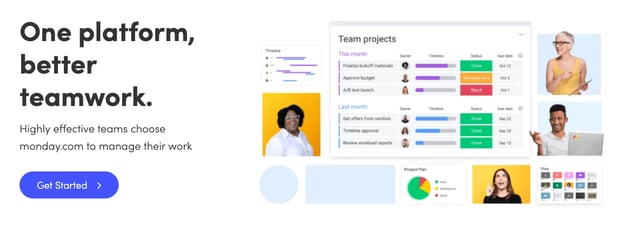
monday.com hubspot integrationEverything on Monday.com starts with a board or visually driven table. Create and customize workflows for your team and keep groups, items, sub-items, and updates synced in real-time.

You can also transform data pulled from timeline and Gantt views to track your projects on Monday.com and ensure deadlines have been met. Plus, with more than 40 integrations — from SurveyMonkey to Mailchimp and, of course, HubSpot — you can visualize your data and ensure your whole company is collaborating.

Pricing: Basic, $8/month/seat; Standard, $10/month/seat; Pro, $16/month/seat; Enterprise, contact for pricing.

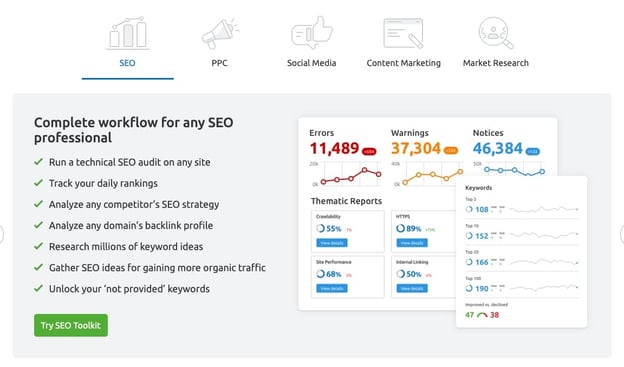
SEMrush

semrush dashboardSEO continues to be a huge factor in the successful ranking of your website.

SEMrush allows you to run a technical SEO audit, track daily rankings, analyze your competitor's SEO strategy, research millions of keywords, and even source ideas for earning more organic traffic.

But the benefits don't stop at SEO. Use SEMRush for PPC, building and measuring an effective social media strategy, content planning, and even market research.

Pricing: Pro, $119/month; Guru, $229/month; Business, $449/month.

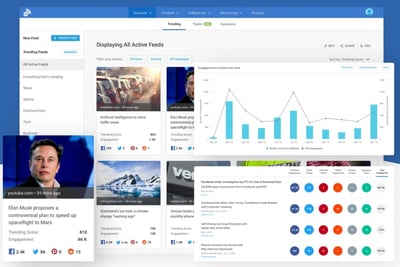
Buzzsumo

buzzsumo marketing strategy tool

BuzzSumo allows you to analyze data to enhance and lead your marketing strategy, all while exploring high-performing content in your industry.

Use the platform to identify influencers who may help your brand reach, monitor comments, and find trends to make the most of every turn.

As your needs evolve, you can also leverage their crisis management and video marketing tools.

Pricing: Plus, $179/month; Large, $299/month; Enterprise, contact for pricing.

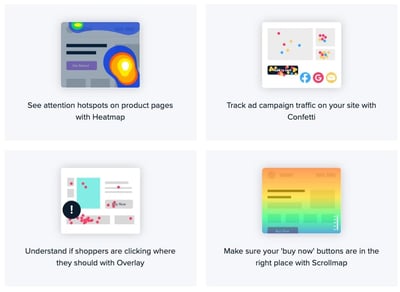
Crazy Egg

crazyegg website optimizationNeed to optimize your website this year? Consider getting started with Crazy Egg. You'll be able to identify "attention hotspots" on your product pages, track ad campaign traffic on your site, and understand if shoppers are clicking where you want them to.

You can even make sure your "Buy Now" buttons are in the best place.

Crazy Egg also offers recordings, A/B testing, and more to help ensure your website is offering the best user experience.

Pricing: Basic, $24/month; Standard, $49/month; Plus, $99/month; Pro, $249/month; Enterprise, contact for pricing.

5. Review your media.

Decide what you already have in your arsenal that can help you create your strategy. To streamline this process, think of your assets in three categories – paid, owned, and earned media.

  • Paid media means any channel you spend money on to attract your target audience. This includes offline channels like television, direct mail, and billboard to online channels like social media, search engines, and websites.
  • Owned Media refers to any of the media your marketing team has to create: pictures, videos, podcasts, ebooks, infographics, etc.
  • Earned media is another way to say user-generated content. Shares on social media, tweets about your business, and photos posted on Instagram mentioning your brand are all examples of earned media.

Gather your materials in each media type and consolidate them in one location to have a clear vision of what you have and how you can integrate them to maximize your strategy.

For example, if you already have a blog that's rolling out weekly content in your niche (owned media), you might consider promoting your blog posts on Twitter (paid media), which customers might then reTweet (earned media). Ultimately, that will help you create a better, more well-rounded marketing strategy.

If you have resources that don't fit into your goals, nix them. This is a great time to clean house and identify gaps in your materials.

6. Audit and plan media campaigns.

Cleaning house segues straight into this step. Now, you must decide which content is going to help you.

Focus on your owned media and marketing goals. For instance, will updating the CTAs at the end of your blog posts help you increase RSVPs to your event?

Next, look at your buyer personas. Let's say you work for a video editing software company. If one of your persona's challenges is adding clean sound effects to their videos but you don't have any content that reflects that, make a 15-second demo video for Instagram to show how great your product is at solving that challenge.

Finally, create a content creation plan. The plan should include topic clusters, goals, format, and channel for each piece of content. Be sure to include which challenge it's solving for your buyer persona.

For ideas on content creation or a more in-depth look at how to create a content plan, check out our post, The Ultimate Guide to Content Creation.

7. Bring it to fruition.

At this point, your market research and planning should help you visualize how your strategy will be executed – and by which teams.

The final step is to bring that all together and assign actions to your plans.

Create a document that maps out the steps you need to take to execute your campaign. In other words, define your strategy.

Think long-term when creating this document. A standard strategy document is 12 months. This structured timeline should be the home base for your strategic marketing efforts.

To paint an example, let's go back to the video software company.

Maybe in January, you will launch a software update that improves the exportation process for users. In April, you want to publish an ebook that explains editing terms to your buyer personas, and in September, you plan to launch an integration with other software.

Remember, your digital strategy is unique to your business, so the document should be as well. As long as the strategy includes the pertinent details outlined in previous sections, you'll be set.

Now that we've explored the critical steps of a complete marketing strategy, let's look at some "Why didn't I think of that?" strategies to inspire your own.

Examples of Successful Marketing Strategies

1. Regal Movies

Digital strategy: Owned media

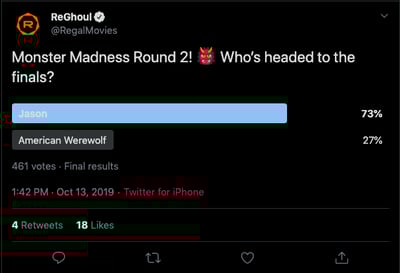
Regal Movies took the Halloween spirit to a new level, even renaming its Twitter account to reflect the spirit of the season. This "Monster Madness" poll is a fun, interactive way to get followers invested in Regal's content:

regal movies' owned media

Image Source

Regal's tweet is an example of owned media because the company was in full control of the answers followers gave (and, apparently, American Werewolf didn't stand a chance).

Regal effectively kept true to their brand by using only classic movies in their poll while still putting a modern spin on it.

This is also a good example of how retweets don't necessarily equal success. While four retweets aren't that big of a deal, check out the votes: 461. That means there were over 400 interactions with a single tweet.

2. La Croix

Digital strategy: User-generated content, earned media

User-generated content is one of the best ways to gain traction in your strategy.

It demonstrates your appreciation for loyal customers, builds community, and also incentivizes other users' to promote your products for the chance at a similar shout-out.

Plus, sometimes the content your brand loyalists create is really, really good.

lacroix

Image Source

In this case, the consumer is praising the brand’s product. Doesn’t get better than a fantastic review like that.

3. Small Girls PR

Digital strategy: Event marketing

Wait, is that Keke Palmer?

olay

Image Source

Small Girls PR is a boutique PR company based in New York, and one of the company's talents is throwing amazing events for their clients, like Olay. This event recap carousel on Instagram is an effective event marketing example, as it boosts awareness for your brand and offers social proof by featuring a public figure.

4. Superside

Digital strategy: Paid media

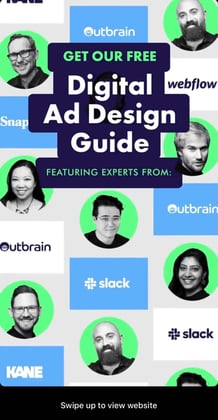
Design agency Superside launched an Instagram ad to promote a lead magnet: Their digital ad design guide. While the brand may have created the guide specifically for paid promotions, it’s also possible that they repurposed a high-performing blog post into a downloadable ebook.

marketing strategy paid media example

In this case, all they had to do was repackage their current content, build an ad around it with creative assets, and run it.

In previous sections, we discussed the power of leveraging multiple forms of media in your marketing strategy. This is a great example of it.

5. Target

Digital strategy: Paid media, Twitter cards

If you've got the budget for paid media, take full advantage of it.

Paid media is when you pay social channels, like Twitter, to promote your content on their site. By doing this, your content reaches new audiences you might not be able to reach organically:

target marketing strategy example

Image Source

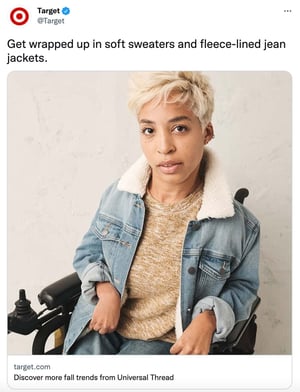
This inclusive ad from Target about fall shopping uses Twitter cards to promote the brand and make shopping easy with the click of a button.

More social channels are offering ways for shoppers to purchase in-app or close to it, driving sales and boosting exposure for brands.

What to Expect After Following Your Marketing Process Steps

Ultimately, creating a complete marketing strategy isn't something that can happen overnight. It takes time, hard work, and dedication to ensure you're reaching your ideal audience, whenever and wherever they want to be reached.

Stick with it (and use some of the resources we've included in this post), and over time, research and customer feedback will help you refine your strategy to ensure you're spending most of your time on the marketing channels your audience cares most about.

Editor's note: This post was originally published in October 2019. It has been updated for freshness and accuracy.

New Call-to-action


7 Steps to Create a Complete Marketing Strategy in 2022 was originally posted by Local Sign Company Irvine, Ca. https://goo.gl/4NmUQV https://goo.gl/bQ1zHR http://www.pearltrees.com/anaheimsigns
The Ultimate Guide to Writing a Cover Letter

Nowadays, companies have a computerized system that puts resumes through an online scanner which will automatically reject some applicants and push other applicants through depending on their qualifications.

So, What does this mean for you as a job seeker? Well, the cover letter attached to your application is more important than ever.

→ Click here to access 5 free cover letter templates [Free Download]

We've crafted this ultimate guide to cover letters. You'll find out how to write one that gets read, what to include, and browse tons of templates to gain inspiration.

You can dive straight in, or jump to the section you'd like to read.

How long should a cover letter be?

OK, so you're all fired up and ready to craft the cover letter of the hiring manager's dream. But how do you manage the fine balance between in-depth and overwhelming?

A good cover letter is long enough to communicate why the recruiter should pick you but not long enough to bore them.

One page is usually enough to cover everything you'll need to include, without losing the recruiter's attention. Let's go into those items in more detail:

Your Name and Address

Kick-off your cover letter by adding your name and address to the document.

This step is pretty self-explanatory, but it allows the recruiter to easily connect your cover letter to your resume (especially if they're being printed).

Your name and address also make it easier for the recruiter to get in touch with a job offer. And that's the aim of our letter, right?

Their Name and Address

Similarly, you should add the name and address of the company or person you're writing to.

This shows you've done your research and allows the hiring manager to receive your letter if it's sent to a generic company email address.

The Date of Writing

Make it easier for the hiring manager to file your application by including the date on your cover letter.

Even if you're not successful this time around, the company might store your letter and refer back to it when they're hiring for another position.

Why You're Writing the Letter

We know that the aim of a cover letter is to persuade the hiring manager you're the best fit for their job.

Before you get to the good stuff, be sure to highlight the role you're applying for, as that can get lost.

Something like this will usually do the trick:

"I'm writing to discuss the content strategist role at HubSpot."

Why You're a Perfect Fit for the Job

The next section of a cover letter structure is the fun part. It's where you'll convince the hiring manager they should hire you.

In this section, answer these questions:

  • Why should this company hire you?
  • What skills do you have that will help complete the job better than anyone else?
  • What makes you a good employee?
  • What qualifications do you have that are relevant to the role?

Once you've answered these, the recruiter will have a solid understanding of who you are, and (hopefully) be convinced to bring you on for an interview.

What You Can Offer the Company

Have you ever heard the advice to "always sell yourself in a job application"? That concept can be applied to cover letters as well.

Businesses measure success in terms of results. The company looking for a new employee will want to know what they bring to the table and how you fit into their business goals. New candidates are rarely brought on board solely for the soft skills listed in their resume.

That's why this part of your cover letter structure is arguably the most important.

In two paragraphs or less, show the business what you can do — and provide examples of how you've done it before.

Not only does this give you the opportunity to show off your skills, but the company can picture the success you'll bring to their business by hiring you.

Your Availability

In the marketing world, we're always told the importance a call-to-action can make.

Great cover letters end with a brief section on the candidate's earliest start date.

How to Format a Cover Letter

How to Address a Cover Letter

Earlier, we mentioned the importance of addressing the hiring manager by their name and address. This proves you've done your research and ensures the cover letter lands in the right place.

Personalized letters will always outperform generic ones, so including the first name of the recruiter can go a long way.

But in a world where privacy is held close to our chest, you might need to do a bit of digging before finding the hiring manager's name.

Luckily, you can use the power of the internet to do this.

How to Find a Hiring Manager's Name

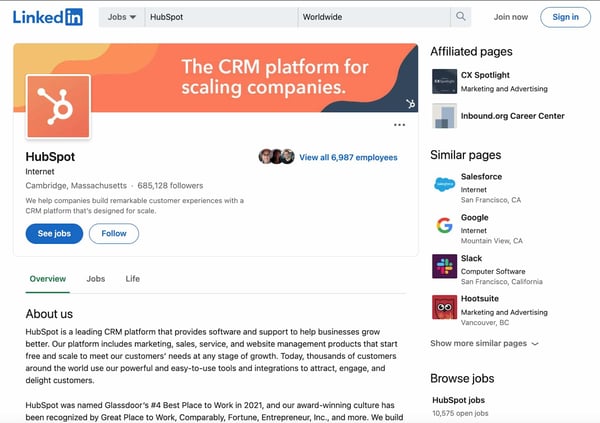
Head over to LinkedIn and find the company's profile page.

You can do this by entering their name into the search bar or searching for a link to their LinkedIn page on their company website.

Then, click the number of employees to see all employees who are on LinkedIn:

how to look up employer details to format cover letter

You'll then see a list of all employees along with their titles. Simply work your way through this list to find the most relevant contact.

Keep in mind that some employees do not have LinkedIn profiles, so you may not find them using this tactic. If you're unable to track down the hiring manager's name, a simple "Dear Hiring Manager" will work.

How to Open a Cover Letter

After you've addressed the cover letter to the most relevant person, you'll want to:

  • Introduce yourself.
  • List the role you're interested in.
  • Explain your interest.

Here's an example:

"Dear Hiring Manager,

As an avid reader of the HubSpot Blog for the past five years, I am thrilled to submit my application for the content strategist role. I believe that my five years of experience working for B2B SaaS companies have equipped me with the skills needed to thrive in this role."

In the next two paragraphs, highlight your relevant experience and include key details from each role.

How to Close a Cover Letter

Once you've covered

Here are some great options:

  • Looking forward to hearing from you
  • Sincerely
  • Best Regards

Then, sign the cover letter with your full name.

Should you include salary requirements?

The cover letter should focus on why you are a good fit for the role. Discussing salary requirements doesn’t fit at this stage of your application.

Instead, it’s best to wait until you speak to a recruiter or someone from HR to discuss your expectations.

Are cover letters necessary?

Today, in many industries, cover letters are listed as optional. The question is, should you include one if it's optional?

The answer isn’t exactly clear-cut.

Some research would suggest that cover letters may not hold the same weight as they once did. However, a cover letter can help you stand out among the competition.

Are cover letters necessary job seekers believe getting a job will be harder than in previous years

In a 2021 Job Seeker Nation Report by JobVite, 69% of surveyed workers believed getting a job will be much harder or somewhat harder than in previous years. With this in mind, adding a cover letter to your application is a great way to stand out.

Writing a cover letter will allow you to:

  • Communicate with the hiring manager.
  • Rely on more than just bullet-pointed lists in your resume.
  • Build your personal brand.

In short: Cover letters aren't absolutely necessary, but they do have stark advantages. If there's an option to upload one when applying for any job, do it — even if it's not required.

How to Write a Cover Letter

Writing a cover letter can be tricky. Even the best writers can struggle with communicating their skills in the right manner, but these tips will help you create a job-winning document.

The structure of your cover letter is arguably the most important thing about writing one.

Not only does a good structure help you to organize your points effectively, but it can help a hiring manager to quickly review the details you're sharing.

Featured Resource: 5 Free Cover Letter Templates

Cover-Letter-Templates

Download these free cover letter templates to write a stand-out cover letter.

7 Tips for Writing Great Cover Letters

So, you've crafted a cover letter and you're almost ready to hit send.

Before attaching to your resume and hoping for the best, use these seven tips to make sure your cover letter is as great as can be.

1. Keep it succinct.

Earlier, we mentioned how the best cover letters strike the perfect balance in their length.

Our best tip for writing cover letters is to avoid adding fluff that fails to add value. Every line should highlight why you're the best fit for the role.

In addition, cut the jargon and corporate-speak that hiring managers have heard before.

Yes, professionalism is important, but be harsh and critical when editing your cover letter. If a sentence doesn't add value, get rid of it.

2. Tailor it for the company and position you're applying for.

The one-size-fits-all approach doesn't fit well with cover letters.

You're applying for different roles at various companies, but don't let a change in name and address be the only updates you make.

Remember that a cover letter should explain why you should be hired for a specific role instead of anyone else. It's highly unlikely that multiple companies will hire for exactly the same position, so take some time to personalize your cover letter for every position you're applying for.

3. Don't repeat what's on your resume.

Although cover letters are submitted along with resumes, be wary of making them carbon copies of one another.

Instead, use the documents to compliment each other by:

  • Including new skills.
  • Elaborating on how your qualifications would help you in the role.
  • Sharing how specific experience gives you an advantage over other candidates.

If you need to include the same thing in both documents, add "as listed in my resume …" rather than copy and pasting the same content.

4. Include data-backed examples.

When referencing experience from your resume, use your cover letter as an opportunity to explain in detail — with examples.

Examples allow the company to picture the success you could bring if they hired you, rather than the person next in their resume pile. But, data-backed examples give an extra edge.

Let's use an example. Which of these options is more impressive?

  1. I increased leads for the company.
  2. I increased leads by 35% in one month through a single blog post, which became the company's highest lead driver.

It's option B, right? That's because it's descriptive and shows results.

5. Tell a story.

Following on from the previous step, you could elaborate on your data-backed examples by telling a story.

Storytelling helps with relatability and gives a hint of your personality in a cover letter. It also makes the recruiter remember your cover letter amongst a sea of other one-page documents in their review pile.

However, this cover letter tip comes with a warning: Don't overdo it and make sure it's relevant.

6. Get a second pair of eyes on it.

Even the best writers make mistakes, but they can leave a negative first impression.

That's why our sixth cover letter tip is to get a second pair of eyes on it.

Email it to a friend or ask a family member to glance over it before you hit "send." Ask them to highlight any spelling mistakes or suggestions to improve how you're communicating with the person reading it.

You never get a second chance to make a first impression. Seeing as though a cover letter is one of the first documents a recruiter sees, try to make it perfect.

7. Be unique.

Finally, make your cover letter unique.

If you're applying for a creative role, experiment with colors, subheadings, and layouts.

If you're applying for more of a traditional role, be wary. Not everyone is a fan of bright, bold cover letters, but you can scope your limits by getting a feel of their company culture.

Are they strict and professional, or does the company like to have fun? (You can usually get a feel of this from their website or social media profiles.)

Testing the level of uniqueness can be a case of trial and error. If you're not getting great reactions from your cover letter, revise and try again.

Cover Letter Examples

We understand that inspiration can go a long way. That's why we've created a one-stop-shop for cover letter examples, which are available to view here.

You're also free to browse our collection of cover letter samples for extra inspiration on formatting your cover letter and learning from those who've helped to land dream jobs.

Now you're fully equipped to write a cover letter that will help you get your foot in the door.

Editor's note: This post was originally published in September 2018 and has been updated for comprehensiveness.

Professional Cover Letter Templates


The Ultimate Guide to Writing a Cover Letter was originally posted by Local Sign Company Irvine, Ca. https://goo.gl/4NmUQV https://goo.gl/bQ1zHR http://www.pearltrees.com/anaheimsigns
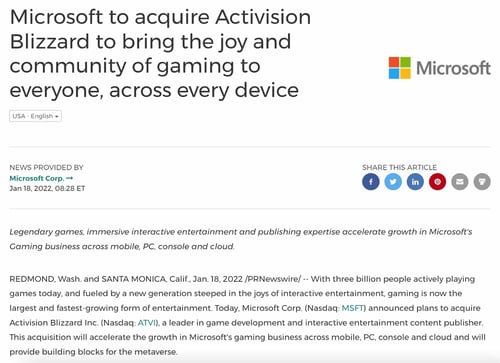
How Market Intelligence Will Make Your Marketing Team More Agile

When I was younger, my dream was to open a cheese store with my family. My mom, brother, sister, and I — we're all obsessed with cheese.

So anytime I see a cheese store, I'll go in and sample everything … for research, obviously.

Although I'd never thought about it this way before, I was already thinking in terms of market intelligence and market research (two different concepts, but more on that below).

→ Download Now: Market Research Templates [Free Kit]

I was thinking about the product and its competitors.

As a marketer, market intelligence is important because it can help you understand your position in the market, evaluate your product, know your target audience, and conduct competitive analysis.

With this information, your marketing team will be better equipped to position your company in the marketplace. For companies that prioritize intelligence data, decision-making can be five times faster.

Feeling hesitant to rely on intelligence data? Gartner reports over one-third of organizations will rely on decision intelligence by 2023, making data intelligence a must for remaining competitive.

Below, let's review what market intelligence is, how it's different from market research, and the intel tools that can facilitate the process.

Market intelligence is used to learn about the existing market, customers, problems, competition, and growth potential. Businesses can gather this information through internal and external sources such as sales logs, surveys, social media, news websites, manufacturers, clients, or distributors.

For instance, companies can gather general demographics and spending habits of their consumers to write better, more targeted social media ads. Additionally, market intelligence can help a company make decisions on product development and establish a stronger brand.

How to Gather Market Intelligence

So, what type of information should you collect? Generally, market intelligence can be divided into four main categories of information:

Competitor Intelligence

This is the process of learning more about your competitors. To do this, you might conduct a SWOT analysis, so you can look at the competition's strengths and weaknesses. The goal is to uncover why customers would choose competitors over your product or service.

Product Intelligence

Once you've analyzed how you compare to your competitors, look inward at your own product or service. The goal is to learn about its quality and performance and identify opportunities for improvement.

If you have a physical product, you should also analyze your manufacturing process. Are you building your product in the most efficient way? This information should help you improve the user experience and improve your product.

Market Understanding

To truly understand how your product is performing, you'll have to look at the various markets where it's available. Could you expand your product to other markets? Are there other markets that could benefit from your product or service?

Ultimately, this information should help you understand where your audience is and what gaps exist, so you can fill them.

Customer Understanding

Understanding your customer helps to increase your product or service life cycle. That's because it's usually more expensive to gain a new customer than to keep an existing one.

For this reason — and many others — you have to know your audience. Why do your customers buy from you? What challenges do you help them resolve? The goal here is to gather the information that can help your marketing team come up with targeted campaigns.

Overall, gathering market intelligence should answer questions like:

  • Where should we devote more resources?
  • What markets can we enter next?
  • What are our customers purchasing patterns?
  • What audiences should we market to?

Now, you might be wondering, "How do I gather this information?"

To conduct market intelligence, you'll use internal and external sources of data, such as:

  • Surveys
  • Polls
  • Forms
  • Focus groups
  • Interviews
  • Observation
  • A/B tests
  • Competitor tracking analytics

Depending on the analytics you have available, a lot of this information can be found on your content management system (CMS) or customer relationship management (CRM).

However, before we jump into the software you can use to find this information, I know you're probably thinking, "How is this different from market research?" Let's dive into that below.

Alternatively to market intelligence, market research focuses on learning more about the buyer's research process and what influences their buying decisions.

Example of Market Intelligence

Let’s walk through an example of how a fictional company could use market intelligence to create a competitive advantage.

JKL Podcasting Co offers online software podcasters can use to record, edit, and distribute their podcast to major streaming platforms. As marketers at JKL look to expand the company’s user base, they performed an in-depth analysis of the market for podcast recording software.

In this analysis, they covered four areas:

  1. Competitor landscape — They identified the top-ranking podcast recording software companies to understand their product features, pricing model, sales funnel, marketing tactics, and customer demographics.
  2. Product — After gathering competitor information, they worked with their product team to gain a deep understanding of their own product including key features, how it was like competitor products, and what differentiated it from competitor products. They also learned about up-and-coming features launching later in the year.
  3. Market analysis — Next, the team did research to understand the overall valuation and growth potential of the podcast recording software market. They learned podcast listenership has grown over the past decade and is expected to grow more in coming years, which could lead to more podcasts being produced. With seeing growth and investment in the podcasting space, along with increased interest in people wanting to start podcasts, marketers at JKL learn there is a potential market for new, or up-and-coming podcasters who want easy-to-use software.
  4. Customer base — Finally, the JKL marketing team reached out to a focus group of their current customers to understand their relationship to the product. The customers walk them through their podcast production workflow using JKL software and share what features they love, along with what new features or changes they would like to see.

After going through this exercise, JKL has gained valuable insight into their competitive landscape, product features to highlight, market growth opportunities, and ways to keep their current customer base engaged and using the platform.

You're probably wondering, "How do I gather this information?" Below, let's review what tools and software you can use.

Market Intelligence Tools

For market intelligence to be useful, companies need to conduct research and sort through their collected data for analysis. A lot of this can be done through your CRM software.

To start, many CRMs allow you to create competitor profiles in which you will track your competitors' products, price points, organizational updates, social media activity, and more.

You'll likely also find battle card templates in your CRM, making it easy for your sales reps to access the information they need during their calls to combat objections and persuade prospects.

In addition, you can conduct regular win/loss analysis with your sales team to determine strengths and weaknesses in your sales and/or marketing strategy. You'll want to know:

  • What factors are contributing to your wins and losses?
  • What other company was the prospect considering for the sale? Why?
  • Which competitors are you beating and which ones you are losing to?

If you don't already have a CRM, there are many out there that cater to businesses ranging from small to enterprise-level. Pricing is usually structured on a monthly basis and can range anywhere from $20/month to $1200+.

If your team would rather focus on specific tools, there are several online options to help you achieve your goals. Below are a few we recommend, divided into sections depending on your goals. Additionally, if you're a HubSpot user, many of these tools integrate with HubSpot.

Competitor Intelligence

1. HubSpot's Marketing Hub

Market-Intelligence-Marketing-Hub

Image Source

HubSpot's Marketing Hub has extensive tools to help marketing teams manage, track and scale their efforts. The platform offers both free and premium subscription plans ranging from $45 to $3,200 a month.

2. Crayon

Market-Intelligence-Crayon-Homepage

Image Source

Crayon is one of the leading competitive intelligence (CI) tools in the industry. Its software can fetch and categorize data from over 300 million sources.

The platform also makes it easy for sales and marketing teams to find the intel they need, through battle cards, email digests, and a centralized dashboard.

For pricing information, you must contact the company.

3. SEMrush

Market-Intelligence-SEMrush-homepage

Image Source

If you want to track your competitors' SEO performance, SEMrush is a great place to start. The platform has extensive tools, including keyword research, domain overview, and keyword difficulty. This will give you more insight into your competitors' strategies and how their efforts are performing.

Similar to HubSpot, SEMrush offers a free version of its platform. It also offers premium subscription plans ranging from $119 to $449 a month.

Product Intelligence

1. SurveyMonkey

Market intelligence Survey Monkey homepage

Image Source

Surveys are one of the best ways to learn more about how customers are responding to your products. Survey Monkey allows you to customize your survey to get the insights you need. Beyond a wide range of survey features like advanced survey logic and pagination, the platform also has tools to promote team collaboration.

Access to Survey Monkey starts at no cost, but their premium versions begin at $25/month.

2. InMoment

Image Source

InMoment, formerly Wootric, an analytics platform that helps you learn more about customer sentiment. You can gather real-time analytics, which arms your team to make decisions quickly.

The platform also has many integrations for easy team collaboration, including Slack, Zapier, and HubSpot.

For pricing details, you must contact the company.

3. Metadata

Metadata.io Homepage

Image Source

Metadata is a SaaS company that helps B2B brands generate demand for their products and/or services. On the platform, you can identify audiences, conduct experiments, and track the full sales journey.

Pricing starts at $3,950 for growing companies, with custom plans available for enterprise-level businesses.

Customer Understanding

1. Google Forms

Google Forms homepageImage Source

The stand-out feature on Google Forms is the simple and easy-to-use interface. In just a few minutes, you can have a survey ready to send out to your audience to collect data. You can receive alerts every time someone answers your survey and add collaborators.

The best part? It's free for individuals and included in your plan if you have a Google Business account.

2. CallTrackingMetrics

CallTrackingMetrics homepage

Image Source

Too often, there's a disconnect between sales and marketing teams – CallTrackingMetrics helps solve that. The platform offers a robust analytics tool that can identify which marketing campaigns are driving conversions, automate call processes for smoother interactions, and provide analytics — all in one place.

Pricing ranges from $39/month to $299/month, with custom plans available.

3. Google Analytics

Google Analytics homepage

Image Source

Google Analytics is a website analytics tool with powerful reporting capabilities to understand how users are behaving on your site. It's a great software for brands that are already using other Google products, such as Google Ads or Google Business, as they work together seamlessly.

On the platform, you can get detailed reports by goal: acquisition, retention, engagement, and monetization. The visual dashboard also allows you to get a snapshot of your site is performing.

The standard version is free and ideal for small to medium-sized companies. Entreprise-level businesses must contact sales for pricing.

How To Leverage Market Intelligence Data

Once you start collecting data, unpacking it is the next step.

But before you dive in head-first, come back to your goal. What do you want to learn and why? Use that to steer your approach.

Having a clear direction is essential during this stage to narrow down what data to focus on. You'll be compiling a lot of data, and not all of it will be relevant to your main objective. Knowing which will be most impactful will save you so much time and allow you to use your resources efficiently.

Now that you know what to focus on, start organizing and reviewing your data. You'll want to look for patterns. During this step, keep an open mind. Confirmation bias (the tendency to interpret information to support a pre-existing idea or belief) can greatly impact how you interpret data, so it's important to consider all perspectives.

Once you identify a theme or trend, dive deeper to answer the 5Ws. When did it start? Who or what is influencing this? Why is it happening? Where else is this trend identified?

From there, it's time to strategize. Based on what your data is telling you, you can develop an action plan and make recommendations to key stakeholders.

For instance, let's say your latest intel revealed that consumers are unaware of a key feature in your product line, which is steering them toward your competitors. Your recommendation could be to launch a marketing campaign that highlights that feature, create stronger messaging on your website product pages, and adjust the sales team's scripts to place more emphasis on this feature and how it's better suited for your customers than a competitor's.

The formula is easy: collect, organize, identify, and recommend. Understanding your market is key to entering the market and maintaining your place in it. But if you want to stand out among your competition, you'll need to leverage market intel.

Market intelligence can give you a holistic view of the market, improve customer retention, boost your efficiency, and give you a competitive advantage. So, I'm not being hyperbolic when I say market intelligence is vital for your company to succeed.

New Call-to-action


How Market Intelligence Will Make Your Marketing Team More Agile was originally posted by Local Sign Company Irvine, Ca. https://goo.gl/4NmUQV https://goo.gl/bQ1zHR http://www.pearltrees.com/anaheimsigns