Thursday, January 13, 2022

Digital out-of-home (DOOH) campaigns with PodMe

Digital out-of-home campaigns are becoming more and more common. And what with ever more traditional out-of-home signage being upgraded to digital, expect their number to rise ever further. But what’s the secret to great DOOH campaigns?

Today the number of assets and channels a single campaign has to cover is ever increasing. Therefore, it is essential that marketing teams are able to create and control digital out-of-home ads as they would any other digital channel, whether that is display or social in order to be successful.

One such brand at the cutting edge of effective multi-channel campaigns, is Scandinavian audio subscription service PodMe. We spoke to Sebastian Lifvin, Marketing Manager at PodMe about how he and his team used Bannerflow to create and control a recent multi-channel campaign for his brand.

PodMe Marketing Manager image

How did this campaign perform across different channels? What channels other than DOOH did you advertise across?

Sebastian Lifvin: I’ve been heavily focused on digital this past year (2021), focusing on Google, Facebook, and Schibsted’s publication network. Schibsted is our current owner, having purchased us fully in the summer, so we are using their channels like Aftonbladet and Svenska Dagbladet (two of the biggest publications in Sweden).

We have dipped our toes into out-of-home and radio but nothing in terms of digital billboards. So, using our basic platform of Google, Facebook and Aftonbladet – where we run banners through Bannerflow – we wanted to take the same campaign to a wider audience through digital out-of-home placements across Stockholm and Gothenburg.

Example of PodMe digital out-of-home advert in the wild

We were pleased with the campaign. Of course, adding digital out-of-home to our marketing mix is new for us so we have nothing to compare it with. But, we’re really happy with how it performed. Plus, the use of Bannerflow within the campaign has been a tremendous help.

Which design challenges were the most satisfying to solve when creating a range of campaign creatives? How did using Bannerflow help?

Sebastian Lifvin: We have been using Bannerflow for a couple of months for display ads on Schibsted and Google. For the DOOH placements, we simply took the same material, same look and feel, adapted it and pushed it to a digital out-of-home provider.

Using a single tool (Bannerflow) is a tremendous time saver and it ensures our ad creatives look good cross channels.

Did you make any updates to the live ad content?

Sebastian Lifvin: The campaign ran for a week and pretty much remained the same throughout. But, just knowing that we could update our digital out-of-home campaign, like we do for say Google or Aftonbladet, was reassuring.

Were the creative assets for this campaign custom built or were they repurposed from your existing brand library?

Sebastian Lifvin: We create assets on a campaign to campaign basis. Usually we have one podcast that we want to highlight. A podcast is a bit like a brand in itself, so we use the brand assets from the podcasts. Basically, this means any images from the podcasts, plus our own PodMe brand assets on top of it to let people know that you can listen on PodMe.

Did the context of where your DOOH ads were to be placed influence your campaign creatives?

Sebastian Lifvin: Most definitely. We thought this through thoroughly. Knowing that we would reach a wider audience than normal, we needed material that could grab people’s attention going through the subway or going about their day to day business. Therefore, it was important to use attention grabbing material which would catch people’s attention quickly. And we were fortunate to have a star like Mia Skäringer fronting our campaign, as she’s a well known face which would be widely recognised across channels.

In general how do you tackle the design process of producing campaigns?

Sebastian Lifvin: We have our ad agency, as well as me and my colleague who manage the production in-house. The process starts with me and my colleague, as production manager, looking at the campaign, what can we do, what assets can we have in use?

Then we send the brief to our ad agency who creates the campaigns directly in Bannerflow. They then send links in Bannerflow for us to view the ad creatives in real time.

Example of PodMe ads in Bannerflow platform

Some campaigns I actually create myself! I’m not a skilled graphic designer but Bannerflow is so easy to use! In fact some of our campaigns that are currently running live were created by me. (And that says a lot about how easy the tool is to use!)

Since you began using Bannerflow, what have been the most radical shifts in how you work creating ads?

Sebastian Lifvin: We were running banner campaigns on Google and Schibsted prior to using Bannerflow and now display advertising is much easier than what we were doing before.

Before, we were using the Adobe suite and they are great but the 360 way of using Bannerflow, starting with the scaling of banners, is simply amazing.

And then there’s the bonus of real-time updates through using HTML5 banners, as well as how easy it is to follow-up and see live ad stats in the tool. In fact, I use that everyday to see how our campaigns are performing.

We’re still working on improving our live tweaking and optimisation but that is coming. But being able to look at the CTR and see which banners perform best in terms of reach is a great way of proof checking what Google and other platforms are telling us about the numbers.

Are there any Bannerflow features that have helped you take your ad campaigns to a higher level?

Sebastian Lifvin: To be honest, there are plenty but, for me, it’s the scaling and the ease of use of the platform for publishing across channels and devices. Create one ad with the right look and feel, and then you just basically push a button and you have 20 assets. That is a tremendous help and time saver!

We haven’t tried using the real-time feeds yet but that is something we’re looking at, so to automate our processes even more.

It feels like I’m just scratching the surface of how we can use Bannerflow. Every week it seems I am discovering a feature we should really use. There is a lot of stuff to discover!

Take the next step in digital out-of-home

Digital out-of-home will become ever more important once the world opens up again. Therefore, having the right advertising technology will be key to making it a success.

If you would like to know more about how you can use Bannerflow to create your multi-channel campaigns, then please get in touch or request a demo.

The post Digital out-of-home (DOOH) campaigns with PodMe appeared first on Bannerflow.


Digital out-of-home (DOOH) campaigns with PodMe was originally posted by Local Sign Company Irvine, Ca. https://goo.gl/4NmUQV https://goo.gl/bQ1zHR http://www.pearltrees.com/anaheimsigns

Social Media Marketing: The Ultimate Guide

When it comes to social media, marketers' top goals are advertising their products/services and increasing their brand awareness, according to 2021 HubSpot Blog Research.

However, many brands struggle with creating engaging content and reaching their target audience. With social media playing such an important role at the top of the funnel, let's dive into all things social media marketing – what it is, its benefits, and how to actually build a social media marketing strategy that'll work for your specific business.

→ Free Download: Social Media Calendar Template [Access Now]

Social media marketing is all about meeting your target audience and customers where they are and as they socially interact with each other and your brand.

While social media marketing as a whole is incredibly valuable and beneficial to your business growth (as you'll see in the following section), your strategy will differ based on which social networks your audience spends their time on.

Before we dig deeper into social media marketing, let's segment the strategy by platform.

Social Media Marketing Platforms

Facebook

  • Users: 1.9 billion daily active users worldwide
  • Audience: An even spread of Generation X and Millennials
  • Industry impact: B2C
  • Best for: Brand awareness; advertising

Facebook is the largest social media platform and the most established. Since its launch in 2004, it has become an invaluable tool for B2C businesses, offering advanced advertising tools as well as organic opportunities.

TikTok

  • Users: 1 billion active monthly global users
  • Audience: Primarily Gen Z followed by Millennials
  • Industry impact: B2B and B2C
  • Best for: Short-form, creative video content; user-generated content; brand awareness

When you think of short-form video, you probably think of TikTok. The platform rose in popularity in 2020 and shows no signs of slowing down. It's one of the best platforms for community building, with marketers ranking it in second place behind YouTube.

Instagram

  • Users: 1 billion monthly active users
  • Audience: Primarily Millennials
  • Industry impact: B2C
  • Best for: High-quality images and videos; user-generated content; advertising

Although Instagram launched only 12 years ago, the platform has taken the world by storm. When it comes to sharing visually compelling content, Instagram is where brands go. Another thing that sets the platform apart is its advanced ecommerce tools.

Today, users can discover brands, browse their products and/or service, and complete a purchase without ever leaving the app – making Instagram a hard platform to beat.

Twitter

  • Users: 211 million daily active users worldwide
  • Audience: Primarily Millennials
  • Industry impact: B2B and B2C
  • Best for: Public relations; customer service; community building

While Instagram focuses on visuals, Twitter focuses on words. Since the early days of 140-character Tweets, the platform has now expanded to include an audio tool called Twitter Spaces, a community-building tool called Twitter Communities, and Twitter Moments to share interesting content with your followers.

LinkedIn

  • Users: 774 million active users worldwide
  • Audience: Baby boomers, Generation X, and Millennials
  • Industry impact: B2B
  • Best for: B2B relationships, business development, and social selling

LinkedIn is Facebook's professional cousin. It's perhaps the only platform where its audience is clearly defined: Working professionals looking to network and seek out new opportunities.

That makes it the ideal platform for B2B companies looking to identify key decision-makers and build an industry-specific community.

YouTube

  • Users: Over 315 million daily active users worldwide
  • Audience: Primarily Millennials but has a strong audience across gender and age demographics
  • Industry impact: B2C and B2B
  • Best for: Brand awareness; long-form entertainment, and how-to videos

According to HootSuite, YouTube is the second most visited website in the world. In addition, marketers name it the best platform to build community.

In addition to being an incredibly popular platform, its users also tend to stay longer on it because it features mostly long-form content – making it an ideal platform to share educational content.

Snapchat

  • Users: 306 million daily active users worldwide
  • Audience: Primarily Generation Z
  • Industry impact: B2C
  • Best for: Brand awareness; advertising

When Snapchat came out in 2011, leading the charge in ephemeral content. It introduced content that you could share with your friends and that would expire after 24 hours.

The platform peaked in 2015 and has held strong since then. Many thought the brand would disappear once Instagram introduced Stories, the same feature with a different name. However, Snapchat continues to be popular among young adults.

Pinterest

  • Users: 444 million monthly active users worldwide
  • Audience: Primarily Millennials with a solid audience in Gen Z, Gen X and Baby Boomers
  • Industry impact: B2C
  • Best for: Visual advertising; inspiration

Think of Pinterest like a visual storyboard that allows users to get inspiration for everything from fashion to home decor.

85% of Pinners say Pinterest is where they go to start a new project. In addition, 80%

of weekly Pinners say they've discovered a new brand or product on the platform. So, not only is it a great discovery tool but it's also a way for brands to build their narrative through visual stories.

Clubhouse

  • Users: 10 million weekly active users worldwide
  • Audience: Primarily Millennials
  • Industry impact: B2B and B2C
  • Best for: Visual advertising; inspiration

Clubhouse made a strong impression as soon as it entered the social media world in 2020. The audio-only platform allows people to start interesting conversations with followers as well as strangers and build community.

The platform also gained some buzz for its invitation-only set up when it was in beta testing. Today, the platform is open to everyone globally and on both IOS and Android devices. Another big selling point to this platform is that it works well for both B2B and B2C businesses and leverages audio, which has made a huge comeback in recent years.

Now that we've detailed the fundamentals of each social media network, let's discuss why social media marketing is beneficial for your business.

Benefits of Social Media Marketing

There are a variety of reasons why your company should use social media marketing. We've created a list of the four most beneficial reasons to consider.

Let's dive in.

1. Increase your brand awareness.

Due to the sheer amount of people on social media, you're missing out on the potential to reach thousands, and even millions, if you don't have a presence.

In fact, social media has been proven to boost brand awareness by driving up engagement. Social engagement includes things like comments, likes, shares, and reposts, and saves.

It also helps you increase brand awareness by directing traffic straight to your site. You can do this by including direct links to your website in your profile, bio, and posts.

Featured Resource

2. Generate leads and boost conversions.

Promoting and sharing your products on social media is a simple way to improve lead generation, boost conversions, and increase sales because you're advertising to people who have opted to engage with you by following your account.

Here are some examples of ways you can use social media to generate more leads.

  • Create contests for your visitors and followers to participate in on your social media profiles.
  • Include links to your website and offers in the bio sections of your profiles.
  • Host live videos to make announcements about products and provide updates or details about exciting news at your company.
  • Implement a social media marketing campaign on one of your channels.
  • Sell your products through your social profiles. For example, you can enable Facebook's Shop Section or Instagram's Shopping feature on your profiles. These features allow your visitors and followers to click on products you've shared in posts to view information such as price, material, and size. Then, visitors can easily proceed to checkout through the platform and buy the product directly from you.

3. Foster relationships with your customers.

By connecting and engaging with your social media followers, you'll be able to build lasting relationships between them and your business. You can do this by interacting with them on your posts, responding to their questions and comments, and providing them with any help they may need.

You can also ask your followers questions about your products, their pain points, or create giveaways to help you build trust and show them how much you value their input and support.

4. Learn from your competitors.

Social media is a great way to keep tabs on your competitors — whether that's in reference to their social media tactics, the products they're promoting, the campaigns they're implementing, or their level of interaction with followers.

Social media allows you to get a look at what is and isn't working for your competition, and therefore helps you decide what should or shouldn't change in terms of your company's approach.

Lastly, reviewing the social accounts of your competitors can help you make sure your marketing stands out and is unique to your brand.

Learn how to conduct a competitive analysis to discover how you can beat the competition.

Now, let's talk strategy — there are five steps to ensure your social media marketing plan is sustainable and positively impacts your business.

Although social media is constantly evolving, most of the foundational steps you need to succeed stay the same. Essentially, you're following the same steps you would take to create a marketing strategy and narrow it to a specific channel.

Let's cover these steps in more detail so you can begin applying them to your business.

Step 1: Research your buyer personas and audience.

The first step to creating a social media marketing strategy is to determine who your buyer personas and audience are so you can target their needs and interests appropriately.

To do this, think about the people you're trying to reach and why, and how you would classify them as a group. For example, if your company sells trendy leggings and joggers, you might classify your target audience as millennials who like to wear stylish athletic apparel regularly — a style known as athleisure.

By considering your buyer personas and audience, you'll then be able to determine what content will attract the type of followers and customers you hope to gain. Plus, learn how to create engaging content to keep your followers interested.

Recommended Tools

Step 2: Determine which social platforms you'll market on.

As a social media marketer, it's crucial you determine which platforms you're going to share your content on.

There's not necessarily a right or wrong answer when it comes to which social channels your business should use — it's more about the needs of your target audience and where they tend to spend their time.

"It's important to be where your audience of potential customers is today, and where they might be tomorrow," said Andrew Delaney, former social media marketing manager at HubSpot. "It's better to be ahead of the curve than behind."

For example, if you are going for that target audience of athleisure-loving millennials, you may want to focus the majority of your social media efforts on Instagram — this is because millennials cover the largest portion of users on the platform.

Stephanie Morgan, founder and CEO of social media agency Social Lock, echoes this sentiment.

"Think about their behaviors and where they hang out online. If that's Pinterest, use that platform for your brand. If that's TikTok, use that platform for your brand," Morgan adds. "Don't waste time on a platform that your ideal client avatar is not very active on."

Recommended Tools and Resources

Step 3: Create unique and engaging content.

With the billions of social media users around the globe, there's no question that at least some of your followers — or the people browsing your profile — have also seen your competitor's content or that of other businesses in your industry.

That's why you must have engaging social media content that stands out and provides viewers with a reason to click that "Follow" button and interact with your brand.

Not sure what's considered engaging? Morgan has a recommendation.

"My number one tip to brands for creating engaging content on social media is to do market research first because what will be engaging depends on the audience," Morgan said. "When you know what your audience likes and needs to know, you can create content that engages those interests."

To help you get creative, consider the content your competitors are sharing and how you can uniquely promote your products. Also, take advantage of the features offered by the platform you're using.

For example, you can create live videos on Facebook to share the latest details about a product launch or conduct a giveaway.

You can also use your current customers and promoters to help you generate content. You can do this by re-posting their content or encouraging them to use a hashtag to share their own experiences and pictures with your products.

Lastly, leverage trends. Social media trends are always coming up, especially on short-form video platforms like TikTok. Don't be afraid to join in but you still have to be intentional about how you do it.

"If the trend started happening three weeks ago, you've probably missed the boat," Morgan said. "Catching the trends early is the best way to capitalize on it without coming across as inauthentic or like you're trying too hard, or worse [as] 'chuegy' – see Gen Z for that one."

Recommended Tools and Resources

Step 4: Organize a schedule for your posts.

One of the easiest ways to ensure your content is shared as planned is to use a social media management solution. These tools allow you to write captions, prepare pictures and videos, and schedule posts in advance.

They also automatically share your content on schedule and monitor all post interactions and engagement for you. Social media management solutions save you time and allow you to focus on your other tasks.

There are a number of solution options available — here are a few examples.

Recommended Tools and Resources

You can also leverage social media software to meet your goals.

HubSpot offers a social media tool — as part of the marketing software — to help you publish and monitor your content and create real connections with your followers.

You can schedule and publish your content in advance and compare in-depth reports on your posts' engagement to understand the performance of various platforms, types of content, and posting times.

Sprout Social is another social media marketing and management solution designed to help your team organize and plan content creation, manage campaigns, understand engagement, and review content reports and analysis.

With Hootsuite, you can schedule posts in advance on all of your channels at once and measure your ROI with comprehensive content analysis.

How often should you post on social media?

Now, you might be wondering how often you should post content on your social media channels.

As a rule of thumb, you should only post on social when you have quality content to share. Meaning, there's a reason you're posting the content. This is how you'll strike the right balance when it comes to your posting frequency.

Morgan says the top mistake she sees brands make in regards to social media marketing is focusing on quantity of content instead of the quality of content.

"They think they need to post every day, so they force themselves to create posts to fill up the calendar," she said. "Odds are, every single one of those posts isn't going to be very valuable to the ideal customer, I've coined this 'clutter content.'"

Instead, she recommends downsizing in quantity and upping the quality.

"It's better to post two or three times a week with super valuable content, versus posting seven times a week with only one or two valuable posts," said Morgan.

There are plenty of studies and resources available explaining social media post frequency standards by industry and platform for you to follow. Every business is different, so find what works for your audience.

Then, you can begin experimenting with more or fewer posts – as well as other factors such as the time of day you're posting on social – to determine what provides the highest level of engagement.

How to Analyze Your Social Media Marketing Impact and Results

One of the most important aspects of social media marketing is ensuring your efforts are successful in helping you meet your goals. To determine this, you'll need to keep track of all of your posts, on every channel. You can do this by reviewing and managing your social media metrics.

Social Media Metrics

Social media metrics are data related to the success of your posts and your impact on your audience and customers on various platforms. These metrics may include data about your level of engagement, likes, follows, shares, and all other interactions on each platform.

Here are 10 of the most important metrics for you to track:

  1. Engagement: This includes clicks, comments, likes, and replies on your social media posts. There are also platform-specific types of engagement such as "Saved" posts on Instagram and "Pinned" posts on Pinterest.
  2. Reach: The number of people who have seen any content associated with your page or profile is your reach.
  3. Followers: This is the number of people you have on your profile who have clicked your "Follow" button and see your content in their feeds regularly.
  4. Impressions: This is the number of times a post from your profile or page is seen, whether or not your audience members click on it. This is often what happens when someone is scrolling through their newsfeed, but not clicking on anything.
  5. Video views: On Facebook, Snapchat, Instagram, or any other social channel with video capabilities, this is the number of views each gets.
  6. Profile visits: The number of people who have opened your social media page is your number of profile visits.
  7. Mentions: This is the number of times your profile has been mentioned by audience members in their posts.
  8. Tags: This is when your audience adds the name of your company's profile or your hashtag to another post.
  9. Reposts: This is when a member of your audience posts a piece of your content on their profile.
  10. Shares: These are the posts your followers and audience take from your profile and share with their network.

You can influence all of these metrics, increase your social following, and improve overall engagement on your profile by using the same tactics you would to generate leads and boost conversions.

Morgan adds that the metrics you focus on will depend on which season you're in. Here's her formula:

  • If you're new, focus on building an audience and awareness. Key metrics: reach, impressions, audience growth.
  • If you're growing, focus on building trust. Key metrics: Likes, saves, comments, DMs.
  • If you're established, focus on retaining and nurturing. Key metrics: Likes, saves, comments, DMs.
  • If you're launching something, focus on selling. Key metrics: DMs and clickthrough rate

How to Measure Social Media Metrics

You can review social media metrics in a variety of ways, For example, you can use the analytics tools built into the various platforms you use. Here are a few examples:

You might also choose to use an analytics and tracking tool such as Google Analytics. This is a great option if you want to track your social media and website metrics. Lastly, many social media scheduling solutions — as we reviewed earlier — have monitoring and tracking features automatically built-in.

All of these metrics tracking tools will give you a better understanding of what your followers and audience respond well to and what you should consider modifying to improve engagement.

Now that we've reviewed the benefits of social media marketing and how to build your strategy, let's talk about the various resources available to help you along the way.

Social Media Marketing Resources

There are a plethora of social media marketing resources you can use to build a social strategy for your company. You're bound to feel more confident about working on your company's social media marketing initiative with the help of the following courses, training, and books.

Social Media Marketing Courses and Training

Here are three ways to earn an education in the field of social media marketing if you feel it's necessary for your specific business situation.

1. Earn a certificate administered by a company.

A certificate is a quick and simple way to gain a deep understanding of social media marketing courses.

HubSpot offers a free social media certification course, which teaches you how to engage with your customers and improve conversions. You'll also get a better understanding of how to develop your strategy, extend your reach, and measure your social media ROI.

LinkedIn Learning is another platform where you can earn a certification and share it on your profile.

2. Leverage YouTube university.

YouTube is a goldmine when it comes to educational content.

With a quick search, you'll find hundreds of long-form videos that offer in-depth courses on social media marketing. Granted, you can't connect with a live educator. However, it's free and can be a great starting point before you dive into a paid course.

Social Media Marketing Books

Reading relevant content about social media marketing is another great way to learn more about the field. Here are a few examples of some highly-regarded books on the topic.

1. Likable Social Media: How to Delight Your Customers, Create an Irresistible Brand, and Be Generally Amazing on Facebook by Dave Kerpen

This New York Times Bestseller covers the reasons why being likable and engaging with followers on social media is one of the most powerful ways to grow your base of customers and promoters.

The book teaches you how to make impactful content for your followers to interact with and share with their networks. Author Dave Kerpen also describes why you need to ensure you're consistently delighting your followers to avoid losing them at any point in time.

2. Jab, Jab, Jab, Right Hook: How to Tell Your Story in a Noisy Social World by Gary Vaynerchuk

According to author Gary Vaynerchuk, the key to social media marketing success isn't about pushing out a lot of content — it's about pushing out specific content tailored towards your target audience and using the right platform to do so.

In his book, Vaynerchuk covers how to do this as well as connect with your followers and customers on a deeper level through social media. You'll learn how to create memorable and unique content that stands out in comparison to the competition's content.

3. The B2B Social Media Book: Become a Marketing Superstar by Generating Leads with Blogging, LinkedIn, Twitter, Facebook, Email, and More by Kipp Bodnar

HubSpot's CMO, Kipp Bodnar, writes about the ways B2B businesses can generate more leads and conversions through social media marketing.

There are actionable methods you can take to increase your base of followers and drive leads as well as understand the ROI of various B2B social media marketing strategies.

Emerging Social Media Platforms

Recent HubSpot Blog Research found that marketers are constantly on the lookout for new or emerging platforms, as often as even week.

Though it takes a while for platforms to take off, once they do, you want to have a plan in place for how you're going to tackle it.

For instance, brands like Chipotle were one of the first to try short-form video content on TikTok. As a result, they have a strong presence on the platform while many others are still struggling to find their place.

Emerging platforms can offer a new avenue to reach your target audience in a way that may be more effective than what you're doing now. Clubhouse and Discord are among some of the most popular emerging platforms.

However, others like Flyy and SpaceHey are looking to make their mark.

Want to learn more about what's out there? Check out this article on new social media platforms you should keep your eye on in 2022.

Start Marketing on Social Media

Considering there are billions of people on social media today, it's easy to see why so many businesses and marketers use the channel to promote their products and engage with customers.

Although determining your company's social media course of action may seem daunting, you can avoid feeling overwhelmed by understanding social media marketing trends and using some of the many resources available about the topic. So, start working on your business' social media marketing strategy today to increase your number of followers, improve engagement, and boost conversions.

Editor's note: This post was originally published in March 2019 and has been updated for comprehensiveness.
New Call to action


Social Media Marketing: The Ultimate Guide was originally posted by Local Sign Company Irvine, Ca. https://goo.gl/4NmUQV https://goo.gl/bQ1zHR http://www.pearltrees.com/anaheimsigns

Wednesday, January 12, 2022

The 12 Best Free (and Private) Email Accounts and Service Providers of 2022

You need an email account — whether it’s for networking, job recruitment, downloading resources, transferring files, setting reminders, meeting with colleagues, or something else.

Even with the rise of office chat platforms, you still depend on email for a surprising number of things. But unfortunately, not every email service is completely free. And even the free ones might not be the easiest to use or have all the features you need.

Download Now: Email Marketing Planning Template 

It can be a challenge to find an email service provider at no cost that balances the right features with usability. To help make your search easier, we put together a list of the different types of email accounts you can set up, followed by the best email service providers you can host your account on right now for free.

Types of Email Accounts

There are two main types of email service providers to choose from: Email clients and Webmail.

Let's briefly go over these different types of providers.

Email clients you've likely heard of include Microsoft Outlook, Mozilla Thunderbird, and iCloud Mail.

Examples of webmail providers include Gmail, Yahoo! Mail, and Hotmail.

Now, take a look at seven of the best free email service providers (and five of the best email accounts for privacy) you can get your hands on today — both webmail and email clients included. For each email service provider, we've highlighted a unique feature to help you find the best fit.


1. Gmail: Best for Offline Accessibility

Best Free Email Accounts: Gmail

Unique Feature: Native File Collaboration

Sign up here.

Type of email: Webmail

Who should use it: Anyone who already uses and loves the rest of Google's products.

It might seem like an obvious top pick, but Gmail is just too versatile not to get our first slot. According to Litmus Labs, Gmail has the second-highest email provider market share (behind Apple iPhone's native email app).

Ironically, one of the reasons Gmail has become so popular is because of all the communication options in your inbox that don't involve email.

Gmail is a regular email inbox tool you can access once you have a Google account. Since it’s built into Google Suite, you can also access a group of free apps that allow you to chat, video conference, and share files with the people in your contact list.

Google Hangouts, available from your inbox's left sidebar (or the right — you can customize how your inbox is displayed), lets you text and video chat with other Gmail users for the things that might not warrant an email message.

Like most other email accounts today, Gmail also has an intuitive calendar where you can set meetings and reminders.

Pro Tip: You can also use a free product like HubSpot Meetings to easily schedule meetings without back-and-forth emails.

Unlike other email accounts, you can use your Gmail address to log into and manage your YouTube account, as well as collaborate on shared documents and spreadsheets right from a cloud-based Google Drive.

Offering a generous 15 GB of free email storage, Gmail does everything it can to make your inbox less chaotic, including advanced filters that automatically push emails into separate folders as they arrive. And none of these functions costs a dime.

Notable Features:

  • Allows you to un-send emails
  • 15GB free email storage
  • Accessible from any internet-connected device
  • 99.9% protection from suspicious/spam emails
  • Texts suggestions that help you write emails faster

2. AOL: Best for Interface Organization

aol best free email account and service providerBest Free Email Accounts: AOL

Image Source

Unique Feature: Unlimited Storage

Sign up here.

Type of email: Webmail

Who should use it: Anyone who uses email for most of their communication.

America Online (I feel nostalgic just typing those words) has quietly kept up with today's standards for a good user experience and is now once again one of the best free email accounts available to you.

Purchased by Verizon in 2015, AOL delivers your email from its classic news-driven homepage and comes with the contemporary spam filters and virus protection you'd expect from your email provider. You can also send text and instant messages from specific windows in your email inbox.

AOL does have something over Gmail, though: unlimited storage. Additionally, you can import email contacts from a CSV, TXT, or LDIF file, so you're not creating your "buddy list" (get it?) from scratch.

Notable Features:

  • Unlimited storage
  • Highly customizable
  • Offers a spellchecker to reduce errors

3. Outlook: Best for Multiple App Integrations

Best Free Email Accounts: Outlook

Image Source

Unique Feature: Multiple App Integrations

Sign up here.

Type of email: Email client

Who should use it: Anyone who uses many different platforms to connect with others.

If you ever cringed at the sight of a "Hotmail.com" email address, you can thank Outlook for this outdated domain name.

But there's good news: Microsoft has reinvented its longstanding email service, and your free Outlook.com email address has many advanced features waiting for you.

While it touts a calendar and message filter similar to Gmail, Outlook also integrates with several other popular communication apps.

For example, you can connect Skype, Facebook, PowerPoint, PayPal, and even task-management software such as Trello — making it very easy to reach and work with non-Outlook users without leaving your inbox.

Outlook offers 15 GB of free storage for each user, along with a super-clean interface.

Notable Features:

  • Like with Excel or Word, you can use Add-ins with Outlook
  • Easy access to other Microsoft apps like Skype
  • Provides aliases that add anonymity to your email
  • Excellent email organization
  • Great search feature

4. Yahoo! Mail: Best for Lots of Storage

Best Free Email Accounts: Yahoo Mail

Image Source

Unique Feature: Media and attachment history

Sign up here.

Type of email: Webmail

Who should use it: Creatives and anyone who sends and receives attachments frequently via email.

Yahoo! Mail, another well-known platform, sits just behind AOL in storage space with a whopping 1 TB (that's a terabyte) for free, along with a few key social media integrations.

You can have custom background themes and search for key information from your inbox with Yahoo! Mail.

Yahoo! Mail makes it easy to find every photo, video, and document you've ever attached or received via email in their tabs on your inbox's sidebar. This makes the platform especially appealing to those who share documents regularly or simply want an album made of every photo they've ever had shared.

Notable Features:

  • Connects seamlessly with Yahoo Calendar
  • Outstanding email organization
  • Customizable themes
  • Instant notifications for new emails
  • Decent security to keep your account safe and secure

5. iCloud Mail: Best for Data Encryption

Best Free Email Accounts: iCloud Mail

Image Source

Unique Feature: Label senders as VIPs

Sign up here.

Type of email: Webmail

Who should use it: people who use Mac and want everything on one system.

If you’re a Mac user, you may want to consider using iCloud Mail as your email provider. Their free email account comes with 5GB of storage that you can use to sync your photos, files, or email.

However, it’s important to note that storage is shared between all of your apps and devices — so if you take a lot of photos on your iPhone, you may eat into your email storage allowance for the month. Upgraded plans start at $0.99/month and go up to $9.99/month.

One of the most significant advantages of using iCloud over other email providers on this list is the ease of integration. Apple builds its desktop and iPhone mail apps with all email clients in mind, but it pays special attention to making the experience delightful for iCloud users.

Notable Features:

  • Search functionality
  • Ability to label senders as VIP to automatically filter important messages and save time
  • One-click “Unsubscribe” feature
  • 5GB free email storage

6. Mozilla Thunderbird: Best for Managing Multiple Accounts

Best Free Email Accounts: Mozilla Thunderbird

Image Source

Unique Feature: Customization features and the ability to open multiple emails in tabs

Sign up here.

Type of email: Email clients

Who should use it: Anyone looking for a simple but customizable email inbox.

Thunderbird, a free email application from Mozilla, known for Firefox, offers a quick email inbox setup and a simple, easy-to-use user interface.

The app offers customizable features, such as theme settings and app extensions to improve your email experience. The email app also allows you to open multiple emails in tabs, similar to how you would open various web pages in Firefox browsers.

Notable Features:

  • It has a large extension library
  • Integrates with Google Calendar to make task and meeting scheduling easier
  • Smart email organization to reduce cluster

7. Yandex Mail: Best for Translating Emails

Best Free Email Accounts: Yandex Mail

Image Source

Unique Feature: 10 GB of free cloud storage

Sign up here.

Type of email: Webmail

Who should use it: anyone seeking a free email with additional storage capabilities.

Yandex is a Russian web company that offers a global email tool. You can sign up for a free account with the tool, link it to your Facebook, Twitter, or Gmail accounts, and personalize your email inbox.

Like many of the other providers on this list, Yandex's email inbox can be set to filter or prioritize emails so you see messages from real people. It can also recognize keywords in messages and subject lines and organize emails into categorized inboxes. Additionally, users who sign up for Yandex mail get 10 GB of free cloud storage.

Notable Features:

  • Auto-reminder for unreplied mails
  • In-built translator
  • Read receipts on sent emails
  • 10 GB free cloud storage

8. Zoho

Best Free Email Accounts For Privacy: Zoho

Image Source

Unique Feature: 25 Business Addresses

Sign up here.

Type of email: Webmail

Who should use it: startups and small businesses.

This is the first of the free email accounts for privacy to make our list, but it holds a ton of potential for businesses.

The first thing you'll notice about Zoho is its user-friendliness. From integrating with Google Drive, Box, and other cloud-based file managers, to its built-in task manager, this email service offers a simple way to accomplish all of your daily tasks.

The real difference-maker, though, is the ability to customize the domain name for up to 25 connected email addresses. Want to replace "@zoho.com" with the name of your business's website? You can do so under Zoho Lite, which gives you 5 GB for free — all under username@yourdomainname.com.

Notable Features:

  • Doesn’t scan your inbox for advertisement purposes
  • Emails are in an encrypted format
  • Notifies you if your messages don’t deliver
  • Integrates easily with the Zoho CRM

9. ProtonMail

Best Free Email Accounts For Privacy: ProtonMail

Image Source

Unique Feature: Encrypted email

Sign up here.

Type of email: Webmail

Who should use it: Anyone who sends and receives sensitive information.

ProtonMail offers just 500 MB of free space, but for the worthy trade of encrypted email, allowing you to send messages that nobody else can see and disappear after a month.

What's the catch? Is the service hard to use? ProtonMail is easy to use on any device without any software needed to encrypt your emails, as with most webmail platforms. Its inbox interface is as easy to understand at a glance as the other email services on this list.

And the tool offers quick color-coded labels to help you further organize which emails deserve the most care and protection.

Notable Features:

  • No personal information is required to open an account
  • Compatible with other email providers
  • Optimized inbox to boost productivity
  • End-to-end data encryption

10. GMX Mail

Best Free Email Accounts For Privacy: GMX Mail

Image Source

Unique Feature: Alias email addresses

Sign up here.

Type of email: Webmail

Who should use it: Anyone who needs multiple emails with one central inbox.

While you may not have heard of GMX Mail, it’s been around for quite a while (since 1997) — and it has a bunch of features that make it worth considering.

First off, GMX offers 65 GB of storage. That’s a lot of storage for a free email service. In fact, they claim that it allows you to keep nearly half a million messages in your Inbox!

Another feature worth noting is the ability to send large attachments. While many services have low caps for your email attachments, GMX Mail allows you to send files up to 50MB. That’s great if you share a ton of photos, presentations, or other large files from your account.

But the feature of GMX Mail that really sets it apart is the ability to set up to 10 alias email addresses all from within one account. This can be useful in many situations — both personally and professionally.

On a personal note, you could use one alias for all of your online purchases and logins — to keep marketing emails separate from your private messages. From a business perspective, multiple email addresses can help manage role-based emails such as support@yourdomain.com or sales@yourdomain.com.

Notable Features:

  • Spam filter to protect your inbox from suspicious messages
  • Easy-to-use inbox management templates
  • Mail collector for keeping all your emails (even from other service providers) in a single place

11. Trustifi

Best Free Email Accounts For Privacy: Triustifi

Image Source

Unique Feature: Data loss prevention

Sign up here.

Type of email: Webmail

Who should use it: Anyone who doesn’t want to choose between having a secure and functional inbox.

Trustifi combines the best of a productive and secure email provider in one place.

With available whitelisting and blacklisting options, you can easily choose who you allow to send you messages. Trustifi is also compliant with HIPAA/HITECH, PII, GDPR, FSA, FINRA, LGPD, CCPA, and more, so you don’t have to worry about losing your account overnight.

You can even use the Trustifi add-on to add an extra security layer to your Gmail or Outlook inbox.

Notable Features:

  • Ransomware and fraud detection
  • Ability to set expiry dates on sent emails
  • Seamless integrations with other email systems or service providers
  • End-to-end email encryption

12. Mailfence

Best Free Email Accounts For Privacy: Mailfence

Image Source

Unique Feature: Legal protection

Sign up here.

Type of email: Webmail

Who should use it: Anyone looking for a secure email account that integrates with other tools.

Mailfence is a secure browser-based email service provider based in Belgium. Given the laws in Belgium, all your data is locked away from any third-party access.

Their free plan gives you 500 MB of email space. But to truly enjoy the best of Mailfence, you’ll have to hop on a paid plan that starts at €2.50/month.

You’d be able to create up to 10 aliases on the paid plan and have 5GB of email space, among many other features.

With Mailfence, it’s easy to organize your day and business because you’d be able to easily integrate your email account with your contacts, calendar, and documents.

Notable Features:

  • Quick integration with a suite of tools
  • True OpenPGP end-to-end encryption

How to Make an Email

No matter which provider you choose, creating an email is a simple process. But, it’s still important to know best practices so you can have one that fits your needs the best. The purpose of an email is to provide a space for you to have easy, secure communications. Follow the steps below to create an email:

1. Choose An Email Provider

Select an email provider based on your needs as a user. Think about which features, such as top-tier security, email scheduling capabilities, or integrations, are the most important to you. Also, consider how much storage you will need and what type of provider works best.

2. Choose a Username

Select a username based on the purpose of the account. If it is a professional account, then your name with a significant number will do. The name of your business will do if it’s a business account. You might also consider your name@businessname.com for professional accounts.

3. Create a Password

Email providers generally have minimum requirements for how secure your password must be. These often include a number or a special character. Follow these guidelines and choose a password that is very unique and has a variety of letters, numbers, and characters to make it very secure.

4. Secure Your Account

Many email providers include ways to add extra security to your account. Take advantage of these features to keep your account and data safe. Setting up two-factor authentication is a great place to start.

5. Write a Signature

Set up an email signature for your account. This saves a lot of time as you are writing emails and helps keep your closing consistent. Include information like your name, your title, and your contact information.

Making the Most of Your Email

And with that, you have some of the best options for free email accounts this year. But who knows? Your next email address could be entirely different while giving you just what you need to succeed.

Editor's note: This post was originally published in March 2018 and has been updated for comprehensiveness.

New Call-to-action


The 12 Best Free (and Private) Email Accounts and Service Providers of 2022 was originally posted by Local Sign Company Irvine, Ca. https://goo.gl/4NmUQV https://goo.gl/bQ1zHR http://www.pearltrees.com/anaheimsigns

How to Use Instagram Insights (in 9 Easy Steps)

Instagram Insights shows you engagement analytics that empower you to improve your Instagram for Business strategy.

You no longer have to guess about what works for your audience; Instagram Insights will tell you. You’ll therefore be able to get more likes, earn more followers, and grow your profile exponentially.

In this post, we’ll go over everything you need to know about Instagram Insights and how to leverage it to improve your Instagram profile.

Click Here to Subscribe to HubSpot's Marketing Blog

Why use Instagram Insights?

Instagram Insights allows you to get access to important user engagement data for your business profile. It’s not just enough to know the raw numbers, such as the amount of likes you get for one post. It’s important to understand your audience, too.

That’s where Insights comes in. It tells you how they do things, what they prefer, and who they are. You can certainly make business decisions based on gut feeling, but you're much more likely to hit the mark when you can validate assumptions with cold, hard facts.

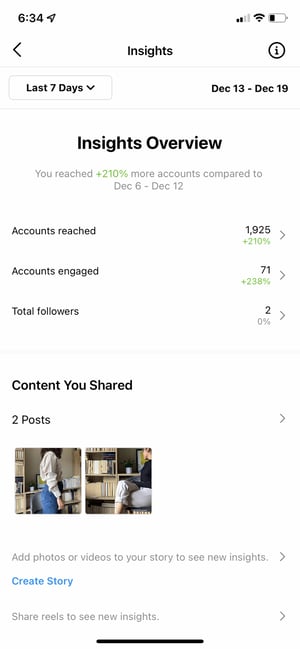
how to use instagram insights: insights overview page

Data and analytics help you measure the impact of your marketing efforts across different channels to see if there's something you need to do differently — like target a different audience, post at a certain time of day, or experiment with a new content format.

Social media isn't any different from other aspects of your marketing in the sense that it can be measured and improved upon. That's why you'll be able to create a more effective Instagram strategy using Instagram Insights.

To use Instagram Insights, you must first have a business profile. The good news? If you're already using a personal account, you can switch to a business profile right from your phone. Here's how to convert your account in a few simple steps.

1. Open up your profile on the Instagram app.

You can convert your Instagram profile to a Business account directly from your Instagram mobile app. First up, open up the app and click on your profile picture on the bottom right-hand corner of your feed.

how to use instagram insights: access account

2. Access the Settings page.

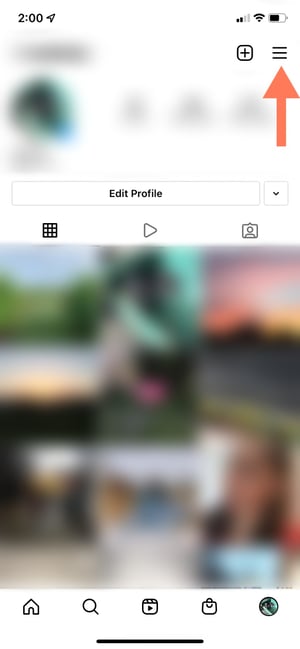
Next, it’s time to head to Settings. On your profile, click the hamburger icon on the top-right corner.

how to use instagram insights: click menu

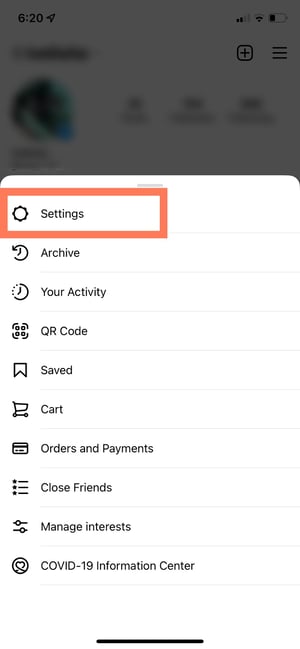
On the pop-up, click “Settings.”

how to use instagram insights: click settings

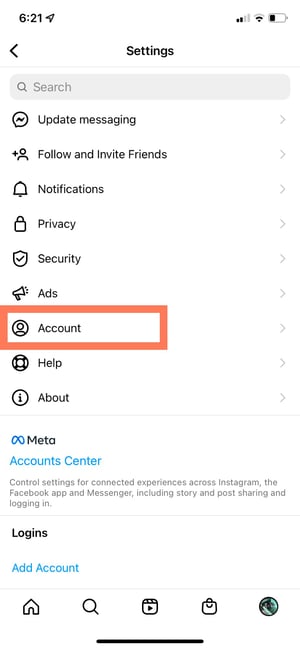
3. Tap "Account."

A list menu will come up. Tap “Account.”

how to use instagram insights: access account settings

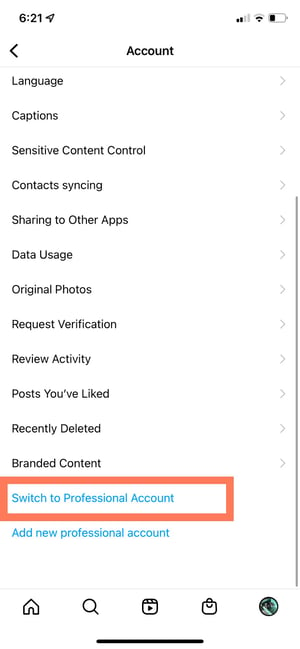
4. Click "Switch to Professional Account”.

By switching to a Professional account, you can get access to Insights immediately — even if you’re not a business.

how to use instagram insights: switch to pro account

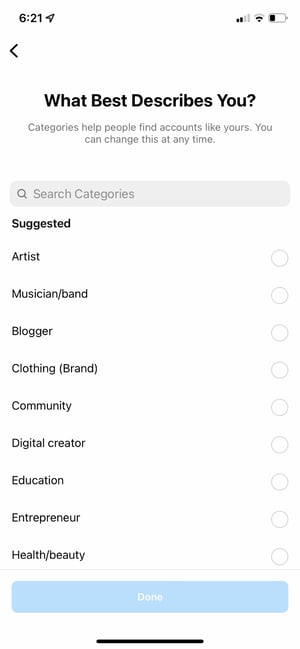
5. Choose your category and click “Done.”

Choose the best category that describes you. Once you’re finished, click “Done.”

how to use instagram insights: category

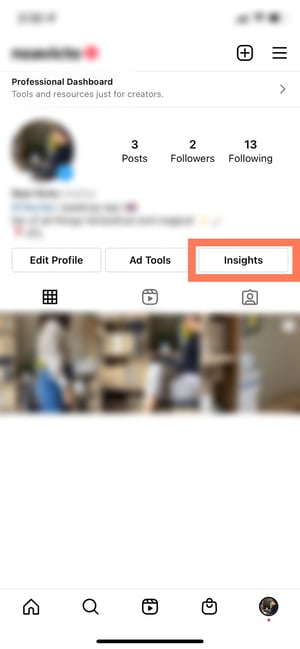
After, go back to your profile. Here’s what it will look like:

how to use instagram insights: professional profile

As you can see, you can immediately access Insights with a Professional account. If you’re a freelancer or content creator, you can stay as is, or you can take the extra step of switching to a Business account.

6. Optional: Switch to a Business account.

If you’re a business, organization, or brand, you’ll want to take the additional step of turning your Professional account into a Business account. A Professional account gives you full access to Insights, but is designed for independent digital creators. A Business account is more apt for companies.

Note that turning your account into a Professional account always comes before switching to a Business account.

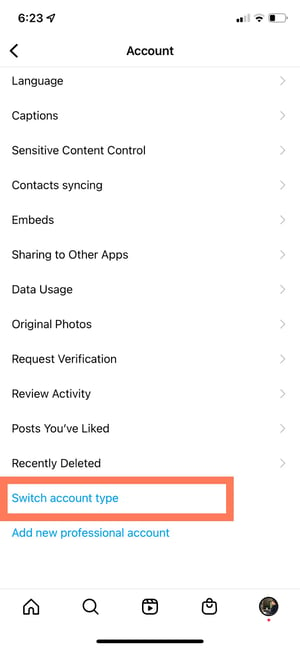
To turn your account into a Business account, click the hamburger menu in the top right corner of your profile. Click “Settings,” then “Account.” At the bottom, click “Switch Account Type.”

how to use instagram insights: switch account type

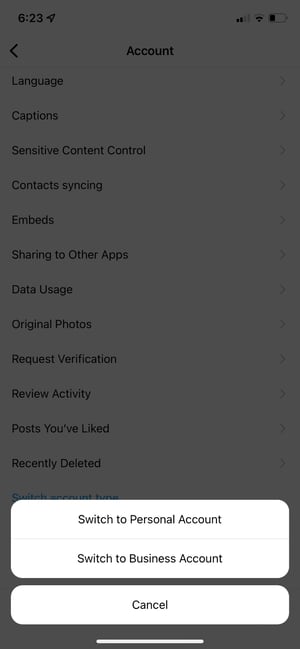
Then click “Switch to Business Account.”

how to use instagram insights: switch to business account

Done! You’re now a Business account with access to Insights.

7. Optional: Connect your Facebook page.

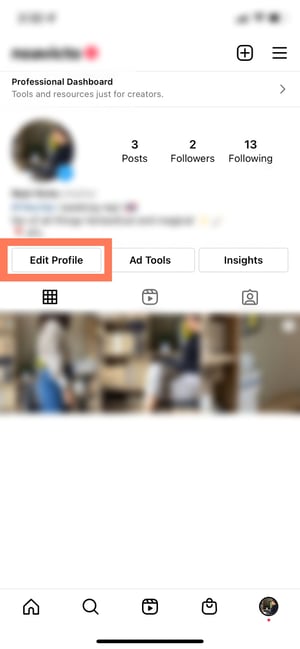
Lastly, if you have a Facebook Business page, it’s important to connect it to your Instagram Business or Professional account. To do so, go to your profile and click the “Edit Profile” button.

how to use instagram insights: edit profile

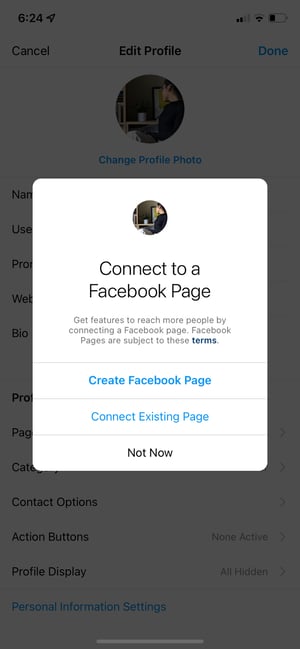
Under “Profile Information,” click “Connect Facebook page.” Follow the prompts to connect your Page or create a new one.

how to use instagram insights: connect fb page

Be sure to already have a Facebook account prior to connecting your page. Click here for instructions for setting up your Facebook Page if you don't already have one.

Once you’ve set up your Professional or Business Account, you can begin to use Instagram Insights.

Before we get into specific instructions for using it, however, here are the analytics on this channel that marketers need to know and understand — and how to use them.

Instagram Insights Explained

how to use instagram insights: insights overview page

Let’s look at Instagram Insights from a bird’s eye view and zoom in piece-by-piece.

Insights Overview

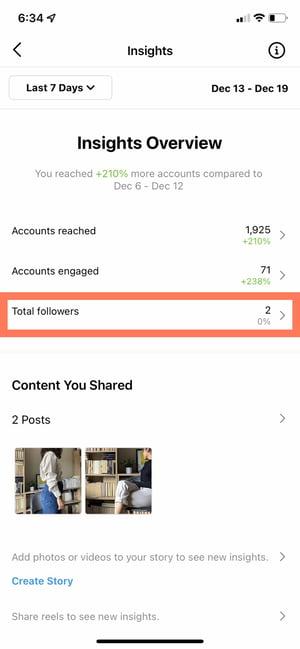
Insights Overview is the “home page” of Instagram Insights. Here, you’ll see how you’ve fared overall.

You get several pieces of information on this page:

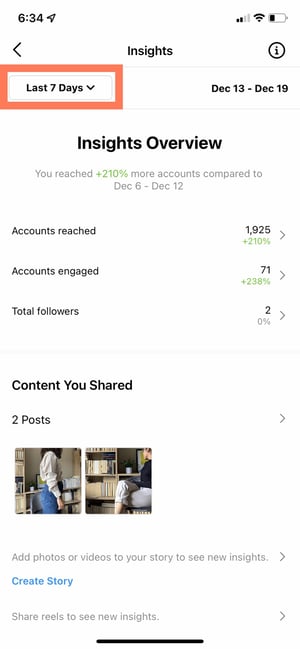
  • Date Range: This represents the days and weeks of data on the screen. You can change the amount of time by clicking “Last 7 days” on the top left-hand corner.

how to use instagram insights: change date

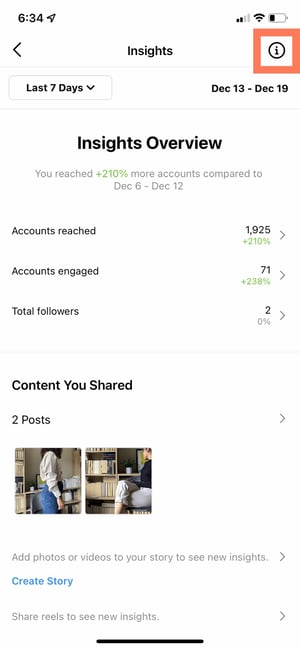
  • Information: If you’re ever lost or don’t know what something means, you can click on the “i” button on the top right-hand corner and get definitions for the terms on the screen.

how to use instagram insights: information

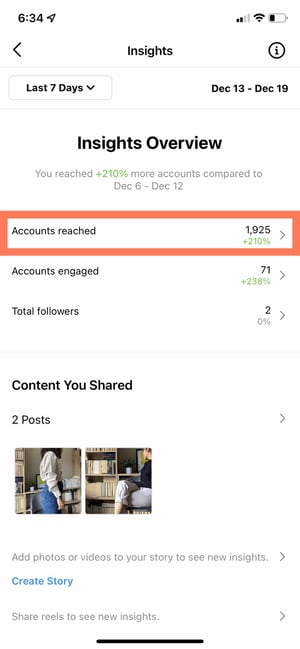
  • Accounts Reached: Accounts Reached refers to the number of unique users who have seen your content — posts, stories, reels, videos, Live videos, and promoted ads — at least once.

how to use instagram insights: accounts reached

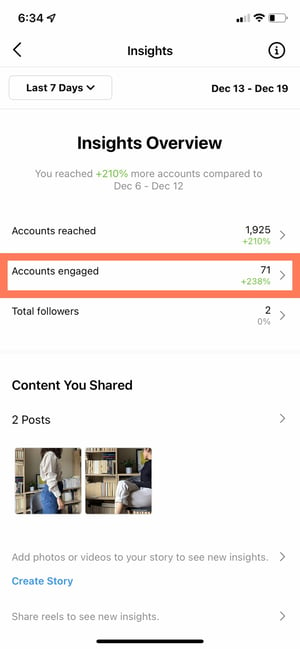
  • Accounts Engaged: Accounts Engaged refers to the amount of users whom 1) you’ve reached and 2) interacted with your content in some way. Interactions can include likes, saves, comments, shares, and replies.

how to use instagram insights: accounts engaged

  • Total Followers: Total Followers refers to the number of people who follow you.

how to use instagram insights: total followers

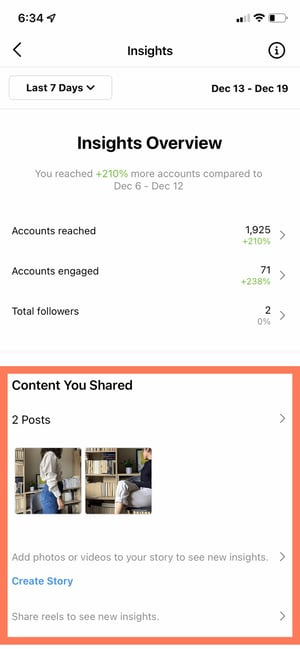
  • Content You Shared: This section gives you the overall number of posts, Stories, reels, videos, Live videos, and promotions that you’ve shared.

how to use instagram insights: content you shared

Now, let’s go into “Accounts Reached,” “Accounts Engaged,” and “Total Followers” in more detail.

Accounts Reached

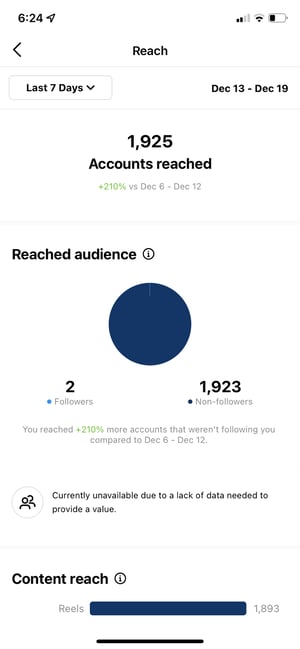
how to use instagram insights: accounts reached pageIn Accounts Reached, you’ll see more specific information about the users who have seen your content and interacted with your profile in some way or form.
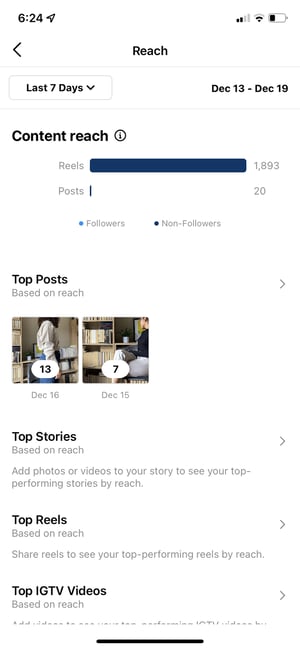
Lets’ break down the different pieces of information you’ll find in this page.

  • Reached Audience: The reached audience section shows you how many unique users have come across your content. Your reached audience will be broken down by follower status, gender, age, countries, and cities. You can also see the amount of people you’ve reached via ads and promotions.
  • Content Reach: The content reach section allows you to see which types of posts have reached the greater amount of people. You’ll first see a graph with the number of people who’ve seen your posts, stories, reels, IGTV videos, and Live videos. Underneath, you’ll see your individual top-performing posts based on reach.

how to use instagram insights: content reach

  • Impressions: Impressions refers to the number of times all of your posts have been viewed — including repeat views by the same users.
  • Profile Activity: Profile activity breaks down the actions users take after visiting your profile. You can see the number of website taps, business address taps, call button taps, email button taps, and text button taps. For these metrics to show up, however, you have to have set up those buttons.

Accounts Engaged

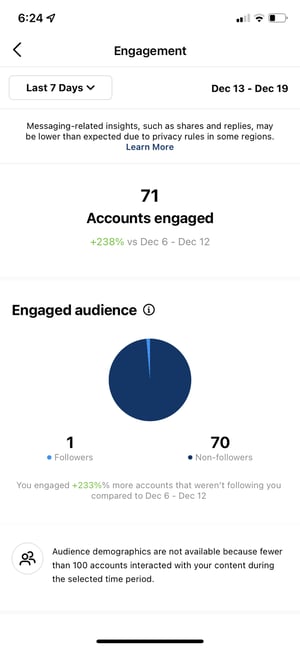
how to use instagram insights: accounts engagedAccounts engaged refers to the number of users who interacted with your content beyond just watching it or scrolling past it. Let’s break down the sections on this page.
  • Engaged Audience: The engaged audience section shows you how many unique users have liked, commented, saved, shared, or replied to your content. Your engaged audience will be broken down by follower status, gender, age, countries, and cities.
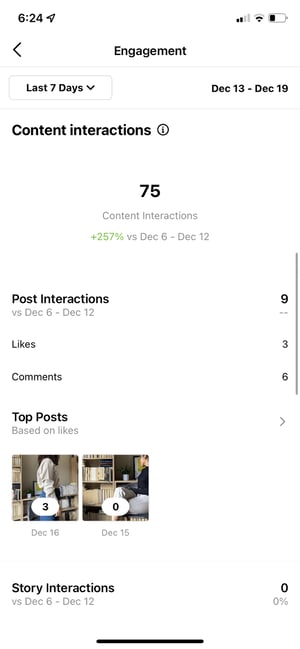
  • Content Interactions: The content interactions section shows you the total number of times people have liked, commented, saved, shared, or replied to your content. It then breaks down this number on a per-post basis. You’ll also see your top-performing posts per category.

how to use instagram insights: content interactions

Total Followers

The total followers page of Instagram Insights allows you to see the total number of users who follow you. You can also see follows, unfollows, top locations, age ranges, and genders.

Under total followers and its demographic breakdown, you’ll then see one more section: most active times.

  • Most Active Times: The most active times section shows you the hours and days that your followers are most often on Instagram. This allows you to determine the best times to post so you can engage the greatest amount of followers.

Next, let’s go over how you can see insights for individual posts on Instagram.

How to See Insights for an Individual Post

  • Navigate to your profile.
  • Navigate to the individual post you’d like to see insights for.
  • At the bottom of the post, there will be a banner. Tap View Insights.
  • You can now see how many likes, comments, shares, and saves your post received.

How to See Insights for a Reel

  • Navigate to your profile.
  • Navigate to the individual reel you’d like to see insights for.
  • At the bottom of the reel, there will be a banner. Tap View Insights.
  • You can now see how many plays, likes, comments, shares, and saves your reel received.

How to See Insights for a Story

If your Story is currently live on your profile:

  • Navigate to your profile.
  • Click on your profile picture.
  • Scroll up on the story.
  • You’ll immediately access insights for that Story, including replies, exits, link clicks, forwards, and more.

If your Story has already expired or more than 24 hours have passed:

  • Navigate to your profile.
  • Tap the Insights action button at the top of your post grid.
  • Under Content You Shared, tap the row of Stories you’ve shared in the past.
  • Swipe up on the individual story you’d like to see insights for.

How to See Insights for a Live Video

If you’ve just finished your Live video:

  • Tap View Insights immediately after finishing your video.
  • You’ll now be able to see the number of viewers, likes, drop-offs, comments, and other interactions.

If you broadcasted your Live video in the past:

  • Navigate to your profile.
  • Tap the Insights action button at the top of your post grid.
  • Under Content You Shared, tap the row of Live videos you’ve shared in the past.
  • Click on the old Live video you’d like to see insights for.

How to See Insights for a Video

  • Navigate to your profile.
  • Click the Play triangle button (▶) right above your post grid.
  • Tap the video you’d like to see insights for.
  • Tap the horizontal (⋯) or vertical (⋮) three dots on the corner of the video.
  • Tap View Insights in the pop-up menu.

Next, we'll get into how to use Instagram Insights in your day-to-day. 

How to Use Instagram Insights

Instagram Insights is a fantastic tool, but it can be hard to know what to do once you gain access. Here are some of the most useful ways you can use Insights as you grow your Instagram profile. 

1. Measure reach.

how to use instagram insights: accounts reached

Click the Accounts Reached section. As mentioned, reach reflects the number of unique users that have seen any of your Instagram posts.

Within this category, you'll see insights for:

  • Top Posts: The posts that generated the most reach.
  • Top Stories: The Instagram Stories posts that generated the most reach.
  • Top IGTV Videos: The IGTV videos that generated the most reach.
  • Impressions: How many times your posts were seen.
  • Profile Activity: Profile visits, website taps, and other activity.

Some of these insights can be expanded for more insights.

2. Track profile visits and followers.

On the Accounts Reached page under Account Activity, you'll be able to see Profile Visits.

Profile Visits reflects the number of times your profile has been viewed.

Find out how many of your profile visitors are turning into followers by dividing your number followers by the number of visitors. Track this number over time to find out whether your “conversion rate” is increasing or decreasing.

3. Determine website clicks.

Website Taps can also be found under Accounts Reached > Profile Activity. This insight reflects the number of times any links you've included in your business profile have been clicked.

5. Track content interactions.

how to use instagram insights: content interactions

Navigate back to Insights Overview and tap Accounts Engaged. This will bring up a page that shows how your content is performing in terms of engagement, breaking down the metrics by content type.

Likes speaks for itself, reflecting the number of users who liked your post. As with likes, Comments reflects the number of comments left on your post. Saves highlights the number of unique users or accounts who saved your post. If any of these numbers are low, it’s important to reevaluate your Instagram strategy.

6. Track your followers.

Navigate back to Insights Overview and click Total Followers. You'll then reach the Follower Breakdown page.

This page reflects how many followers you've gained or lost over the past week, as well as the average times of day when your followers are using Instagram — data that can be highly beneficial when planning posts.

7. Learn which actions were taken on your post.

To view insights for a specific Instagram post, start by visiting your profile. Tap on the post you'd like to look into, then click View Insights below the image

Under the “Profile Activity” section, you’ll find out the number of actions that users took on your profile as a result of seeing your post — things like visiting your profile, then taking an action like clicking on your website link or following you.

8. Use "Reach" to see where your post showed up in feeds.

how to use instagram insights: post insights reach

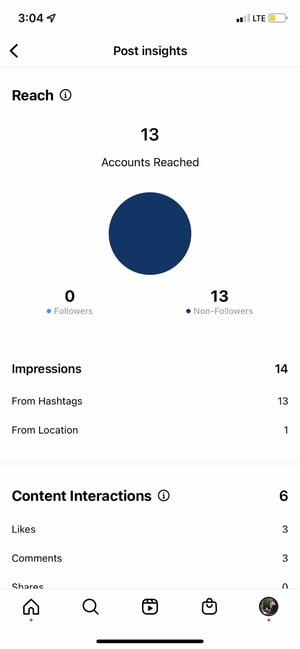
Previously named “Discovery,” Reach indicates where your post was seen — or discovered — the most, including how many accounts weren't already following you when they first saw the post.

This section includes metrics on Impressions, which reflect the number of times your post was discovered from a particular place within Instagram, like the user's home feed, a search, your profile, a location tag, or a hashtag.

Reach insights also include data on a post's reach — which reflects the number of unique accounts that saw your post.

9. View Story insights.

Instagram users with a business profile are able to view insights into their ephemeral Stories.

To view your Story insights, navigate back to Insights and scroll down to Content You Shared section on the Insights Overview page.

Scroll down to the Stories section, and you'll be able to see insights for older stories, as well as any that have not yet expired.

Next, we'll get into the more specific insights you can explore.

Impressions

This insight represents how many times your Story was seen.

When viewing these insights, keep in mind that you're able to add multiple images or videos to your Story. When you do this, every piece of visual content in your Story is counted as a single photo or video in your post.

Let's say you add six photos to your Story. Whether someone only views one or views all six, Instagram only counts your entire Story having received one impression.

The same goes for Story content that has been viewed by a single user more than once. Instagram still only counts that interaction as the entire Story having received one impression.

Reach

This insight reflects the number of unique users that have seen your Story.

Taps Forward

This insight reflects the number of times a user taps your Story photo or video to skip to the next piece of media.

Taps Back

This insight reflects the number of times a user taps your Story photo or video to go back to the previous piece of media.

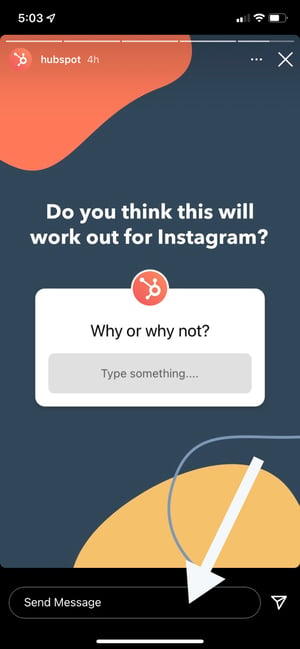
Replies

This insight reflects the number of times users send messages through the Send Message text box on your Story.

replies field inside an instagram story

Swipe Aways

This insight reflects the number of times users swipe to skip to the next account’s Story — not to be mistaken for "tap forward," which reflects users skipping ahead to your next piece of Story media.

Exits

This insight reflects the number of times a user leaves the Stories section entirely to return to the home feed.

Measuring Your Effectiveness With Instagram Insights

Now that you know how to access data to inform your strategy with Instagram Insights, you can analyze that data and determine what's working for your audience (and what's not). From there, creating content that gets a ton of engagement will be a lot easier as you consider those benchmarks.

Editor's Note: This post was originally published in January 2018 but has been updated for comprehensiveness.

hubspot marketing blog


How to Use Instagram Insights (in 9 Easy Steps) was originally posted by Local Sign Company Irvine, Ca. https://goo.gl/4NmUQV https://goo.gl/bQ1zHR http://www.pearltrees.com/anaheimsigns