The next Super Bowl is coming. And as we get closer to the big game, Americans aren't just looking forward to the football -- they're also excited to see what the nation's big-budget brands will come up with for this year's ads.
While much is still unknown about 2022's Super Bowl commercials, a few leaked ads hint that a lot of content will err on the relatable and comedic side, while still giving viewers the high-budget excitement the Super Bowl ads we know and love.
Here’s just one example of a commercial we can expect on Super Bowl Sunday from Budweiser. The ad, directed by Academy Award winner Chloé Zhao, features a Clydesdale horse that overcomes a significant debilitating injury, which is meant to symbolize the resilience people have shown time and time again during the continued COVID-19 pandemic.
But leaked ads aren't the only thing we can watch to prepare for the marketing marvels we might see on Sunday.
To amp you up for this year's "Ad Bowl," I've collected some the best ads from the last decade and before.
Be sure to check back each year, as we'll continue to add to this list as new teasers are released.
Without further ado, please enjoy these attention grabbing, emotion-inducing, and sometimes award-winning ads.

The Best Super Bowl Ads from the Past Decade
1. “Wow wow no Cow” — Oatly (2021)
Oatly’s Super Bowl ad features the company’s CEO Toni Petersson in the middle of a field singing a song with the lyrics “Tastes like milk but made for humans, wow wow no Cow.” For 30 seconds, viewers watched him sing and struggled to find a point to the advertisement.
Many took to social media to say that it was the worst Super Bowl commercial, yet it achieved exactly what every business wants from their ads — buzz. Everyone was talking about how weird the ad was, generating brand exposure and continuous conversation. Oatly even followed up the ad by selling shirts on their website that said “I totally hated that Oatly commercial.” Many brands and businesses want to leave a mark and make an impression, and Oatly certainly did.
2. "Loretta" - Google (2020)
Google's Super Bowl ad tells the story of a man who doesn't want to forget the memories he had with his wife. To the sounds of FUN's "Say Something," the man types "how to not forget" into Google and sees search results about how to improve memory. He then uses voice search to say, "Hey Google. Show me photos of me an Loretta."
As he clicks through photos, he explains some of the fond memories he had with his wife. For example, at one point he laughs and tells the Google Assistant, "Remember. Loretta hated my mustache." Then text from the Assistant says "Ok. I'll remember that."
As the man Google's things related to his life and marriage, viewers get a glimpse of the precious moments that made up his life.
At the end of the ad, after viewers have felt a wide range of emotions, Google promises to provide users, "A little help with the little things."
While many Super Bowl ads focus on throwing viewers into the action, highlighting celebrities, or comedy, Google took a more emotional approach to remind viewers how its products can help people at different points in their lives. While search helped the man learn tips for remembering things, Drive and Assistant were able to help him relive memories related to his marriage.
3. "Joust" - HBO and Budweiser (2019)
Prior to the 2019 Super Bowl, Budweiser launched a funny series of ads that followed a medieval kingdom where the king and townspeople would cheer, "Dilly Dilly!" when offered the beer. The series also featured a hero called the Bud Knight. In some advertisements, he would ride in on his horse and fight in battles clad in armor covered in Budweiser logos.
At the beginning of Budweiser's 2019 Super Bowl ad, you see a handful of happy medieval characters waiting excitedly for the Bud Knight to arrive at a jousting match
As the Bud Knight heroically rides his horse on screen, the audience cheers, "Dilly Dilly!" as the competition begins.
But. things get grim quickly. Shocking, the Bud Knight loses and is knocked off his horse by the opponent. As the tall, masked opponent walks up to the knight, most Game of Thrones fans will begin to recognize him Gregor Clegane, a.k.a. "The Mountain" -- one of the show's most monstrous villains.
As Clegane towers over the Bud Knight, it becomes apparent -- especially to GoT fans -- that the ad is mimicking a dramatic death scene from the HBO series where The Mountain physically squished another heroic figure with his bare hands.
Clegane dramatically, but comedically, reaches down to grab the Knight with both hands. As townspeople react over-dramatically to what's going on, it's apparent that Clegane's killed yet another knight by squishing him off screen.
Suddenly, the Game of Thrones theme music begins to play as a dragon flies over Clegane and takes him down with a blow of fire. As the dragon escapes into clouds and smoke, the music gets louder as the show's logo and air date appears instead of a Budweiser logo. In a sense, Game of Thrones and HBO hijacked and destroyed the Budweiser ad series.
This ad is hilarious as it comedically mimics an incredibly intense and notable scene from Game of Thrones. More interestingly, it surprises audiences who are just expecting it to be a standard Budweiser ad. This is a great example of how one ad combined cross promotion with a memorable storyline.
The ad, produced by Droga5 and Wieden+Kennedy, was so humorous and clever that it even won the 2019 Super Clio, a Clio Award for Super Bowl ad participants.
4. "We All Win" - Microsoft (2019)
After it came to Microsoft's attention that people with missing limbs or limited mobility were having trouble holding and pressing buttons on video game controllers, the tech company developed an adaptive controller with touch pads rather than buttons.
After the controller's launch, Microsoft highlighted this story of how they solved for the customer in a 2019 Super Bowl ad titled, "We All Win."
n the Gold Clio-winning campaign, Microsoft interviewed children with mobility issues and missing limbs about why they loved video games, but how they still faced difficulties with game controllers due to their disabilities.
Many of the children and parents featured in the ad explain that gaming helps them connect with friends in ways that they might not be able to otherwise. However, because of the current line of controllers, they have difficulty playing or competing in many games.
"I never thought it was unfair. I just thought 'Hey, this is the way it is and it's not going to change," says one boy.
After demonstrating the problem with game controllers, the ad shows the children using Microsoft's new adaptive video game controller as they explain how it makes gaming easier and more accessible for them.
For example, one girl excitedly says, "I can hit the buttons just as fast as they can," while a boy exclaims, "Now everyone can play!"
"'We All Win' hit all the marks in terms of emotion, starting a dialogue, and fun. It wasn’t an ad about disabilities, it was about kids wanting to play video games," says Dmitry Shamis, Senior Director of Creative. "I loved it back in February and still love it now."
Not only does "We All Win" tug on your heartstrings, but it also encourages solving for the customer and accessibility by explaining how Microsoft took the time to develop a product that fixed a major problem faced by a unique group of customers. This ad makes you believe that Microsoft genuinely cares about its customers and will make extra efforts to ensure that everyone has a great experience with its products.
You can read more about this particular campaign and get inspired by a few more empowering ads in this blog post on inclusive marketing.
5. "It's a Tide Ad" - Tide (2018)
Another Super Clio winner was, "It's a Tide Ad," created by the clothing detergent company, Tide, as well as the agency Saatchi & Saatchi New York.
In 2017 and 2018, Tide released a number of commercials with storylines that had nothing to do with Tide, except for the actors’ noticeably clean clothes. When viewers were at the edge of their seats, someone in the ad would say, "It's just another Tide ad." Then, they'd see the Tide logo and text that said, "If it's clean, it's Tide."
This campaign started with a long Super Bowl ad, which also received an Emmy nomination. In the ad, Stranger Things' David Harbour shows up in several common ad scenes, including in the bathroom with a buff deodorant model, driving a sports car, and laughing on the couch with a fake family.
As he appears into each commercial, he explains that all of them have one thing in common: clean clothes that were washed by Tide detergent. In the end, he says, "So, does this make every Super Bowl commercial a Tide ad? I think it does."
Since Tide has one job of keeping clothes clean, they show off the brand's strength in multiple versatile and silly scenarios. Humor like this can also be a great way to make a simple product more memorable. If you go to the store to get detergent shortly after seeing this commercial, Tide might be the first thing to pop into your head because of the ridiculous ads.
6. "Band of Brands" - Newcastle (2015)
What do you do when you can't afford a Super Bowl ad? Cross-promote with other brands who will pay for it. That's what Newcastle, a popular beer company, did back in 2015.
Prior to the 2015 Super Bowl, Newcastle launched a call to action video where Parks and Recreation actress Aubrey Plaza encouraged brands to pool their money for one big ad. Because Super Bowl ads that year were well over $4.7 million -- not including production -- a number of big and small brands reached out to Newcastle to join in for a chance to be featured -- even for just a few seconds -- in the ad
The one-minute ad is filled with product placements as it tells the story of a couple that's sharing Newcastle beers together to celebrate moving into a new home. As they walk through their new house, you can see brand logos hung on the walls like paintings, family photos, or decorations.
As they unpack the boxes, they not-so-subtly talk about all the appliances they have while holding them up to the camera. Aside from the obvious visual product placements, they also work brands into their conversations. For example, at one point, the man tells his girlfriend that he can't believe they're moving in together after "meeting on Match.com."
Although the ad starts off with more clever obvious product placements, it gets funnier as the couple starts pointing out every single product they have in their house as quickly as possible.
This ad is an incredibly clever example of a brand that took product placement and co-marketing to the extreme, while benefiting from a virtually free Super Bowl commercial.
7. "Keep Your Hands Off My Doritos" - Doritos (2010)
"Keep Your Hands Off My Doritos" hilariously tells the story of an overconfident man meeting his love interests son for the first time. In the ad, the man walks into his date's home with flowers and sits with her child as the mother gets ready. When she leaves the living room, the man is seen noticeably checking her out.
He sits down with swag as he starts talking to her infant son. Without thinking to ask the child if he can have one of his Doritos, he grabs a chip. The boy immediately and loudly slaps him, stares him down in the most intimidating way a child can, and angrily exclaims, "Keep your hands off of my momma. Keep your hands off of my Doritos!"
The overconfident boyfriend ends the commercial cowering in fear as the screen fades. As the logo appears, you hear the boy's mother ask, "Are you playing nice?"
This ad was so funny that it's still seared into many of our minds. Even though it launched nearly a decade ago, I still tell friends to "keep their hands off my Doritos" when they grab one of mine without asking.
Although it's only 30 seconds, the ad is hilarious, relatable, a little bit shocking, and heartwarming, which makes it so memorable.
The Best Super Bowl Ads Before 2010
8. "Wassup" - Budweiser (1999)
If you grew up in the late '90s or early 2000s, you might have a memory of kids at your school yelling the word "WASSUP?" to each other. I know I do.
If not, you've probably seen the Budweiser ad that the now outdated greeting comes from:
In the ad, a man answers the phone while watching a big game. His friend on the other line asks, "Wassup?" The man on the couch says, "Nothing. Just watchin' the game and drinkin' a Bud." The conversation escalates when the man's roommate unexpectedly walks in and yells, "WASSSSUPPPPP?!"
In true 1990s fashion, the roommate rushes to pick up the other house phone to join the conversation. The three men then just start yelling, "Wassup!" in louder and more bizarre ways until they suddenly get quiet. One of the friends then asks, "So, wassup?" The two others on the phone again say, "Nothing. Just watchin' the game and drinkin' a Bud." Then, everyone says, "True."
This video might seem like a waste of millions of dollars on a Super Bowl slot, but it definitely wasn't. As a viewer and consumer, all you need to know when watching is that the three friends are all watching the game and drinking Budweiser. The "Wassup?" marathon was essentially a tool meant to make the commercial funny and memorable. Based on the fact that, "Wassup" was still getting referenced in the second half of the 2010s, it's easy to see that this ad was a success.
9. "Your Cheatin' Heart" - Pepsi (1996)
This old Pepsi commercial highlights the consequences of what could happen if you "cheat" on your company's brand.
The short and sweet ad simply shows fake security footage of a Coca-Cola delivery employee placing Coca-Cola cans in a store refrigerator to the Hank Williams Sr. song, "Your Cheatin' Heart." Things get interesting when the delivery man looks to make sure no one's watching and then opens the fridge with Pepsi in it.
Suddenly, the shelves in the fridge collapse as all of the Pepsi cans noticeably barrel out of the fridge and on to the floor. The ad makes a short and simple point: Even Coca-Cola employees love Pepsi:
10. "1984" - Apple (1984)
At the dawn of 1984, Apple leveraged the George Orwell classic,"1984," in an award-winning Super Bowl campaign.
The 1948 George Orwell novel, followed a 1984 dystopian society where everyone dressed the same and conformed to the same leader, views, and ideologies.
As an innovative company, Apple has always tried to be "different" from competitors. The tech giant's approach to Super Bowl advertising stood by this same mission even back in 1983.
The Super Bowl ad brings the conformist community in 1984 to life as you see men marching in straight lines towards a room where their leader is on a giant screen, telling them, "We are one people, with one whim, one resolve, and one cause."
At the climax of the commercial, a woman with a hammer and colorful clothing starts running towards the screen. She launches her hammer into the screen as it explodes.
A narrator concludes, "On January 24th, Apple Computer will introduce the Macintosh. And you'll see why 1984 won't be like 1984."
Not only did the ad, directed by Ridley Scott, highlight a well-known book. But it was boldly symbolic of early tensions and monopolies in Silicon Valley. At the time, Apple was considered a young, disruptive company while IBM was the only tech giant in the PC industry. Tech journalists and innovators in Silicon Valley often thought about IBM as a soulless corporation.
In this ad, Apple explains why innovation, disruption, and tech unique tech underdogs would destroy monopolies of the future. It also reiterated and enforced the brand's positioning as a company that wanted to make products that would allow people to embrace their unique qualities and skills. This is a strategy that they've continued to use in their campaigns today.
11. "I'd Like to Buy the World a Coke" - Coca-Cola (1971)
On the hills of Italy in 1970, Coca-Cola pulled together a group of young adults from a number of countries and filmed them sing a jingle called, "I'd Like to Buy the World a Coke."
This resulted in one of the most notable ads from Coca-Cola, let alone a popular ad from the 1971 Super Bowl:
This commercial is a great form of early inclusive marketing as it shows that everyone has something in common, despite the fact that we all come from different or diverse backgrounds.
In particular, this ad shows that millions of people from all around the world can agree on the fact that they enjoy Coca-Cola. Not only does it embrace the beauty of diversity and world peace, but it also highlights the international popularity of the soda beverage.
Super Bowl Ad Takeaways
Even if you're a small business marketer. you can learn from these ads for your own video or content marketing strategies. Here are a few things that many of these ads have in common.
- Emotion: Whether they leave you feeling happy, sad, or optimistic, most of these ads drew your attention with a topic and storyline that built emotion.
- Pop Culture: As you saw with Budweiser, HBO, Newcastle, and Apple, some of the most memorable ads acknowledged notable pop culture or literature and weaved a memorable story around them.
- Relatability: Emotional ads don't often work without relatability. Many of these ads do an excellent job of putting you into their protagonist's shoes. Whether you're seeing children able to access gaming in a Microsoft ad, or laughing at the child who's protective of his mother in the Doritos ad, you identify with the characters or people featured on a deeper level.
For more examples of big brand ads you can learn from, check out these rosters of Emmy nominees, Clio Award winners, and our marketers favorite campaigns of 2019.
Editor's Note: This blog post was originally published in January 2015. It was updated for comprehensiveness and freshness in 2021.

 The Best Super Bowl Ads of All Time
 was originally posted by
Local Sign Company Irvine, Ca. https://goo.gl/4NmUQV https://goo.gl/bQ1zHR http://www.pearltrees.com/anaheimsigns








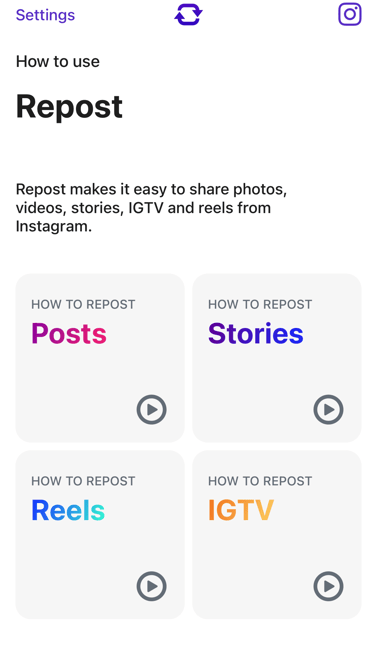
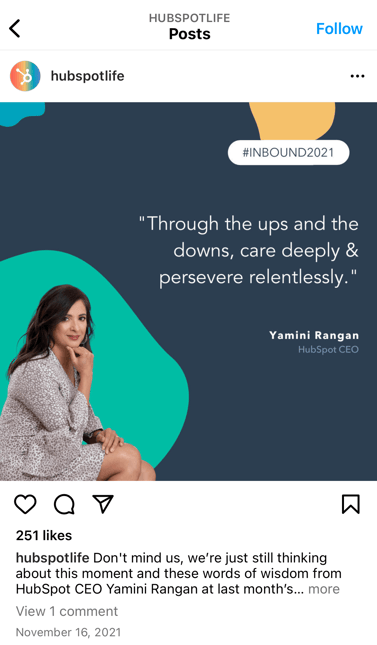 (Psst — do you follow
  4. Open Repost: For Instagram.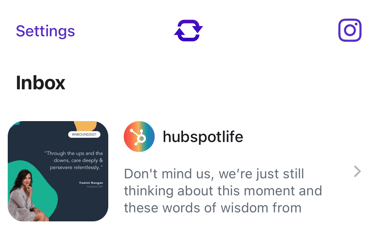
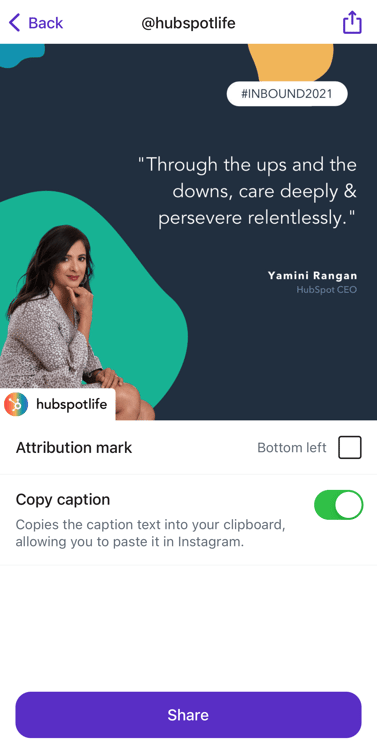
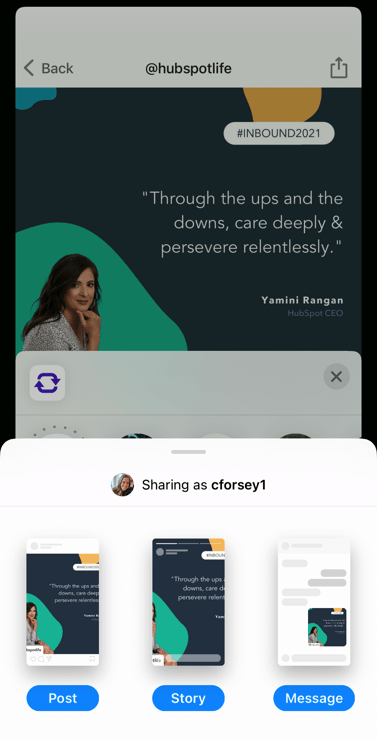
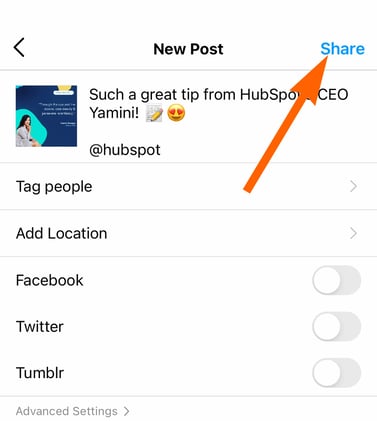
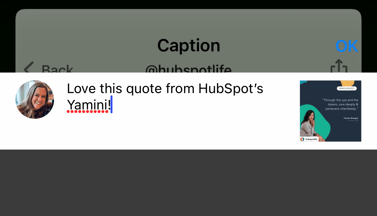 When you're ready to share the post, tap "Share" as you would a regular Instagram post.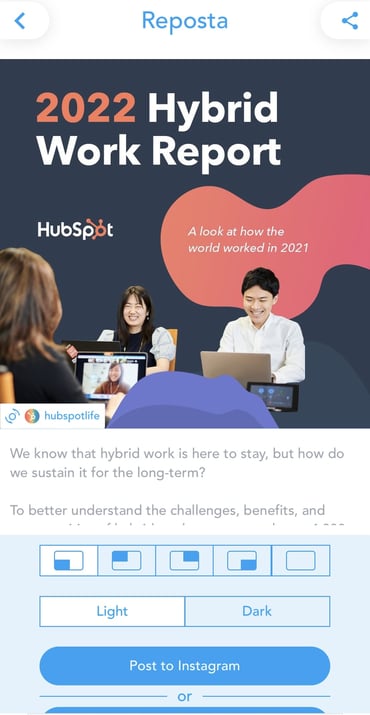
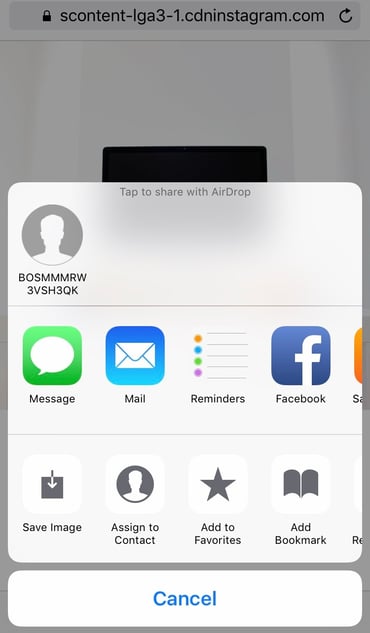
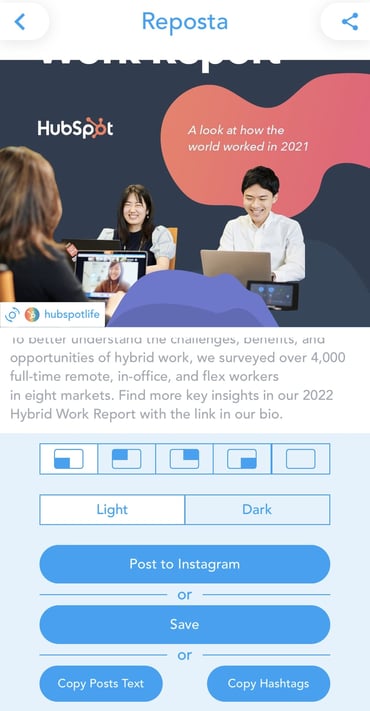 You'll see a few options below your image. For our purposes, choose "Post to Instagram". (Alternatively, you can save the image to use on a different date.)
  You have two options here: Story or Feed. Click "Feed".
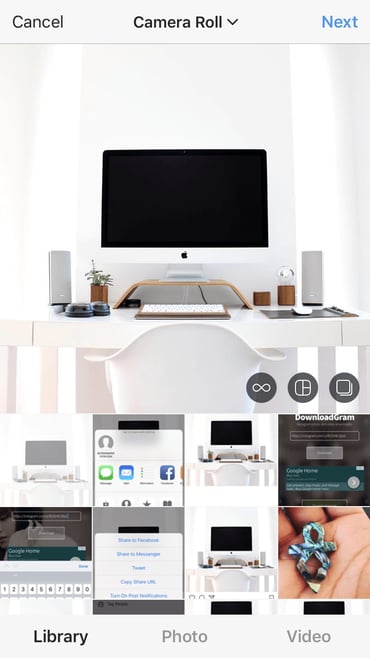
 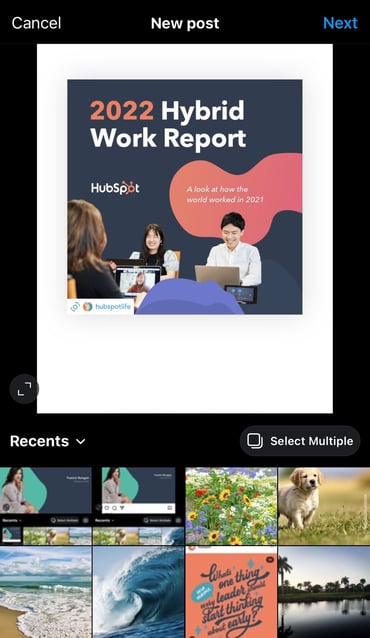 Feel free to adjust the size or cropping of your image in this step. When you're ready, click "Next".
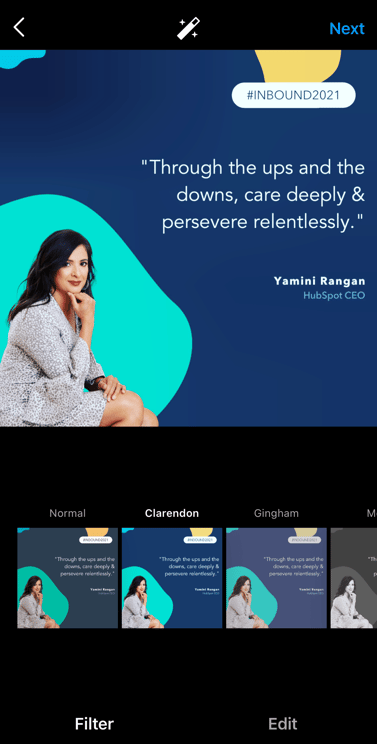
 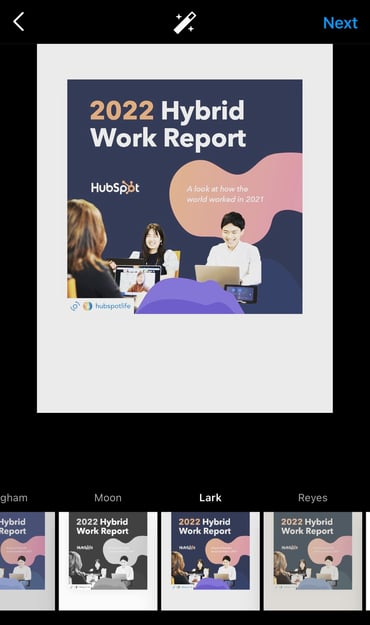 Here, you'll choose a filter and edit the image like you would any other Instagram image. When you're ready, click "Next".